How to Track Mileage for Maintenance Teams Who Bounce Between Properties
Emman Velos
Last update on:
September 3, 2026 7:29 AM
Published on:
TL;DR
Manual mileage tracking demands constant note-taking as techs move from site to site.
To avoid errors and missing mileage records, maintenance workers should use automated mileage tracking systems. Timeero tracks mileage automatically from clock-in, using GPS technology to accurately map each driving route. With verified records and increased visibility, maintenance teams stay organized and admins have numbers that reflect real work.
Trying to piece together a maintenance tech’s day using their scribbled notes and half-completed tripogs, you know it feels a bit like solving a mystery.
A tech starts the morning in one neighborhood, swings by a unit across town, gets pulled into an emergency leak somewhere unexpected, and ends the day with a key exchange on the opposite side of the city. That’s a pretty typical Tuesday.
And somewhere in that blur of stops and detours, you’re expected to generate clean, accurate property management mileage records.
Mileage tracking for maintenance teams sounds simple on paper, but really it’s one of the most messy admin chores that property managers, office admins, and maintenance supervisors deal with daily.
To track mileage for property management staff effectively, you need a tool that follows the work as it happens, not hours later. Timeero is designed to do just that. The mobile app uses GPS technology to track and record mileage across multiple locations.
We’ll walk you through how it works below.
Capture every billable mile between properties automatically.
Timeero ensures precise reimbursement without the manual paperwork.
Why mileage tracking is hard for maintenance teams
Maintenance schedules rarely go as planned. You know the drill: a clogged shower becomes a plumbing backup, a simple door hinge fix turns into a lock replacement, and a last-minute HOA complaint reroutes a tech to another property when he thought he was heading home.
Last minute changes and assignments are only one of the reasons why mileage tracking is difficult for maintenance teams. Let’s take a look at a few additional reasons below.
1. Daily routes change by the hour
Maintenance teams deal with unexpected requests all day long: an HVAC unit fails, a tenant gets locked out, or a garbage disposal needs to be replaced. Every new call reshuffles schedules and driving routes.
A tech who planned to work one side of town might end up zigzagging between neighborhoods instead. Amid all of this constant rerouting, manual logs simply can’t keep up. After all, they assume a straight, predictable path, which is the one thing maintenance teams never have.
2. Lots of short trips across neighborhoods
Mileage tracking for maintenance technicians becomes especially difficult on days packed with short trips back and forth across neighborhoods. In fact, when you're completing eight or ten of those trips daily, tracking becomes impossible.
“Did I visit the duplex before or after the townhome?”
“Do I need to log that detour I made for supplies?”
Having to log everything manually quickly becomes overwhelming as every detail and detour blurs together.
3. Logs get filled in after the fact
When a tech is juggling a clogged toilet, a broken latch, and a resident asking when someone can look at their A/C, stopping to write down miles is the last thing on their mind. The job in front of them takes priority, not the odometer.
So, naturally, maintenance technician mileage gets logged later. That could be later at lunch time, or worse, at the end of the week, when they’ve forgotten most of the details. By then, it's pure guesswork. "I think I drove about 40 miles Tuesday" becomes a rough estimate that may or may not be accurate.
4. Paper logs and spreadsheets can’t keep up
Paper logs and spreadsheets can’t capture what actually happens in the field. Route changes, detours, missed stops, and schedule adjustments happen on the fly, but manual record keeping forces technicians to remember details or update records later. That kind of mileage tracking system breaks the moment the day gets busy, and the information quickly becomes incomplete or lost.
Even when the log looks complete, there’s no way to confirm its accuracy.
Did the technician follow the route they wrote down? Were all the stops finished? Does the mileage record match the path they actually drove?
Without real-time visibility, you have no way to confirm trip details. When mileage looks off or reimbursements get questioned, handwritten notes don't prove anything.
How GPS-based mileage tracking with Timeero solves these problems
Maintenance work rarely follows a straight line. People call with last-minute issues, a property you thought was fine suddenly isn’t, and your techs spend the day bouncing between neighborhoods like human pinballs. Teams that rely on paper logs rarely find workable solutions for tracking multi-stop mileage.
That’s why many companies turn to automated GPS tracking. It’s the simplest way to track mileage for field staff who are constantly on the move, and it works without interrupting the flow of a busy day. Timeero takes that on in the background, capturing the real movement between properties so your team can stay focused on the work itself.
Here’s how Timeero simplifies tracking mileage between properties so your team can move freely without losing records:
Automatic drive detection keeps every mile accounted for
Think about how many times a tech hops into the truck “just for a quick run across the street,” fully intending to add it to their log later. Those small, in-between trips add up over the course of a day, and they’re the first ones to get lost when mileage is tracked manually.
As soon as a tech clocks in and begins driving, Timeero begins recording their location in real time. Every shift starts with a clean GPS trail, and any stops they make while driving are automatically reflected in the data. Each part of the day is captured and attached to the tech’s timecard without any extra steps.
Since mileage is automatically tracked as soon as driving begins, this means short trips are recorded in real time, last-minute reroutes are logged accurately, and techs never have to remember to “fill it in later.”
GPS routes create a complete breadcrumb trail
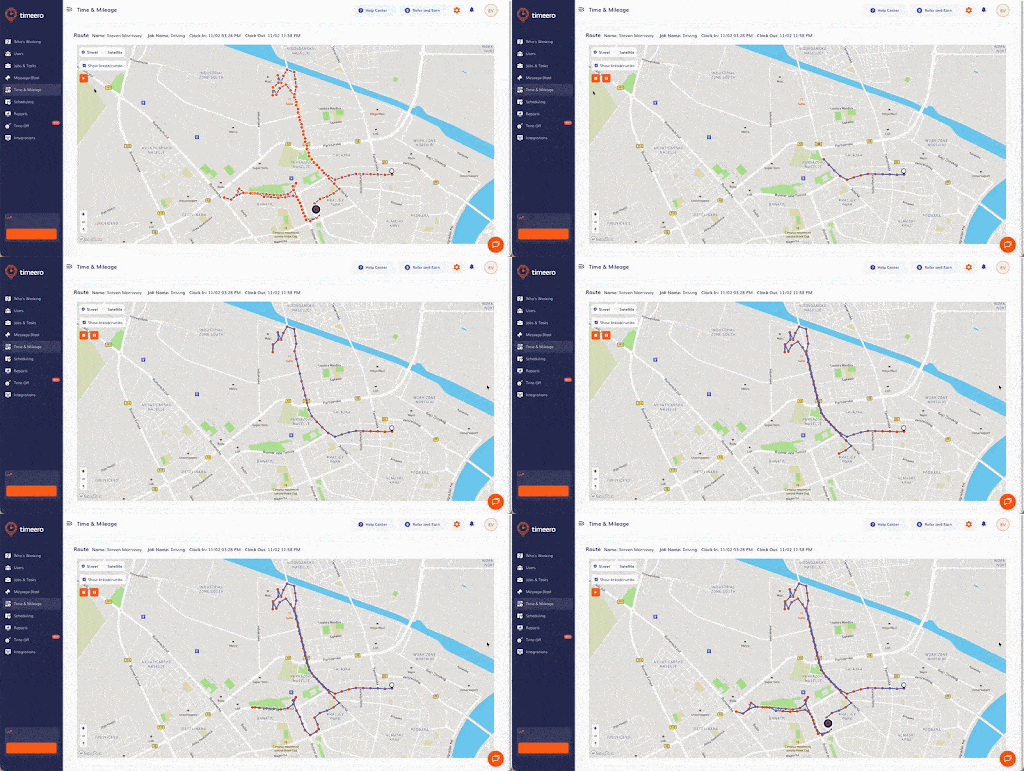
Timeero’s GPS tracking capabilities give you one of the best ways to track mileage between properties by building a breadcrumb trail that reflects the entire workday. Instead of a few isolated location pins, the breadcrumb trail shows everything that happened between them — every turn, reroute, andshift in direction as priorities changed.
Timeero’s Route Replay adds even more depth. When you click the play button under “Show breadcrumbs”, you can watch the entire day unfold in sequence, from the moment the tech began driving to his final stop. You can see how quickly they moved between properties, how far the detours took them, and whether the rhythm of their day lined up with what was scheduled.
For teams that handle frequent multi-stop routes, this replay acts as a living record of the workday rather than a reconstruction based on memory. This kind of visibility becomes useful in the moments when you need answers quickly, like knowing exactly which miles to pay for.
Segmented Tracking shows mileage and time by property
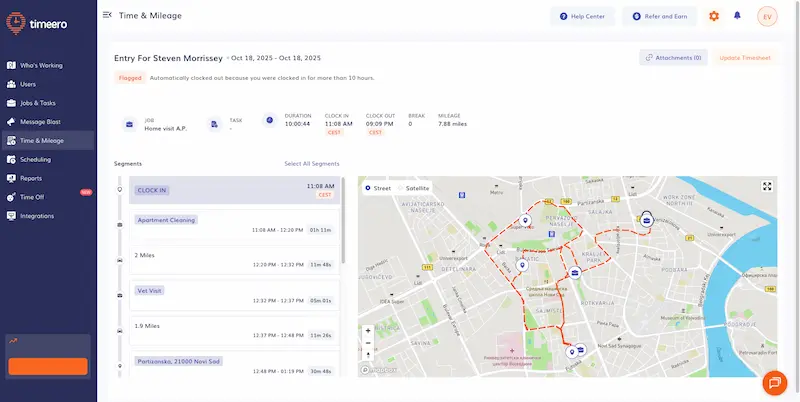
Timeero’s Segmented Tracking gives you an even clearer picture of the GPS route by providing you with the numbers sorted neatly by job site location.
When Segmented Tracking is enabled, each trip is broken into clean segments tied to specific properties. You see exactly how far the tech drove, how long they spent on-site, and how the day’s miles were distributed between addresses.
To view these segments, simply navigate to the specific timecard under Time & Mileage and select Segmented Tracking. Instead of a seeing a single mileage total of 23.3 miles, you get a location-level breakdown like this:
Oak Street Duplex: 4.2 miles
Riverside Complex: 11.8 miles
Sunset HOA: 7.3 miles
You can also click on each individual segment to view their exact GPS location on the virtual map.
When someone asks, “How many miles did we clock traveling to the Willow Lane unit last month?”, the answer can be found in the time and mileage report.
This level of detail helps when:
Reviewing billing for managed properties
Verifying time spent at specific units
Answering questions during internal audits
Planning technician workloads and assignments
It also builds trust between techs and supervisors because everyone can see accurate, GPS-verified records.
Geofencing keeps mileage strictly work-related
A common challenge in the property management industry is separating business mileage from personal. Techs sometimes make a quick stop for lunch or run an errand on the way to another job, and those extra miles shouldn’t be reimbursed.
Timeero’s geofencing technology helps companies avoid reimbursing personal trips by tying mileage and time entries to real work locations. Inside the admin dashboard, you can create a geofence around any property by dropping a pin on the map, adjusting the boundary to match the site, and assigning it to the correct Job or Customer profile.
Once the geofence is saved, every tech approaching that location will automatically see a prompt to clock in; when they leave, they’ll be prompted to clock out. It’s simple to set up and even easier for the team to follow.
These location-based nudges keep records clean by ensuring:
Business mileage is connected to real job sites
Personal or non-work trips stay off the record
Arrival and departure times reflect where the tech actually was
Techs don’t have to remember to start or stop anything on their own
The end result is a mileage log you can trust, backed by location-aware prompts that reinforce accurate, work-related tracking without adding friction to a tech’s day.
Mileage rate rules and commute exclusions simplify payroll
Mileage reimbursement gets complicated fast. Some companies pay the IRS standard rate, while others use custom rates based on vehicle type or technician role. And commute miles from home to the first job (and from the last job back home) typically aren’t reimbursable. Managing those differences by hand leads to inconsistencies and extra admin work.
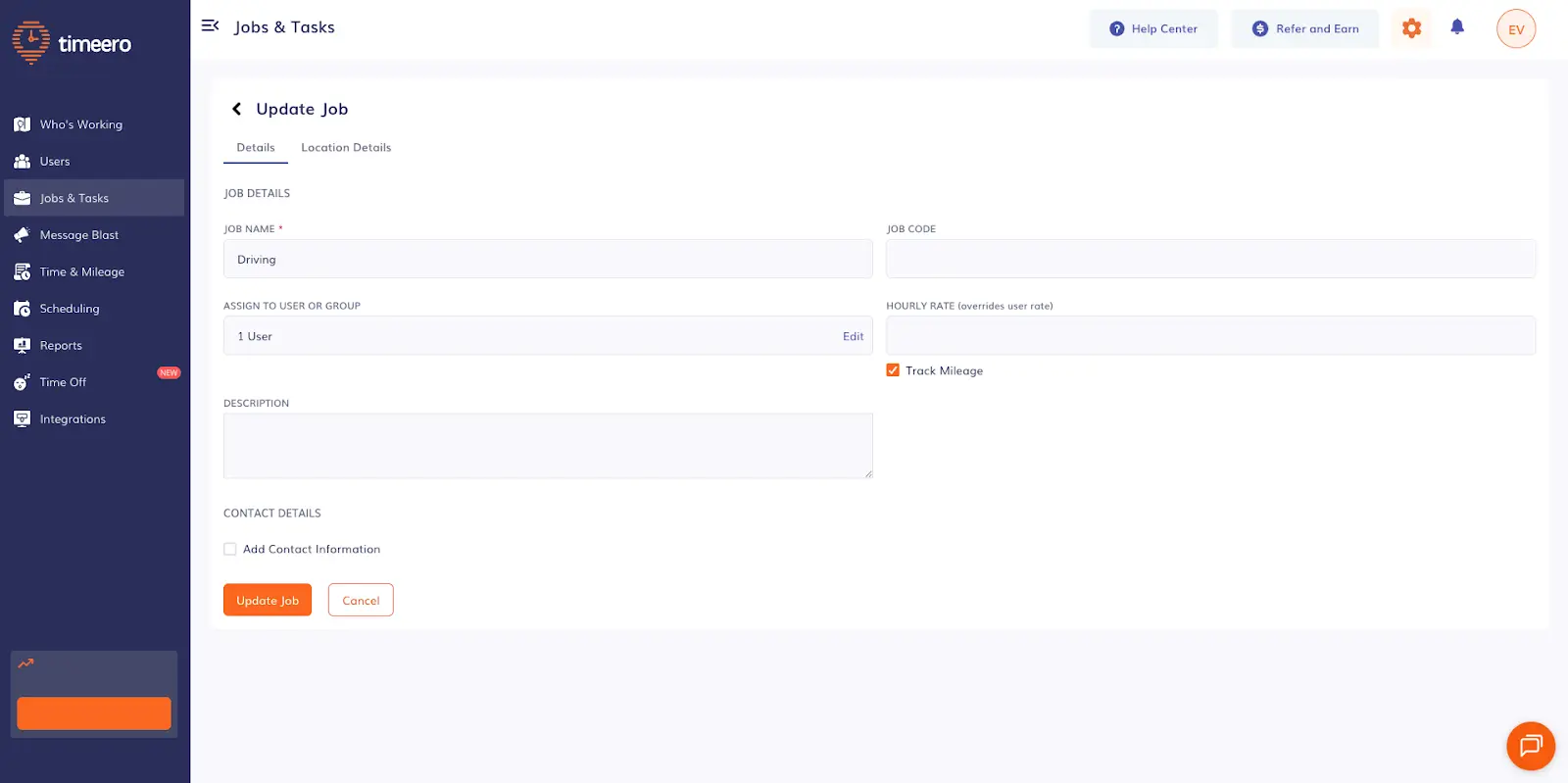
With Timeero, you can apply a company-wide mileage rate for all jobs, then override it for individual techs or vehicles when needed. Once the rate is in place, the system applies it automatically to every shift.
Commute mileage is simple to handle as well. You can define a daily commute-mile deduction, say the first 10 or 20 miles, and choose whether it comes off the first trip, the last trip, or a mix of both. As long as commute exclusion is turned on before the shift starts, Timeero handles the calculation.
By the time mileage reaches payroll, each trip has already been reviewed against your rules. You get consistent, verified reimbursement amounts without digging through spreadsheets or second-guessing handwritten logs.
Admins get visibility without micromanaging
Good visibility helps property managers make smarter decisions throughout the day. Techs benefit too, because they spend less time answering “Where are you now?” calls and more time focusing on the work in front of them.
Timeero’s Who’s Working dashboard gives admins a live look at each technician’s location, route progress, and active jobs. When a new request comes in, you can see who’s already nearby instead of calling to interrupt your techs mid-task. If a tech reports heavy traffic or a delay, you can confirm their location on the map and decide whether to send out another team member.
This real-time view keeps operations moving without constant check-ins. Techs stay in the field doing their work, and supervisors still have the clarity they need to coordinate the day smoothly, turning unpredictable days into accurate mileage logs for property management teams.
Reports are ready when you need them
The most time-consuming part of manual mileage tracking often comes at the end of the pay period. Timeero turns what as a complex process into a simple export to create IRS-ready reports.
Reports include:
Mileage per technician
Mileage per property
Total reimbursement amounts
GPS-verified documentation for audits
Detailed route history and timestamps
Everything is already categorized and calculated based on the rules you defined. Admins no longer spend hours sorting through notebooks or spreadsheets, and your records remain consistent for payroll, client billing, or compliance needs.
Automating mileage tracking with a GPS-based tool offers more than convenience. It creates reliable records, removes friction between teams, and helps property managers stay confident that the numbers they see reflect the actual work done in the field.
A day in the life: What mileage tracking looks like with Timeero
Luis starts his morning with two planned stops on the east side of town. Before he finishes his coffee, a new work order comes in from a property across the freeway.
He opens the Timeero app on his phone, selects Property Inspection as his Job for the day, clocks in, and heads out. With that single step done, he doesn’t need to touch the app again until after he’s done for the day.
Once he’s clocked in and begins driving, Timeero automatically starts tracking his mileage, driving route, and time worked.
Location 1: Eastside Duplex (scheduled visit)
Luis pulls into the Eastside duplex, grabs his tools, and heads inside to deal with the leaky faucet the resident reported the night before. It’s a quick fix: tighten a connection, test the flow, and make sure everything’s dry. A few minutes later, he’s back in the truck on his way to the next address. Timeero has kept working silently in the background, logging the location, job duration, and total mileage.
Location 2: Willow Lane Apartments (scheduled visit)
Luis is on his way to the second property when the office calls with a new request. He takes note of the address and keeps driving. Timeero keeps tracking the route automatically as Luis makes his way to Willow Lane.
Location 3: Riverside Garage (emergency call)
Halfway through the drive between stops, the office updates him again and calls about a garage in the Riverside area that is taking on water. Luis shifts course and heads straight there. Even though it wasn’t part of the original plan, Timeero follows the detour and captures the entire route, including how much time he spent attending to the emergency visit. Once he arrives, he handles the water issue and asks the resident to sign the timesheet before heading out.
Location 4: Sunset HOA (last-minute request)
Late in the afternoon, the office gets a call from a nearby HOA about a gate that won’t close properly. They pull up Timeero’s Who’s Workingdashboard and see that Luis is just a few blocks away, so they send the request his way. He swings over, replaces a worn hinge, and calls the resident to confirm everything’s working again.
By the time Luis heads home, he’s covered four properties, handled a mix of planned work and surprises, and never had to stop to record a single mile. His entire day — where he went, how long he spent at each stop, and how far he drove — was captured quietly in the background.
At the office, the team can see the full picture of his route without texting him for details or waiting for handwritten notes. The exact location of each job site is recorded, and the mileage tied to each address matches the work he actually completed.
At the end of the day, Luis clocks out and leaves knowing the paperwork side of his day is already taken care of.
Get accurate, stress-free mileage tracking with Timeero
Maintenance teams spend their days on the move, shifting between planned jobs and surprise calls. Manual mileage tracking can’t keep up with that pace, which leaves your logs scattered and your payroll team guessing.
Timeero tracks mileage in a way that matches the way your techs actually work. As soon as a tech clocks in, every trip is recorded, every stop is documented, and every mile is tied to the right property without adding steps to anyone’s day.
How does Timeero track mileage for maintenance teams?
Once a technician clocks in and begins driving, Timeero begins tracking movement in the background. Every trip is logged automatically using GPS technology.
Does Timeero work if the user is offline or in areas with weak cellular coverage?
Yes. Timeero continues recording GPS data and mileage even when a device loses signal. The information stays stored locally on the phone and syncs to the account as soon as the connection returns. This is especially helpful for maintenance teams that work in basements, garages, rural areas, or large properties where coverage can be inconsistent.
How accurate is Timeero’s GPS mileage tracking?
Timeero’s mileage tracking is built around real GPS movement, not estimates or shortcuts. Each trip is recorded using precise location data and time stamps, so the mileage you see reflects the actual road your techs traveled and not a straight-line guess or a rounded number.
Ditch the manual logs slowing down your maintenance team.
Get accurate, automated mileage records that just work.
Emman is a passionate writer with more than 6 years of digital marketing experience under his belt. As a licensed chemical engineer with a passion for writing, he marries the technical with the creative to create engaging copy that converts. He is also a certified #girldad who spends most of his day playing with his three girls when he's not busy writing.



.webp)


%202.svg)


.png)
.png)



.png)


