QuickBooks Time Review 2026: Hands-On Testing for Field Teams
Jessica Helms
Last update on:
Oct 9, 2026
Published on:
TL;DR
Classic Time (TSheets) is being retired and QuickBooks Time is migrating into QuickBooks Online. The goal is to have time, payroll and accounting data all in one place.
Great for QuickBooks users, costly for everyone else. QuickBooks Time integrates well with QuickBooks Online, but you need both subscriptions. A 10-person team plus 1 admin on the cheapest plans pays $158/month.
Gaps for field teams. QuickBooks Time testing showed no Auto Clock-In/Out, missed mileage on one test drive and when offline, and no California break compliance tools.
Timeero is built for mobile workforces. It offers automatic clock-ins, more accurate GPS mileage, and field-focused reports with no additional subscription plans required.
Why migrate to a new platform when you’re comfortable where you’re at?
That’s the question field teams using QuickBooks products ask themselves when they start looking for a time tracking app.
While QuickBooks Time might appear to be the natural choice, our hands-on testing in September 2026 revealed significant limitations, especially when it comes to the accuracy of GPS mileage tracking.
This QuickBooks Time review tests the current user experience, focusing on the features field teams use every day: time tracking, GPS location tracking, mileage tracking, geofencing, auto clock-in/out, offline tracking, and reports.
QuickBooks Time at a glance
Best for
Businesses already using QuickBooks Online
Teams without multi-stop routes
Teams needing detailed payroll reports, project tracking, and basic time tracking
Starting price
QuickBooks Time Premium
starts at $10/month for 3 months, then resumes at $20/month; $10/user/month and includes 1 admin
QuickBooks Workforce Premium
starts at $44/month for 3 months, then resumes at $88/month; $13/employee/month
Testing revealed that QuickBooks Time may not meet the complex business needs of field teams traveling between multiple job sites or teams with heavy compliance requirements.
QuickBooks Time is a cloud-based time-tracking solution that integrates directly with QuickBooks Online. Originally known as TSheets, the software, acquired by Intuit in 2017, helps businesses track employee hours, manage approvals, and export data for payroll processing.
Key QuickBooks Time features:
Time tracking and approvals
GPS and geofencing
Employee scheduling
Payroll integration
Reporting and job costing
Break and overtime tracking
What happened to TSheets?
2006 - TSheets is co-founded
2012 - TSheets began integrating with QuickBooks and lived within the QuickBooks family
2017 - Intuit acquired TSheets
2020-2021 - TSheets is renamed QuickBooks Time, which ran as a separate app from QuickBooks Online called, “classic Time”
In August 2026, Intuit announced that QuickBooks Time is migrating into QuickBooks Online. The product itself is not going away; rather, the goal is to have one integrated system, with time, payroll, and accounting data all connected. No more switching between web apps to manage time and payroll.
The classic Time web address: tsheets.intuit.com, will be retired within a few months of the September 2026 roll out.
Important note: QuickBooks Time requires an active QuickBooks Online subscription (starting around $38/month per company).
Pros and cons of QuickBooks Time
Pros
Who’s Working shows the exact location of employees on the clock
Checks the GPS location against nearby jobs before allowing clock-ins
Captures GPS location at clock-in to prevent off-site punches
Create and assign schedules to employees or crews from the mobile app
Request PTO and view PTO balances from the mobile app
Time tracked can be automatically synced to invoices for accurate client billing
Cons
Fixed base subscription is a lot for small businesses
Inaccurate mileage logs when GPS cut out along driving route
No auto clock-in/out feature
Not built for distributed teams that travel between job sites
The app is named QuickBooks Workforce but the product is called QuickBooks Time, which made it confusing to find in the App Store
No built-in California break compliance features
QuickBooks Time hands-on testing
Sign-up and set up
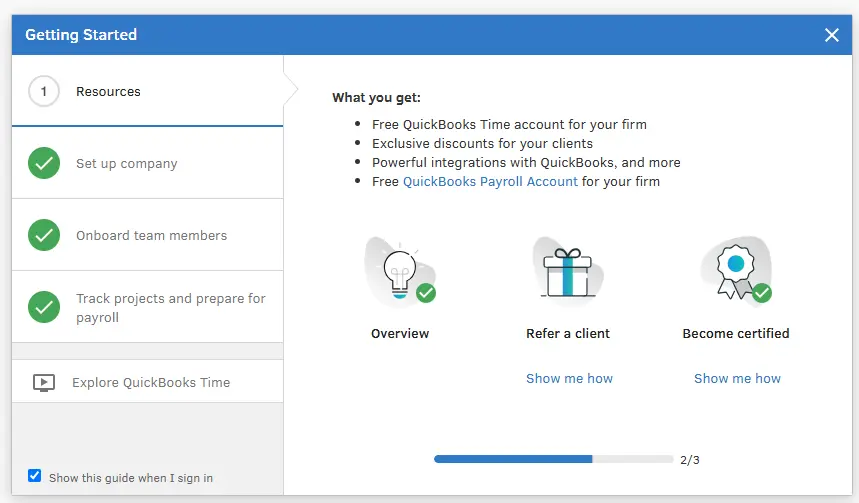
Setting up a QuickBooks Time account is pretty straightforward. An onboarding workflow is presented to help you set up your company account the way you want it to work.
Onboarding workflow shown on the desktop site
You can add projects and jobs within your account, depending on the type of work your company does. Once your jobs, projects, overtime rules, payroll and Time kiosk (optional) are set up, you can add team members to your company. I really liked that QuickBooks Time gives you multiple ways to invite employees to join your team.
You can add team members by:
Sharing a QR code
Importing from software
Adding employees manually
Sending invitations
Easily add employees to your team
The only point of friction was finding out how to enable mileage tracking for my company. I did some research and found I had to navigate to Feature Add-Ons and then Install mileage tracking before it would track mileage automatically.
Time tracking
Time tracking is by far the strongest feature QuickBooks Time offers users.
From the mobile app home screen, employees click on the “Track Time” icon to open up a timecard. Once an employee has selected their job and clocks in, QuickBooks Time records their GPS location.
Workers can also request PTO and view Time off balances from the mobile app homepage.
From the QuickBooks Time desktop, administrators can view time entries for all employees, manually enter time, and view time worked as a visual slider.
QuickBooks Time desktop time entries view
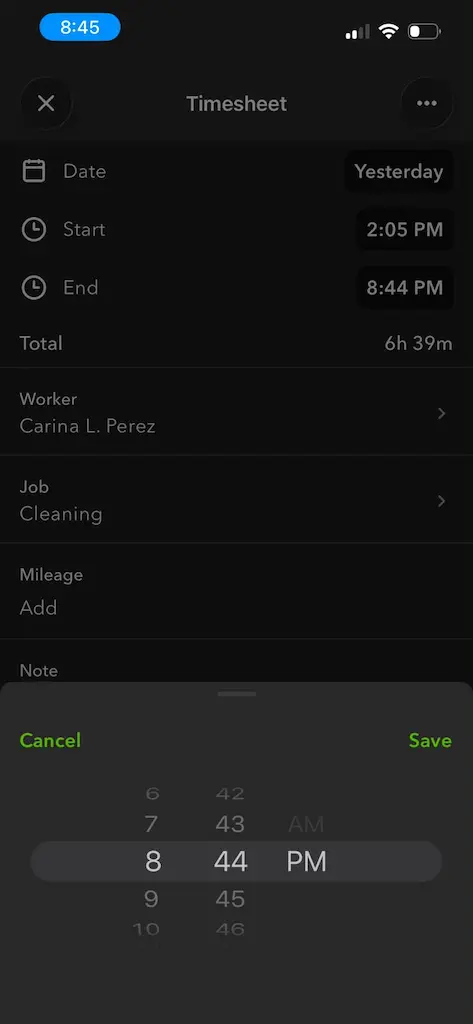
QuickBooks Time does allow users to edit their timesheets, which can potentially be a problem for field teams that work across multiple locations.
Employees can edit timesheets from the mobile app
However, the platform does have several workflows in place that allow admins to spot when an employee is trying to steal time.
Tested firsthand
Hands-on testing: geofences and time edits
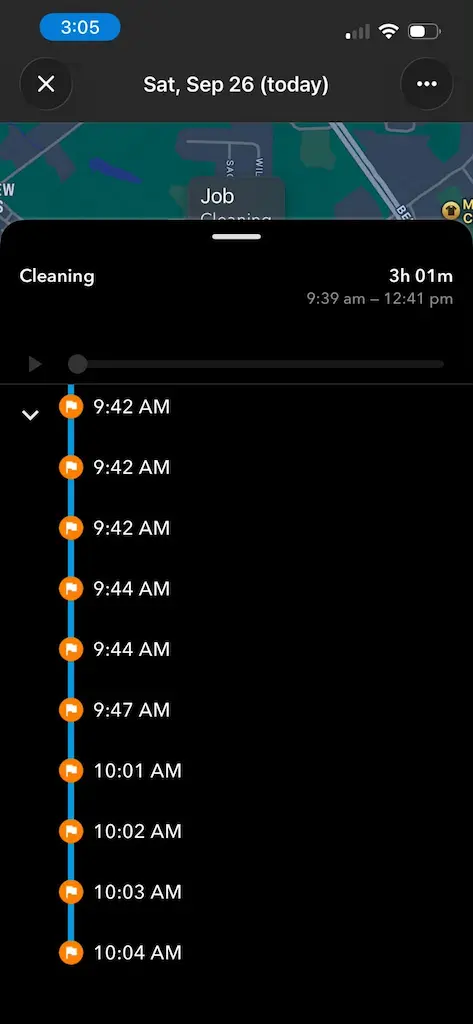
This morning I clocked in from the mobile app at 9:39 am from a geofenced location. When I left the geofence area, it was 9:41 am. A total of 2 minutes on the clock.
I did not clock out, so the app continued tracking my time and mileage. From my mobile timesheet, I can see that I began driving at 9:41 am (when I left the geofence) and stopped driving at 10:04 am.
Chronological order of GPS breadcrumbs captured during driving
When I sat down at the end of the day to review my timesheet, I had a notification that said I left the geofence and would need to clock out. When I clocked out, 2 minutes were recorded on my timesheet for the day.
Even though it was 3:02 pm, I still needed to manually clock out to record the time worked within the geofence
But, I went back in and edited my timesheet to show that I clocked out at 12:41 pm, a total of 3 hours and 1 minute on the clock.
Because the app continued tracking my mileage, GPS breadcrumbs justify my working until 10:04 am, but there is no proof that I worked until 12:41 pm. This scenario increases employee/employer time-related disputes.
The app’s lack of Auto Clock-In/Out is a major differentiator between other GPS time tracking apps. Instead of sending me a notification that I left a geofence and needed to manually clock out, QuickBooks Time could have automatically clocked me out on departure if leaving a geofence was to end my shift.
Although time tracking is accurate, QuickBooks Time does leave many holes open for employees to pad time, especially if there were no GPS mileage logs to back up their timesheets.
GPS tracking
There were pros and cons to QuickBooks Time’s GPS tracking system.
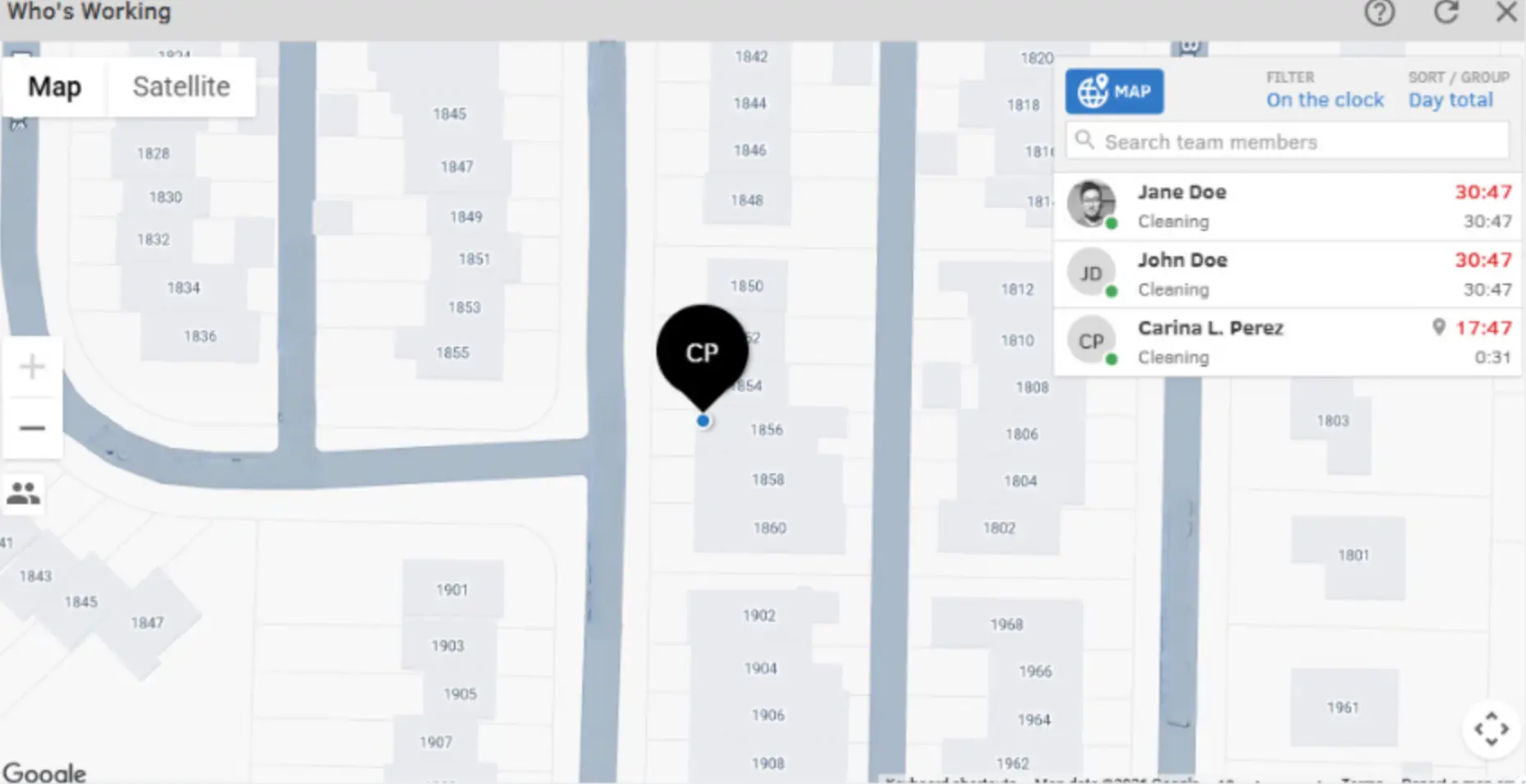
I really liked that the Who’s Working map shows the live location of all employees that are clocked in. The pop-up screen that shows the employee name, how long they have been on the clock, and whether any GPS points have been logged is a nice touch.
View the current GPS location of clocked in employees
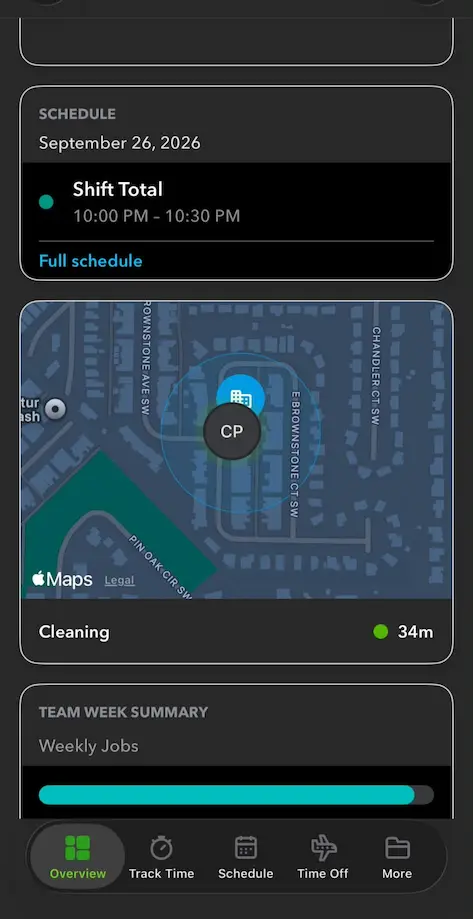
When I clocked in through the mobile app, my GPS location was always captured accurately. Once I was on the clock, the mobile app displayed a location map on the Overview screen.
The Overview screen shows my current job and GPS location
The app was able to recognize when I left the geofence radius, and would send me a push notification to clock out.
However, the reliability of QuickBooks Time GPS tracking is challenged when it comes to mileage tracking, which will be covered later.
Geofencing
Figuring out how to create a geofence for a job site took me a few minutes.
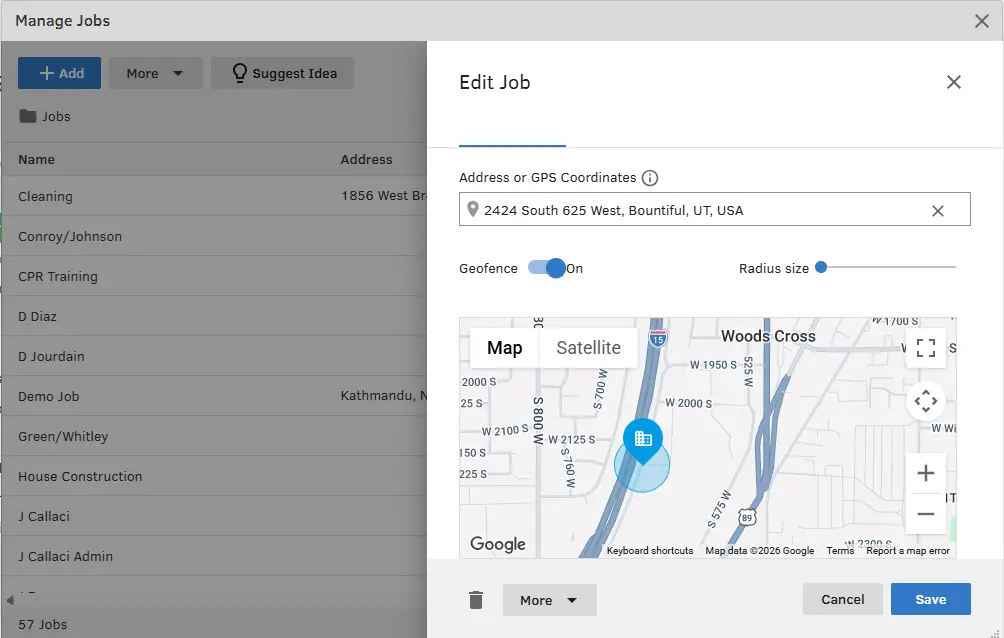
I was used to projects being synonymous with jobs, where geofences are usually created, but that is not the case with QuickBooks Time. Instead, I had to navigate to “Jobs” and then edit the address for each job that I needed to create a geofence for.
QuickBooks Time allows users to draw a geofence radius between 100 - 1,000 m, which is a wide range that leaves room for offsite clock-ins.
Circular geofences are added to individual jobs
Without the ability to draw custom geofences around a job site, employees can clock in when they are a far distance away from the actual work zone. This means your company ends up paying for time that wasn’t actually worked.
When I exited a geofence, QuickBooks Time did send me a push notification prompting me to clock out.
Push notification received when I left the geofence
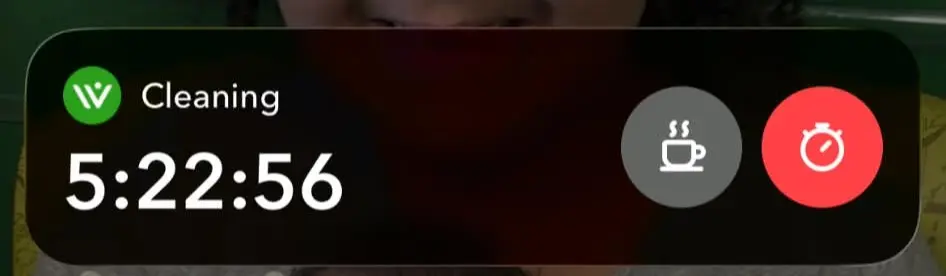
For this test, I didn’t clock out because I wanted to examine the app’s behavior. My time on the clock kept accruing and was up to 5 hours before I sat down and completed the clock out.
QuickBooks Time continued tracking my hours long after I left the geofence
Overall, the geofencing feature works as it is supposed to. However, the platform behaves as if arrivals and departures from the geofence signal that a shift is starting or ending. Having the ability to choose what happens when an employee enters/leaves a geofence would increase timesheet accuracy and stop missed punches.
Mileage tracking
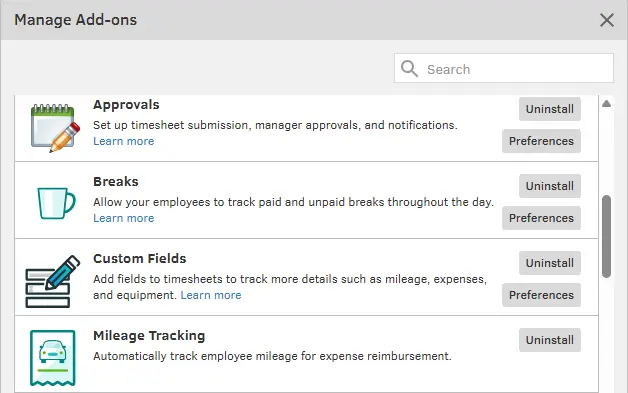
For starters, QuickBooks Time does not have mileage tracking turned on by default. To enable mileage tracking for your company, you will need to navigate to “Feature Add-Ons” on the desktop site. I felt like this step lengthened the set up process, since most field teams require mileage tracking.
Enable mileage tracking from your Add-on options
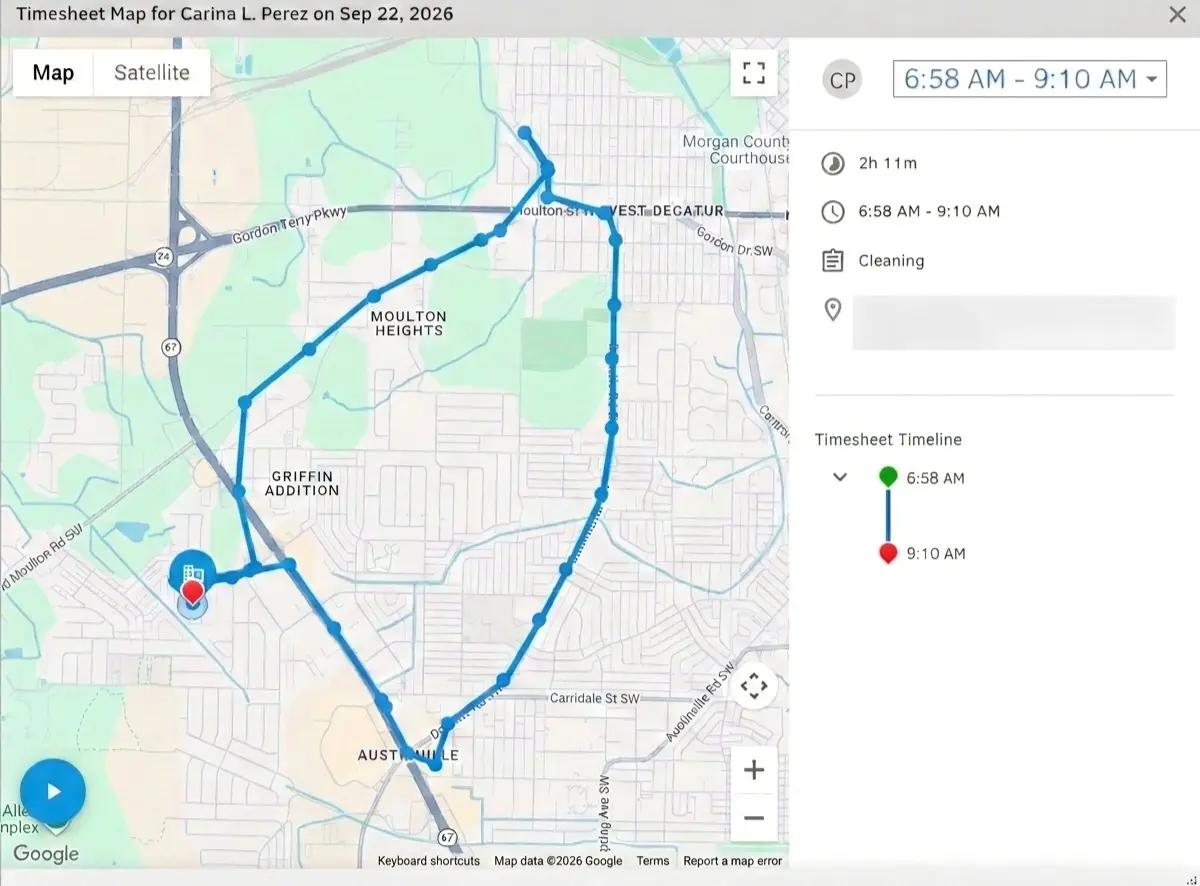
I tested QuickBooks Time’s mileage tracking against Timeero, running the two apps simultaneously during two different drives. To determine how well QuickBooks Time tracked mileage, I looked at how well both apps performed by asking these questions:
How often did the app drop GPS points or breadcrumbs?
At any point during my drive did the app stop tracking mileage?
How many miles did the app record?
Mileage test drive results
Test drive
Recorded by QuickBooks
Recorded by Timeero
Test drive 1
Difference: 2.27 mi
7.08mi
9.35mi
Test drive 2
Difference: 2.13 mi
31.53mi
33.66mi
Trip 1
I took both apps on a round trip around my city. QuickBooks Time tracked a total mileage of 7.08 miles, with GPS points dropped in even intervals during my drive.
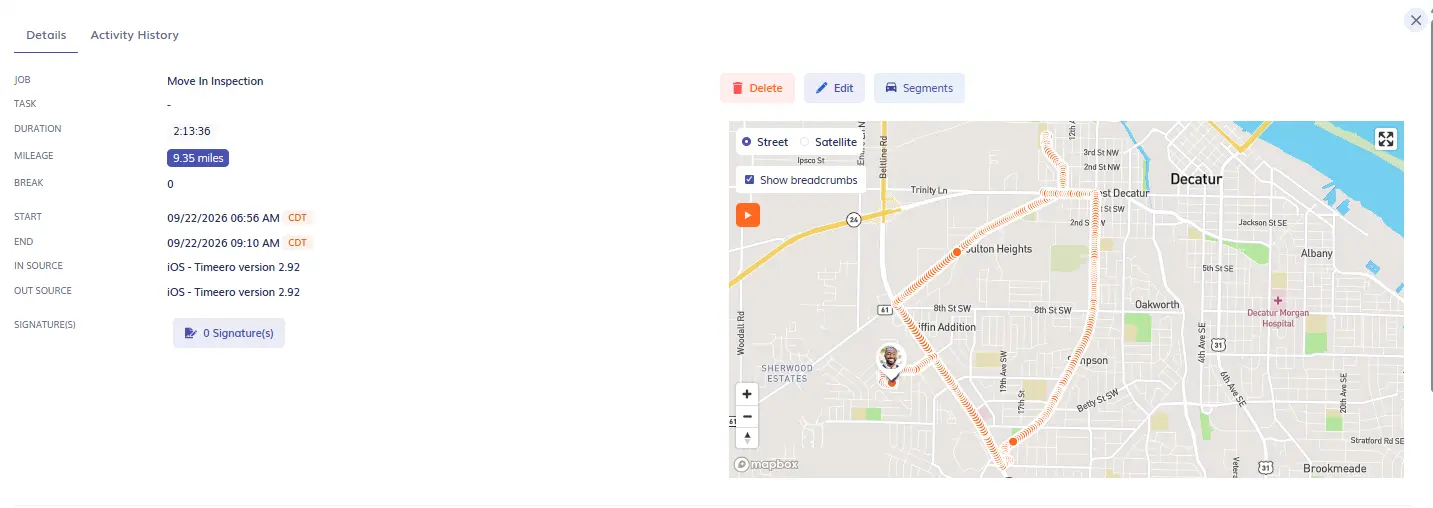
Timeero recorded a total mileage of 9.35 miles, dropping more GPS breadcrumbs along the driving route, which increases the accuracy of mileage tracking.
Timeero’s mileage tracking details show breadcrumbs, route, and total time on the clock
Results
The major difference I observed between the two apps’ mileage tracking capabilities is how frequently GPS breadcrumbs and points are dropped along the driving route. Timeero tracked 9.35 miles during Trip 1, while QuickBooks Time tracked 7.08 miles, a 24% difference. When GPS breadcrumbs are closer together and are dropped more often, your mileage logs will be more accurate.
Trip 2
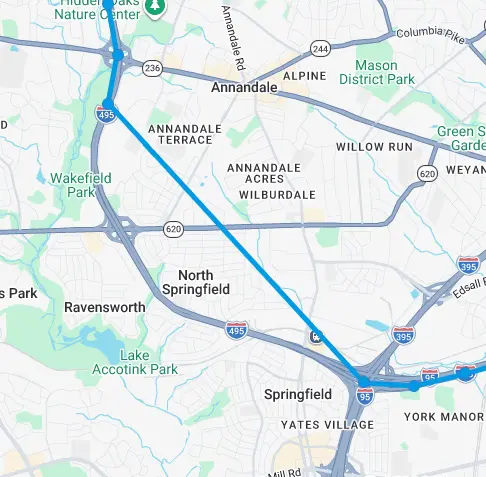
From 11:18 - 11:22 am, the whole drive through North Springfield was missed by QuickBooks Time. It appears that QuickBooks Time stopped picking up GPS data before reaching Springfield, and then picked back up after passing Wakefield Park.
QuickBooks Time stopped recording GPS data
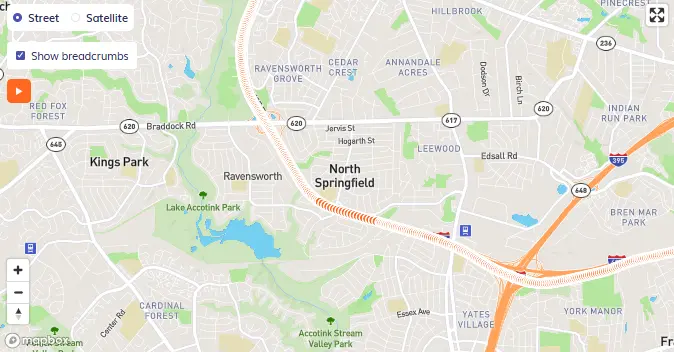
However, during the same drive, Timeero successfully captured mileage data through North Springfield, dropping GPS breadcrumbs along the driving route.
Timeero dropped GPS breadcrumbs and recorded mileage that QuickBooks Time missed
Results
QuickBooks Time failed to track 2.13 miles along the driving route. It might not seem like a huge deal for one drive, but if QuickBooks Time missed mileage for this drive, it can miss mileage for other drives, making it unreliable for field teams. Your crews will be underreimbursed for mileage and your logs won’t reflect actual driving routes.
Takeaway
If your field team travels between multiple work sites each day and you need to capture accurate mileage for reimbursement, taxes, and job costing, I would not recommend using QuickBooks Time.
The app’s mileage tracking feature works and gets the job done, but when I tested it against Timeero, the unreliability of its GPS tracking was exposed.
Offline tracking
To test the reliability of the app’s offline tracking, I turned off my phone’s WiFi and turned on airplane mode.
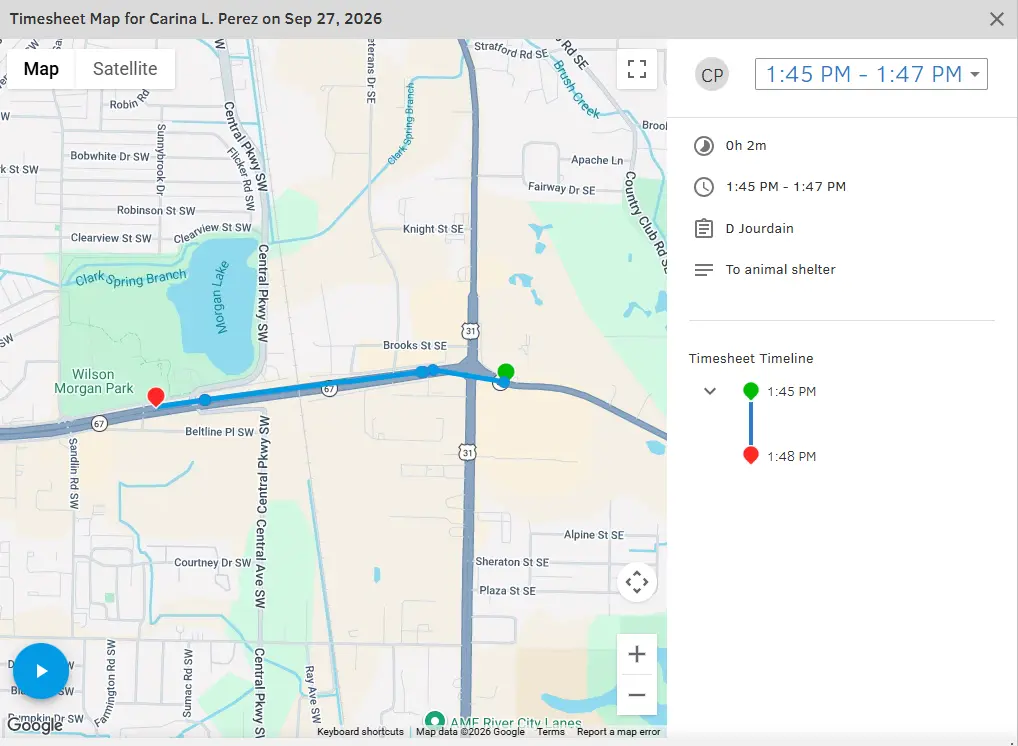
I was still able to clock out of my shift, switch jobs, and start and stop breaks while offline. From 1:45-1:47 pm I was driving in offline mode. When I reviewed my daily timesheet, QuickBooks Time recorded my driving route and hours worked while offline, but it did not calculate my mileage.
No GPS points were recorded when I was driving while offline
This is a major drawback for field teams that drive in areas with little to no internet connection. The worker’s driving route is displayed as a straight line, and no GPS points are recorded along the driving route. To reimburse for total mileage, the worker would either need to manually input the mileage into a custom field, or calculate mileage from starting and ending point destinations through a third-party app.
Reporting
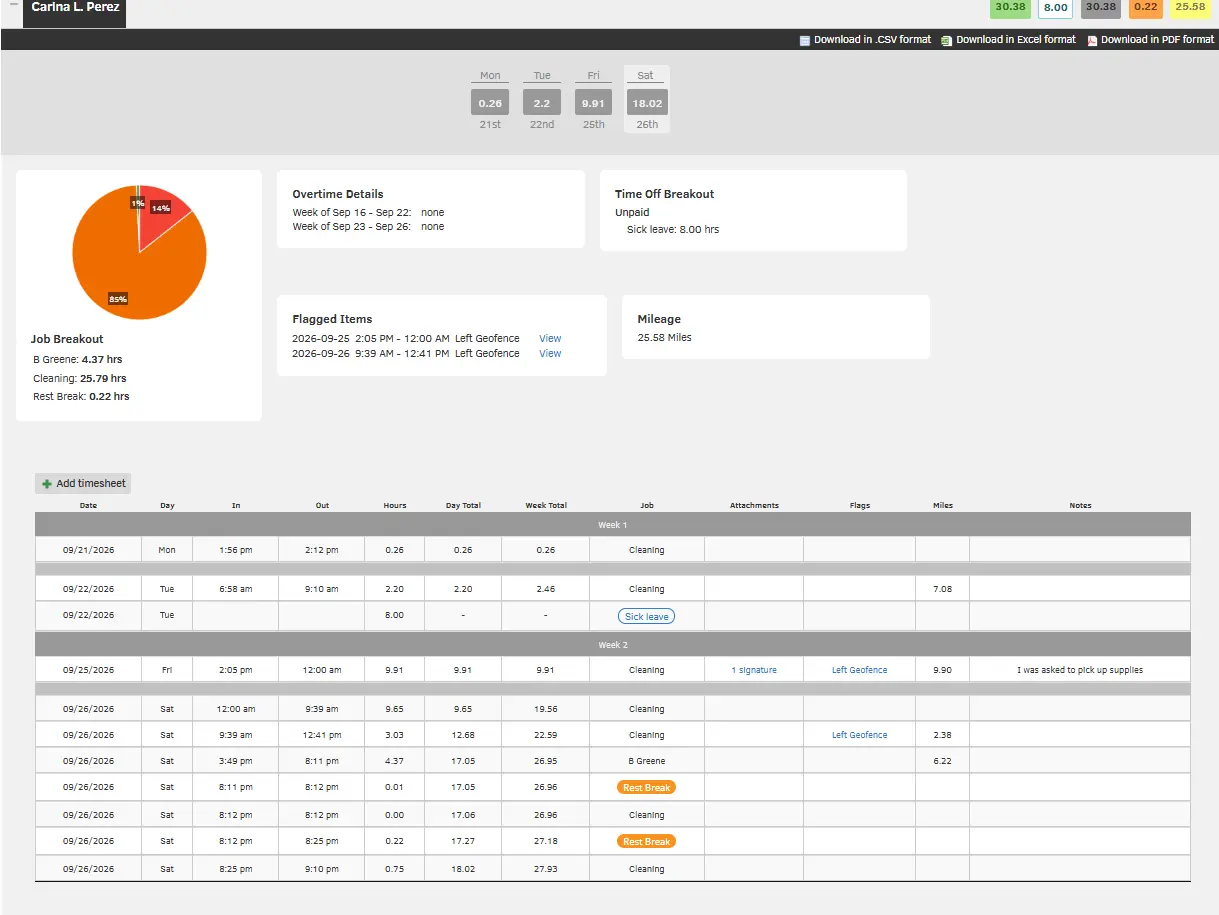
There are several useful reports that field teams can run to gain insights into time tracking, job costing, and employees’ work activities.
I really liked the payroll report. It showed the amount of miles each employee drove during the date range, as well as time worked, jobs, and flagged entries. The layout was visually appealing, which made the report easy to understand.
The payroll report shows overtime, time off, breaks, flagged entries, and time spent on jobs
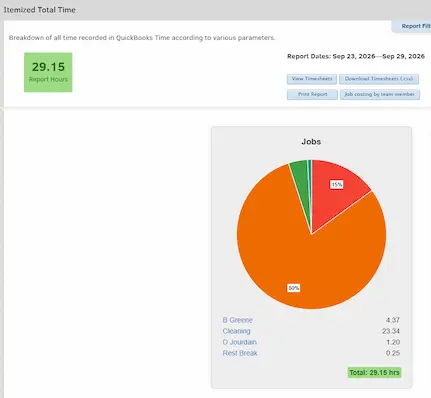
The itemized total time report was especially helpful. Even though it was simple, I really liked seeing how many hours were worked at each job, displayed as a pie chart.
The pie chart breaks down how many hours were spent on each job
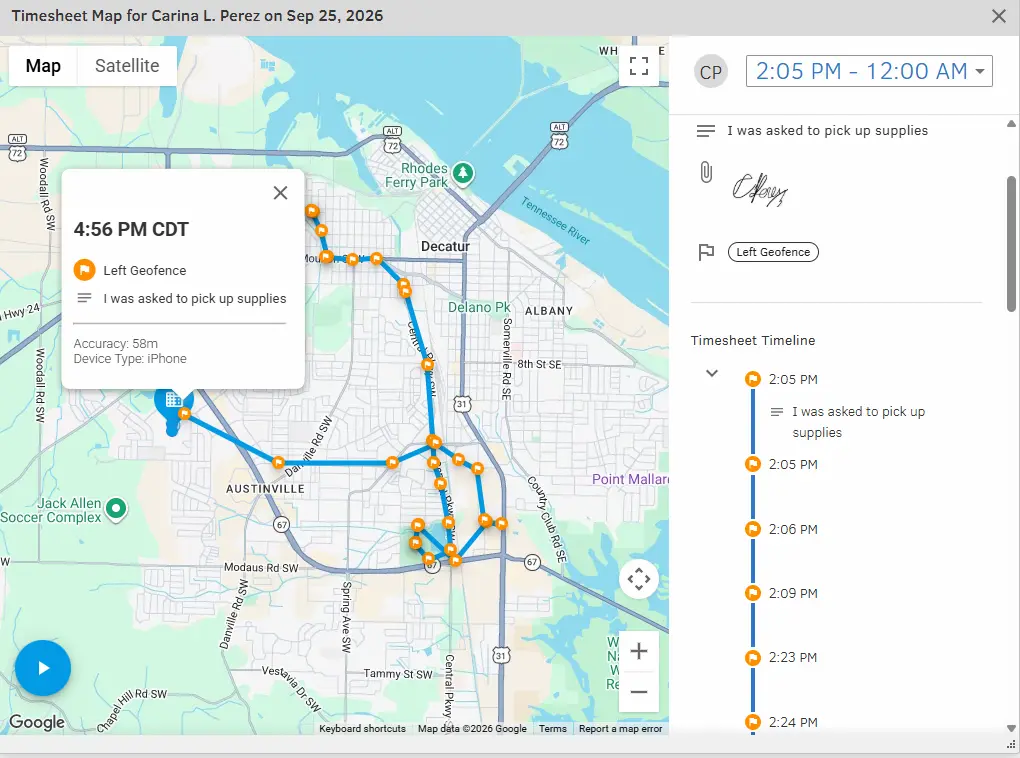
QuickBooks Time offers a geofence exception report, which shows when an employee remained on the clock after they left the geofence.
The geofence exception report shows where an employee traveled after leaving the geofence
I did try to run other reports, but a CSV file was the only viewing option, which I’m not too fond of. Formatting issues happen quite often when large amounts of data are transferred to spreadsheets, which makes running weekly reports more time consuming.
Integrations
QuickBooks Time integrates with QuickBooks Online and QuickBooks Workforce. It also connects with accounting software like Xero and payroll/HR providers such as Gusto, Paylocity, and Justworks. See the QuickBooks Time App Marketplace for the full list.
Note: Most of the integrations were designed to work with the classic QuickBooks Time, but since Time is moving to QuickBooks Online, some integrations may work differently or not at all.
Scheduling
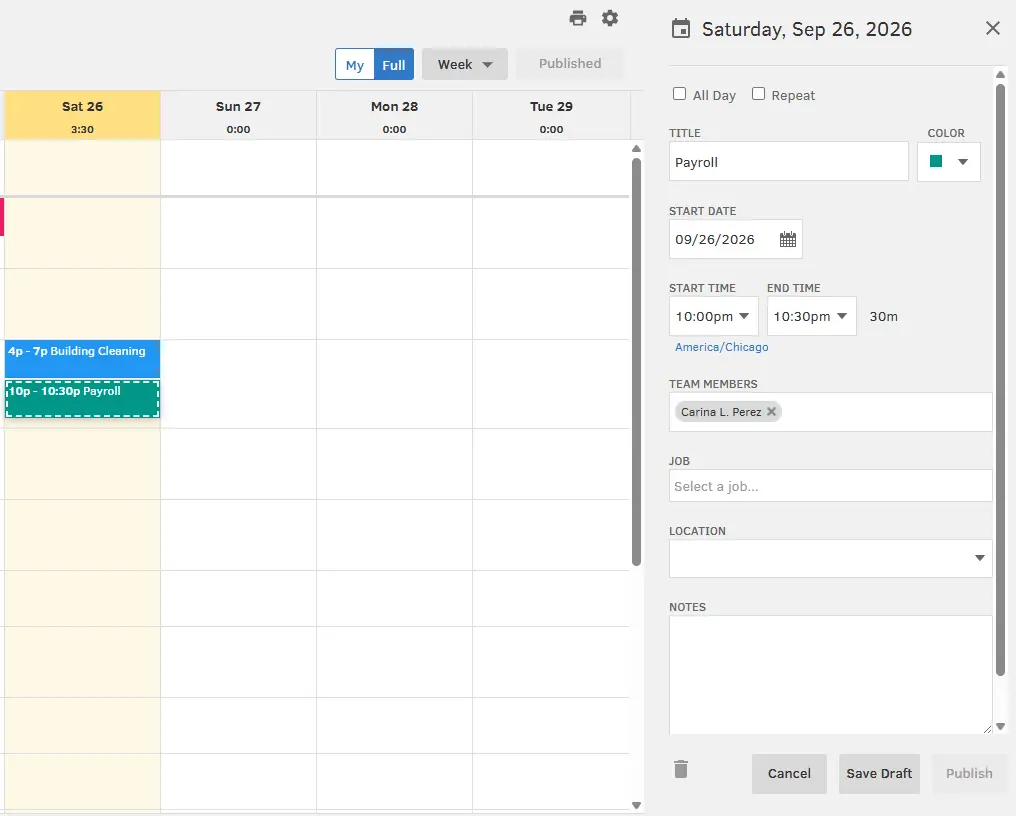
Creating and assigning shifts to employees and crews is straightforward. Navigate to the Schedule and either find the employee’s name and add a shift to an empty time slot, or click on “Actions” then “Add Shift”.
From there QuickBooks Time’s Scheduling feature operates the same as other GPS tracking apps. Give the shift a title, choose a display color, select start and end times, and assign to employees. Choosing a job and designating a job location are optional.
Drag and drop shifts in calendar view
During testing I noticed one major flaw that can greatly impact the accuracy of employee timesheets.
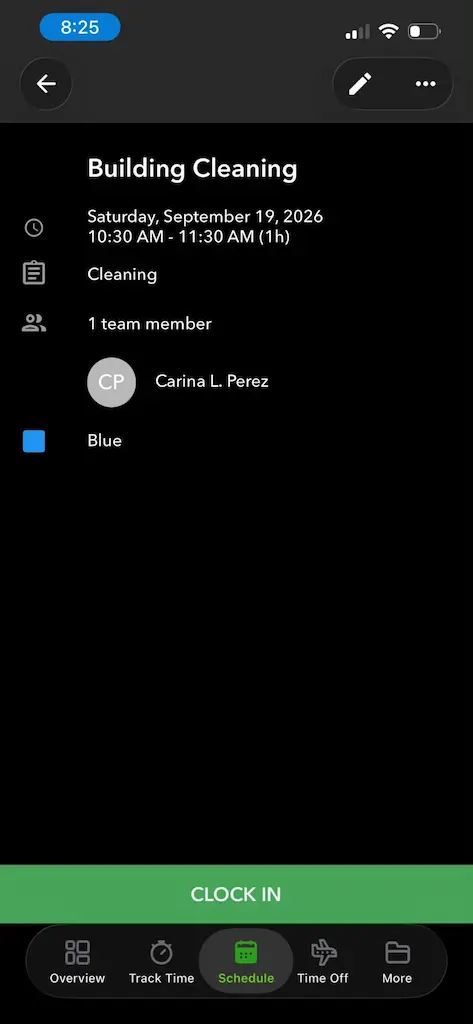
From the mobile app, you can view your past scheduled shifts and are still given the ability to clock-in to them, even when the day has passed.
I can still clock in to a previously scheduled shift
I tried this today. I tried to clock in to a shift that was assigned to me on September 19, 2026, roughly 7 days ago. I was allowed to successfully clock in. You’ll notice a 11 second time entry under cleaning where I clocked into that shift.
I clocked into my missed “Cleaning” shift that was scheduled on September 19, for 11 seconds
In my opinion, not having a way to flag these time entries is going to be very costly for field teams. If an employee did not report to their shift, they are still able to clock-in days later and the time is recorded on their timesheet. The only way that an admin would be able to figure out that they are intentionally claiming time not worked is if the past shift was tied to a job, because there are no indicators that the time is associated with a previously scheduled shift.
Time Kiosk
For this review, I did not test the Time Kiosk, but I did want to include that it is available.
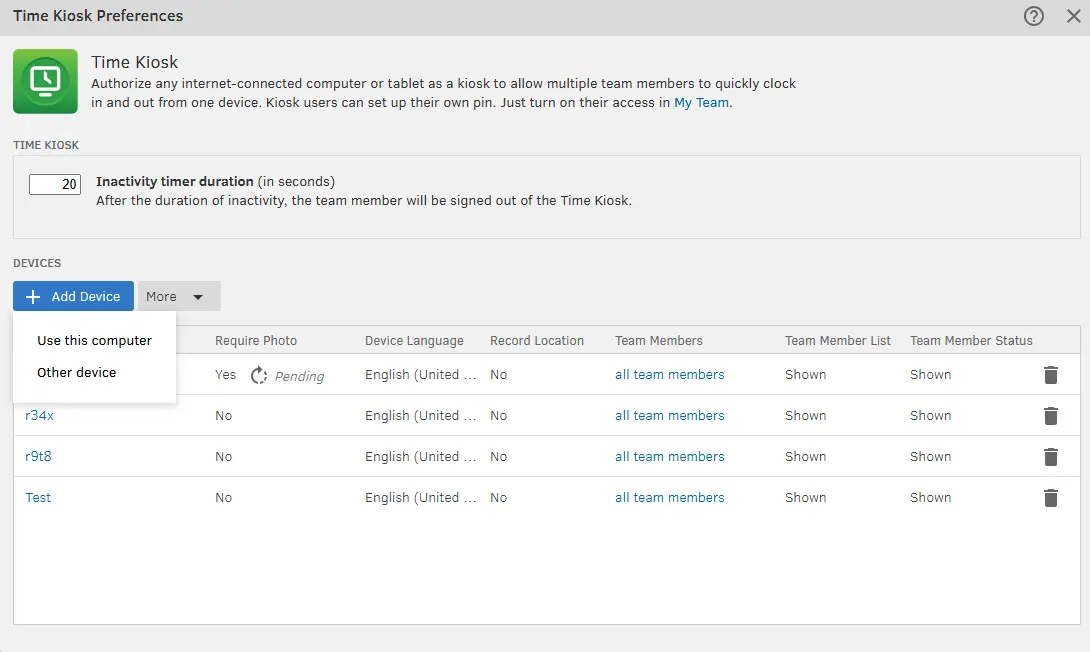
Field teams can use a desktop computer or another internet-connected device as a shared time clock.
Use the Time Kiosk to clock employees in and out from one central location
However, the Time Kiosk won't work for crews that start their day at different job sites.
Overtime and break tracking
Overtime
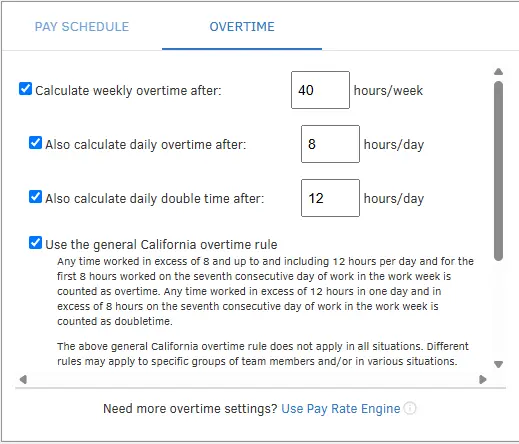
If you are concerned about your crews working past their 8 hour shift, you can customize your company’s overtime settings. QuickBooks Time also allows you to activate California’s Overtime rule, a major plus for California-based field teams.
Customize your company’s overtime settings
I can confirm that QuickBooks Time did send me a push notification when I worked over my 8 hour shift.
Overtime alert
I was allowed to adjust my clockout time to reflect the actual time, or I could clock out when I opened the notification. If I did the latter, admins could either approve my timesheet as is and risk overpayment, or track down my GPS activity to confirm where I was at clock out.
Breaks
I experienced no issues with the app’s break tracking. I was able to clock in and out of breaks without a hitch. My timesheets were an accurate reflection of my break time and showed the correct break type.
Break times are shown as individual line items on a timesheet
The only thing I noticed is that when I clocked out of a break early, the system did not flag my break entry. This can be problematic for teams in California with minimum break requirements.
AI and automations
In August 2026, QuickBooks Time introduced AI timesheet upload which gives users the ability to upload a paper timesheet and QuickBooks Time will turn it into a digital timesheet. This also works with PDFs, spreadsheets, and documents.
However, if you need to know how many hours an employee worked or how many miles they drove last week, QuickBooks Time does not have an AI tool that can answer this. Instead, you will have to find this information in reports.
QuickBooks Time pricing
QuickBooks Time and Workforce plans
Plan
Use case
Monthly base fee
Monthly price per user
Time Premium
Track time
$20/month*$10/month for the first 3 months
$10/user/month
Time Elite
Track time
$40/month*$20/month for the first 3 months
$12/user/month
Workforce Premium
Track time + run payroll
$88/month*$44/month for the first 3 months
$13/employee/month
Workforce Elite
Track time + run payroll
$134/month*$67/month for the first 3 months
$17/employee/month
* Regular base fee after the 3-month introductory price.
Does QuickBooks Time offer a free trial?
Yes, a 30-day free trial of Time Premium or Time Elite is available, no credit card required.
Does QuickBooks Time have promotions?
Yes, QuickBooks Time offers monthly discounts for new accounts. The current promotion is 50% off the monthly base fee for 3 months for new QuickBooks Time customers.
*New customers can either take the 50% off discount or use the 30-day free trial, not both. If choosing the discount, purchase of QuickBooks is required, and a credit card must be entered.
Is a QuickBooks Online subscription required to use QuickBooks Time?
Yes, users must purchase a QuickBooks Online subscription to use QuickBooks Time, which is an added monthly cost, especially for small teams. The QuickBooks Online plan you purchase depends on your workforce needs. For example, if you just need basic time management and accounting tools, the Simple Start plan is the most affordable choice.
QuickBooks Online plans
QuickBooks Online plan
Price per month without 3-month discount
Number of users
Number of accountants
Simple Start
$38/month
1
2
Essentials
$85/month
3
2
Plus
$140/month
5
2
Advanced
$340/month
25
3
Monthly cost breakdown example
How much you pay each month depends on which QuickBooks Time and QuickBooks Online plans you subscribe to.
The following table shows the monthly cost breakdown for a team of 10 plus 1 administrator using the Simple Start plan and Time Premium.
Monthly cost: Time Premium + QBO Simple Start
Plan
Base fee without discount
Monthly price per user
Monthly total
Time Premium
$20/month
$10/user/month
$120/monthBased on 10 users
QBO (Simple Start)
$38/month
N/A
$38/month
The total cost for this field team would be $158/month when subscribed to the most affordable plans.
Can I use QuickBooks Time without a QuickBooks Online subscription?
The only way you can avoid paying for a full QuickBooks Online account is to subscribe to Workforce Premium or Elite, which include Time. However, this only makes sense for teams that want to run payroll through QuickBooks Workforce.
Who should use QuickBooks Time?
QuickBooks Time is best for businesses that already use QuickBooks Online. Businesses that bill by the hour or track job costs benefit from project tracking on Time Elite, particularly when paired with QuickBooks Online Plus or Advanced. It's also a strong fit for companies running payroll through QuickBooks, since Time is included in Workforce Premium and Elite.
This is a huge win for busy field teams that struggle with missed punches. Timeero uses geofencing technology to trigger Auto Clock-In/Out, tying time entries to specific locations and jobs. When I tested QuickBooks Time’s geofencing feature, I saw firsthand how cumbersome it was to have to manually clock in and out each time you entered a geofence. Timeero’s Auto Clock-In/Out would have automatically clocked me out, no manual steps required.
2. Timeero tracks mileage more accurately than QuickBooks Time.
I found this to be true over my two test drives. A field team that travels between multiple job sites each day needs an automatic mileage tracking system that records every mile. When an app logs infrequent GPS points, mileage records are unreliable and fail to reflect actual travel time. Timeero continued tracking time and mileage through every turn.
3. Timeero’s reports show what field teams need to know.
While QuickBooks Time does offer a wide variety of reports, the options are not targeted to field teams. Timeero is a GPS time tracking and workforce management platform for field teams. Its reports are centered around time, mileage, and location tracking – exactly what managers and admins need to see for their distributed workforce. Employers can now connect their Timeero data to the AI tools they already use through Timeero’s MCP. Ask your AI tool anything about your workforce data, and it will pull the answer from Timeero’s reports within seconds.
QuickBooks Time did have the option to enable California overtime rules, but not California break rules. Timeero does both. Timeero’s built-in compliance features make it easy for California employers to avoid PAGA lawsuits, wage and hour disputes, and legal fines. Employee-signed daily attestations forms prove break compliance and help companies avoid penalty pay.
5. Timeero operates as a standalone product, no additional plans required.
To use QuickBooks Time a QuickBooks Online plan is required. Paying for QuickBooks Online is an extra monthly cost on top of per-user fees, which adds up quickly for small teams. Timeero has no base fees and does not require any additional product plans or subscriptions to access time tracking.
Our verdict after hands-on testing
If you’re thinking about using QuickBooks Time with your workforce, the app isn’t best suited for field teams that travel between job sites. It’s a great choice for small teams that need basic time tracking, or businesses that are already using QuickBooks Online.
Timeero is a better choice for distributed field teams that travel between multiple work sites each day. Hands-on testing revealed that QuickBooks Time lacks Auto Clock-In/Out and failed to capture part of my mileage during test drives, two results that field teams should not overlook.
Yes. TSheets was acquired by Intuit in 2017, and was eventually renamed as QuickBooks Time. The product remains the same and will operate at the web address tsheets.intuit.com until it is retired in the coming months.
What is happening to TSheets?
Intuit announced in August 2026 that classic Time (TSheets) is being rebuilt into QuickBooks Online. Data, settings, and team members transfer automatically. Starting in September 2026, customers lose the link to classic Time in groups, and the tsheets.intuit.com site will shut down a few months later.
Can you use QuickBooks Time without QuickBooks Online?
No, you cannot use QuickBooks Time without QuickBooks Online. If you need time tracking, you must subscribe to a QuickBooks Online plan. However, if your company wants to use QuickBooks for payroll, Workforce Premium and Workforce Elite include Time.
Does QuickBooks Time track employee location?
Yes, QuickBooks Time does track employee location. GPS coordinates are captured at clock-in/out and also while driving.
Does QuickBooks Time offer a free trial?
Yes, QuickBooks Time offers a 30-day free trial to customers to try the Elite or Premium plans. No credit card is required to start a free trial.
Is QuickBooks Time being discontinued?
No, QuickBooks Time is not being discontinued. The classic standalone app is being retired. QuickBooks Time continues as a built-in part of QuickBooks Online, and subscriptions and pricing stay the same.
What are the best QuickBooks Time alternatives for field teams?
The best QuickBooks Time alternatives that integrate with QuickBooks products include Timeero, Clockify, Buddy Punch, ClockShark, and Workyard. Each of these includes GPS tracking.
Built for field teams, not just accountants.
Get the GPS, mileage, and compliance tools QuickBooks Time is missing.
Jessica is a skilled writer and proofreader with a unique flair for crafting engaging and impactful content. Her work reflects her ability to connect with clients on a personal level while successfully addressing their most pressing concerns. Jessica's professional background includes: teaching, social media marketing, and e-commerce. She resides in Alabama and loves the Golden Girls sitcom.



.webp)
.webp)
.webp)





.webp)


.png)
.png)



.png)


