5 Best Automatic Time Tracking Apps for Construction Crews in 2026
Jessica Helms
Last update on:
September 2, 2026 3:46 AM
Published on:
TL;DR
Timeero is the best automatic time tracking app for construction teams thanks to true geofence-based auto clock-in and out, offline reliability, and mileage tracking
Jibble is best for its free plan, ConstructionClock best for teams that want hands-off time tracking, Workyard is best for teams spread across multiple sites, allGeo is best for enterprises that need job costing and EVV tracking
We tested all five apps to see whether their automatic clock-in and out features actually worked without requiring workers to manually punch in or out
For this comparison, we consider time tracking “automatic” when the app can clock a worker in and out based on their location without requiring them to open the app or manually punch the clock
When you sit down to review the day’s project notes and crew timecards, you notice almost 10 guys from your construction team forgot to write down their clock-out times.
Cue the frustration.
While manual timekeeping methods like paper timesheets, might seem like the quickest and most efficient way to capture employees’ work hours, the risk of missed punches and inaccurate time entries is high.
Using a time tracking app with auto clock-in and out, not just geofence restrictions is the safest way you can avoid the problems that basic and manual time tracking systems create.
Our testing process
There are a lot of time tracking apps that claim to have automatic time tracking capabilities but when used, they only have geofence restrictions.
That’s why we tested 5 of the best automatic clock-in and clock-out apps for construction crews.
For each app, we looked at:
Whether clock-in and clock-out happened without manual input
How accurately the app recognized job-site boundaries
Whether time tracking continued to work offline
How work schedules affected automatic clock-in/out
Whether the app supported multiple job sites
Whether mileage tracking was available and how it worked
How easy the feature was to configure
We tested each app on real construction sites, checking offline tracking by putting our device in airplane mode and verified whether or not the app really requires zero taps from the employee to clock-in and out.
App
Best for
Pricing
Geofence auto clock-in and out
Offline tracking
Polygon geofences
Mileage tracking with drive detection technology
Commute mileage exclusion
Timeero Our pick
Best for construction crews that need truly hands-off time tracking
Starting at $7.50/user/month
✓
✓
✓
✓
✓
ConstructionClock
Best for simple time tracking for construction crews
Solo Plan $0/user/monthStarting at $12/user/month
✕
✓
✕
✕
✕
Workyard
Best for contractors who don't need automatic clock-out
Starting at $6/user/monthPaid annually
✓Partial: automatic clock-in, but no automatic clock-out
✓
✓
✕
✕
Jibble
Best for budget-conscious teams that want a free plan
Free plan offeredPaid plans start at $3.49/user/month
✓
✓
✕
✕
✕
allGeo
Best for large teams needing ERP integrations
Contact sales for pricing
✓
✓
✓
✕
✕
Still deciding which one fits your crew?
Book a free consultation and we'll show you how Timeero fits your job sites.
Best automatic time tracking apps for construction crews
1. Timeero – Best for construction crews that need truly hands-off time tracking
Timeero is a workforce visibility app with GPS time and mileage tracking designed for construction crews working across multiple job sites.
Pros
✓Automatic clock-in and clock-out based on job site geofences
✓GPS-verified timesheets
✓Segmented Tracking for crews visiting multiple job sites
✓Reliable offline tracking for crews working in areas with limited connectivity
✓Integrations with popular payroll and HR platforms
Cons
✕Automatic time tracking not available on the basic plan
✕Segmented Tracking available as a paid add-on
✕No free plan available
✕Not a full construction management platform
Key Features
Auto Clock-In/Out
Timeero’s Auto Clock-In/Out feature works alongside geofencing technology to clock crews in and out automatically when they arrive at and depart from geofenced job sites. Workers don’t need to open the app or remember to punch in manually, which is a huge win for teams spread across multiple locations.
Setting up Auto Clock-In/Out is straightforward. There are no hidden menus or steps to navigate. From the jobs/tasks menu, admins either create a new job or add a geofence to an existing job and then choose the action that takes place when workers arrive at and depart from the geofence.
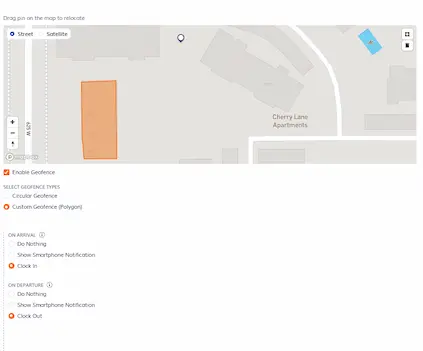
Choose the action that triggers when workers arrive at or depart from a geofence
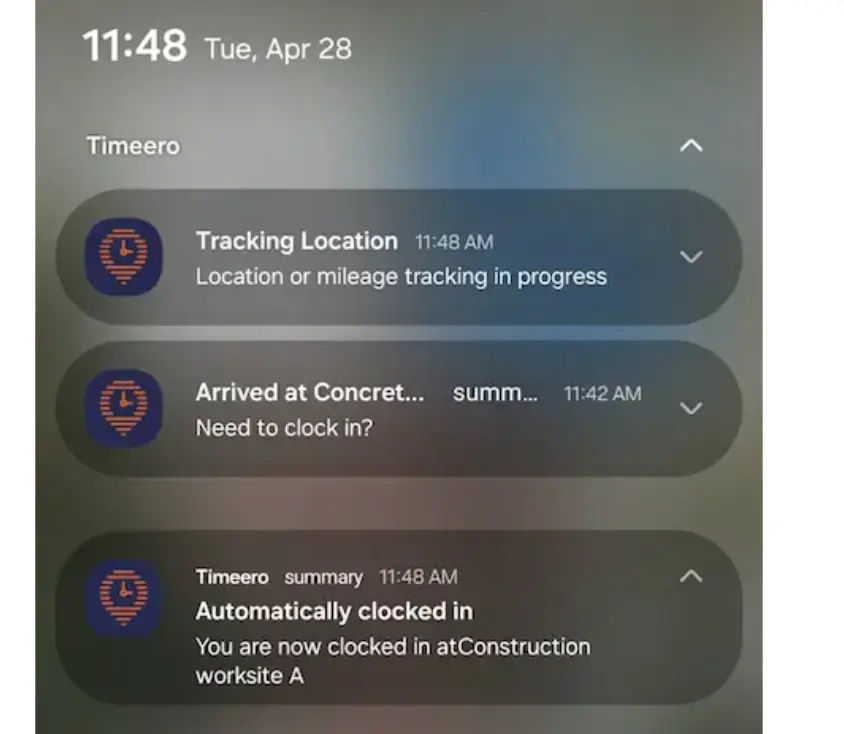
When we set up a geofence around the job site and enabled Auto Clock-In/Out, we received a push notification that confirmed we were automatically clocked in. We had no issues with the app triggering Auto Clock-In/Out during our testing.
A push notification is sent confirming the Auto Clock-In/Out was successful
Geofences
While circular geofences prevent employees from clocking in outside of a defined radius, if the radius is too wide, workers will still be able to clock in before they ever reach the work site.
Timeero gives supervisors and managers the option to create circular and polygon geofences. With polygon geofences, tighter boundary lines can be drawn over the outline of buildings, allowing more accurate time tracking.
Trace over the exact job site boundaries with polygon geofences
Work Schedules
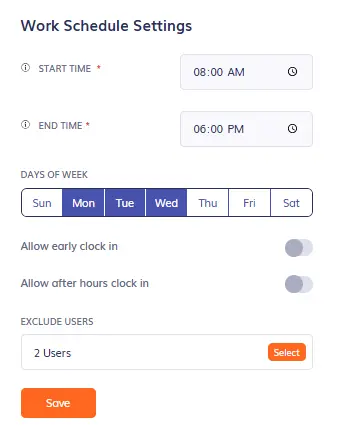
Define your company’s Work Schedule settings to enable Auto Clock-In/Out
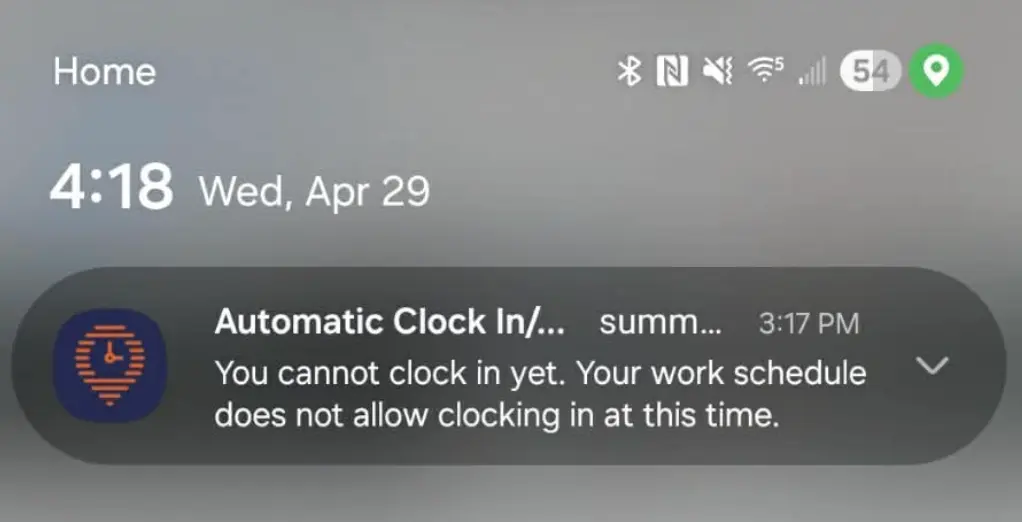
One problem that distributed teams face is workers clocking before the job starts. To solve this problem, Timeero requires you to define your company’s Work Schedules before Auto Clock-In/Out can work successfully. When workers enter the geofence before the start time, Auto Clock-In fails and they receive a push notification.
Workers receive a push notification when they try to clock in outside of the Work Schedule
Verdict
Timeero is the top choice for construction crews that work across multiple job sites. Configuring Auto Clock-In/Out is straightforward, no steps are hidden in menus or company settings. Timeero automatically tracks mileage without any manual input needed from workers. Additionally, Timeero's California Breaks Tracker makes it the perfect option for crews that need to maintain strict break compliance.
14-day free trial; Auto Clock-In/Out included in Pro plan ($7.50/user/month) and higher
2. ConstructionClock – Best for construction teams that want hands-off time tracking
ConstructionClock is an automated time tracking system built for small to medium-sized construction companies. It is one of the first apps built with full hands-off time tracking capabilities.
Pros
✓Hands-off auto clock-in and out
✓Built specifically for construction crews
✓GPS accuracy
Cons
✕Not a full workforce management system (no PTO, scheduling, etc.)
✕Manual onboarding is time consuming
Key Features
Auto Clock-In and Out
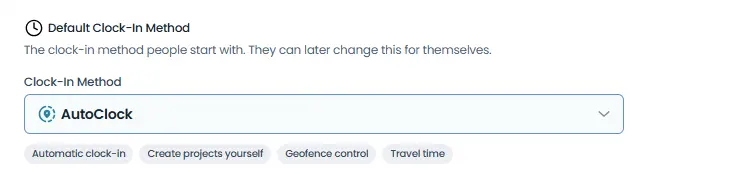
The first thing we noticed about ConstructionClock’s auto clock-in/out (AutoClock), is that users can change their own clock-in settings, even if the company defines a default. This can be problematic for crews that want tighter control over time tracking methods.
From the company settings, AutoClock will need to be selected to enable auto clock-in/out.
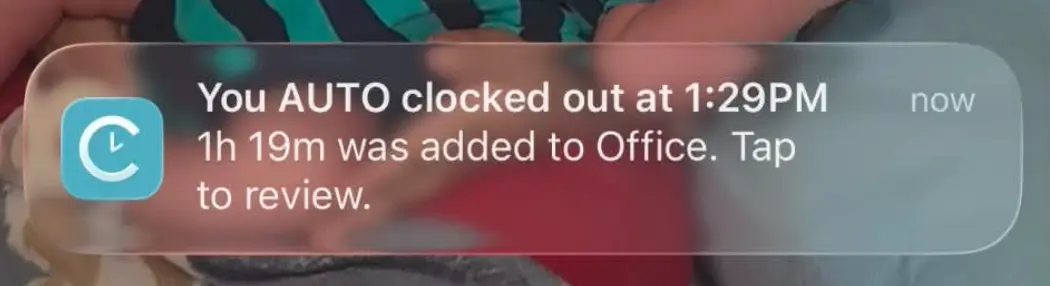
Every time we left the geofence area, we were sent a push notification communicating that we were auto clocked out, and time worked was added to the project associated with the geofence. ConstructionClock successfully clocked us in and out every time we arrived at and departed the geofence during our testing.
Push notifications are sent each time a user is auto clocked-in/out
Geofences
ConstructionClock uses geofences to trigger automatic clock-in and out. Once a project’s radius is defined, the app will automatically clock users in or out when they enter or leave the geofence.
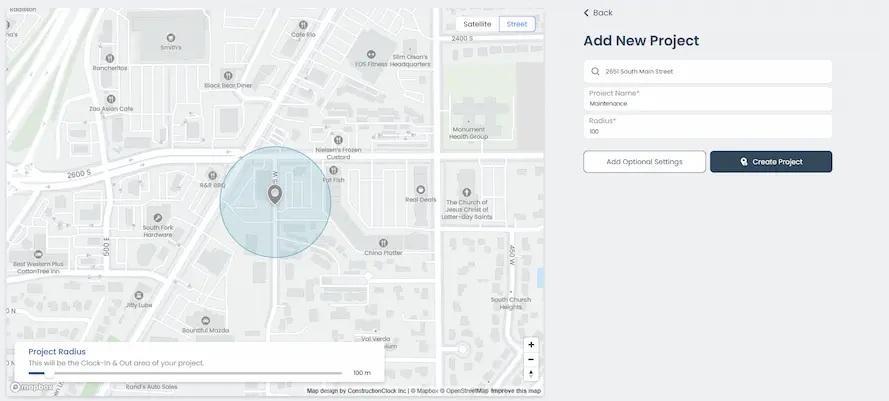
From the web dashboard, creating a project and its corresponding geofence was simple. Once we put in the address, a circular geofence was automatically drawn around the location. We were given the ability to adjust the radius around the job site, which increases the accuracy of clock-ins.
Create a project and define its geofence radius used for auto clock-in/out
Work Schedule
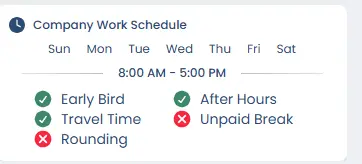
One of the things that we liked about ConstructionClock is the range of options it gives crews when it comes to Work Schedules. Not only can you define your Company Work Schedule, but Employee Schedules, and even Project Schedules.
For example, there may be times when your crews can’t access a project site until a specific time. Having the ability to define when AutoClock triggers based on Project Schedules keeps time tracking consistent across your team.
AutoClock works according to your company’s work schedule
Verdict
ConstructionClock proves to be a solid choice for construction crews needing time tracking and project management. But if teams travel from one job site to another during the day, the app does not track mileage, which can be a dealbreaker for some teams. Because the app’s GPS accuracy was high, Auto Clock-In/Out times reflect true work hours.
Integrations
QuickBooks (QuickBooks Online)
CompanyCam
Payworks
Xero
Additional Features
Overtime tracking
Task management
Project budgeting
Project details
Pricing
7-day free trial; Solo plan $0/month; Team plan starts at $12/user/month
3. Workyard – Best for contractors who don’t need automatic clock-out
Workyard is a GPS time and attendance tracking app built for construction and field-based teams. It features automatic time tracking, job costing, labor compliance, and scheduling in one convenient mobile app.
Pros
✓Offline tracking
✓Real-time job costing
✓FaceFront biometrics
✓Multi-site tracking
Cons
✕Base fee makes it expensive for small teams
✕Geofences become complicated when projects are close to each other
✕No true auto clock-out option
Key Features
Automatic Clock-In
Before we get to the review of Workyard’s automatic clock-in, it is worth mentioning that the app does not have an auto clock-out option. This could be a dealbreaker for construction companies that work across multiple job sites each day. Instead of users being automatically clocked-out, their timecard is updated to the last time they exited the project geofence when they manually clock out.
Workyard has no auto clock out option
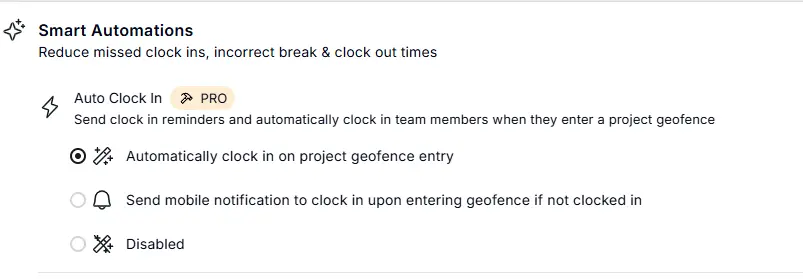
We set up Auto Clock In on the mobile and desktop site, and will say that there was no clear direction given to help us know how to locate the feature. Naturally we clicked through company settings to find the time clock rules and found Auto Clock In under Automations.
Workyard’s Auto Clock In is a Pro feature
Once we confirmed Auto Clock In was active and the geofence was drawn correctly, we tested out Workyard’s ability to successfully clock us in automatically once we entered the job site. The app had no problems recognizing when we entered the geofence and clocked us in without issues. We were also sent a push notification confirming the details of our Auto Clock In.
Geofences
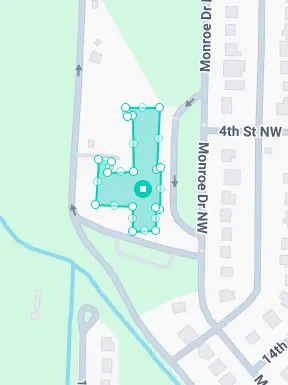
We created a project in Workyard to test the app’s geofencing capabilities. Users are given the ability to draw custom geofences around job sites, circular geofences are not an option. This is a good thing, as circular geofences could potentially overlap and interfere with a worker’s ability to use Auto Clock In.
Geofences can be drawn to match the building’s perimeter
Work Schedules
From what we could tell during testing, Workyard does not have a Work Schedules feature like Timeero and ConstructionClock. The closest thing we found was to set up a time limit, specifying the earliest time workers are allowed to clock in.
Verdict
If your construction crew is looking for a simple automatic time tracking system, Workyard could be a good fit. However, the app lacks true auto clock out, which means workers will still need to clock out manually. Workyard checks the box of being an automatic time tracking app, but we feel like other apps perform better in that department.
Integrations
QuickBooks
Sage
ADP
Gusto
Paychex
Additional Features
Expense receipt collection at clock out
Meal breaks
Expense management
Smart forms
Pricing
14 day free trial; Auto Clock In is available in the Pro plan which starts at $16/user/month.
4. Jibble – Best for deskless and field teams that want a free plan
Jibble is a free time and attendance software platform designed for deskless and field teams needing automated timesheets, GPS tracking, activity monitoring, and scheduling tools. The app offers auto clock-in and out via mobile, kiosk, and desktop.
Pros
✓Free for unlimited users
✓GPS + geofencing for on-site verification
✓Facial recognition technology
✓Kiosk mode for shared sites
✓Offline mode
Cons
✕Free plan's geofencing is capped at 2 locations
✕Live location tracking is a Pro feature
✕Geofence automation and Live Location tracking can not work simultaneously
✕No mileage tracking
✕Not built for job costing
Key Features
Auto Clock-In/Out
There are several steps you need to take to set up automatic clock-in and out in Jibble, which is the only complaint we have about the feature. Like most GPS tracking apps, we first created and assigned users to a project. We then set up geofence locations and linked the project and geofence together for accurate time tracking. To enable the auto clock-in/out, we edited the time tracking settings to allow clock in and out when crews arrive at and exit the geofence.
We did not experience any issues while testing auto clock-in/out. We were always clocked in when we entered the geofence boundaries, and clocked out as soon as we drove farther than the geofence radius.
Configure Geofence automation to enable auto clock-in/out
Geofences
We created a work project within Jibble from the desktop site, but this is not where you set up the geofence. To set up geofences, we navigated to the “Location” menu. After the geofence was drawn, we went back to the work project and selected the location from the drop down menu to attach the geofence and the project together – quite a bit of work to get auto clock-in/out up and running.
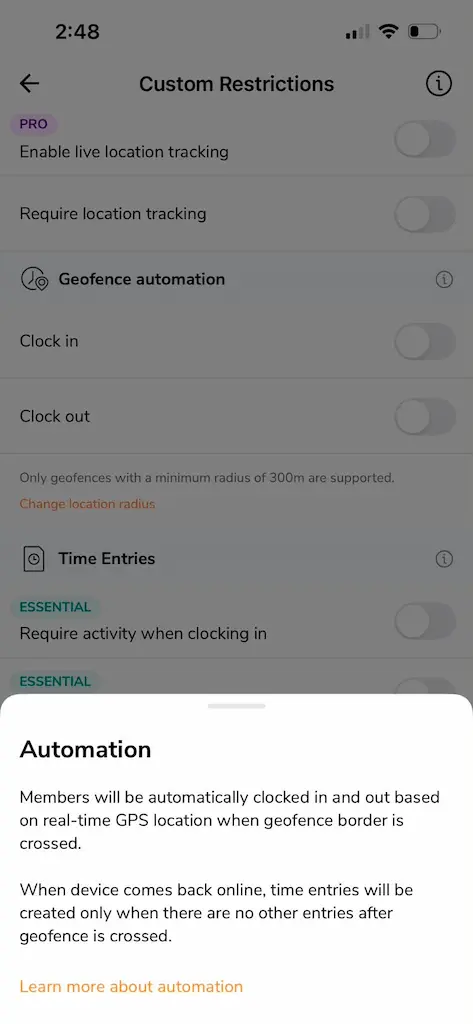
Jibble does not allow users to draw polygon or custom geofences, only circular geofences are allowed. A radius of 300m is required to use the geofence for auto clock-in/out.
Jibble requires a geofence of at least 300m
Work Schedules
Jibble offers three Work Schedule options: Fixed, Flexible, Weekly. Team members can be assigned to individual work schedules, making it easier to keep track of crews at different job sites. During testing, we set up a Fixed work schedule to determine if auto clock-in/out would trigger successfully.
Verdict
As far as auto clock-in/out is concerned, Jibble automatically clocked us in every time we were within the geofence. However, because a minimum radius of 300 meters is required, we were clocked in while still a far distance from the job site. This means that the time crews spend driving another 2-3 miles onto the job will be paid as time worked.
Another significant drawback to Jibble is that live location tracking can not be used while geofence automation (auto clock-in/out) is active. For construction teams that have crews working in multiple locations, being able to see exactly where workers are stationed eliminates time consuming back and forth location check-ins and keeps everyone safe and accounted for. Not having access to both features at the same time puts Jibble at the bottom of our list of automated time tracking apps for construction.
Integrations
QuickBooks Online
Gusto
Deel
Zapier
Google Sheets
Slack
Microsoft Teams
Additional Features
Client invoicing
Activity tracking
Desktop screenshot capture for remote employees
PTO management
Pricing
14-day free trial; Free plan for unlimited users includes basic time tracking; paid plans start at $3.49/user/month (annual)
5. allGeo – Best for large teams needing ERP integrations
allGeo is a workforce-management platform with built-in time tracking and compliance tools for field teams. It is best for construction companies with complex payroll and compliance needs, like EVV for homecare.
Pros
✓Auto clock-in/out when arriving at or departing from geofences
✓Automated certified payroll reports
✓Reliable offline tracking
✓Equipment tracking
Cons
✕Pricing isn't given upfront
✕Workflows aren't construction specific
✕Complex setup is harder for smaller teams to navigate
Key Features
Auto Clock-In/Out
allGeo’s setup is much different than the other apps reviewed in this article. Figuring out how to set up Auto Clock-In/Out involved more research and the setup wasn’t exactly user friendly. The first thing we did was navigate to the Company Settings and create a geofenced jobsite. Then we configured a Work Schedule for our test worker, always requiring location tracking.
Even though we followed all of the steps that we usually take to set up Auto Clock-In/Out on other GPS apps, there was no way to know if the feature would actually work just from looking at the dashboard. However, when we did leave the geofence, our timeclock showed “Depart” which was the stage we had assigned to Auto Clock-Out.
Geofences
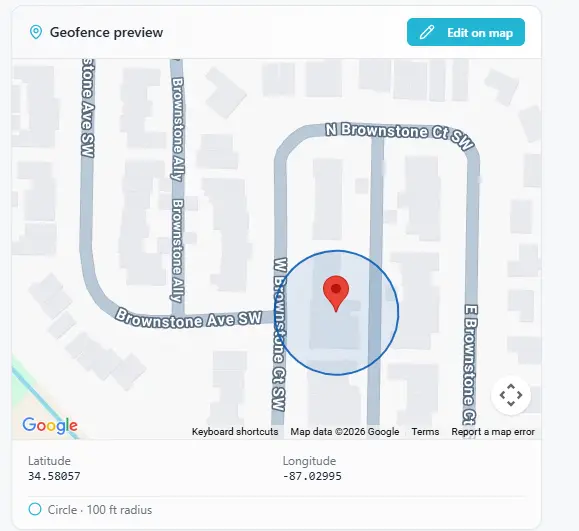
When I drew the polygon geofence around the correct site address, the physical location address updated automatically in the system, but it was the wrong address. We learned when drawing polygon geofences around job sites, do not let your boundaries wander into another address.
Draw circular or polygon geofences around job sites for auto clock-in/out
Work Schedules
allGeo does not say that a work schedule is required for Auto Clock-In/Out to work properly. But when we researched how to set up the feature, it does say that a schedule must be set up.
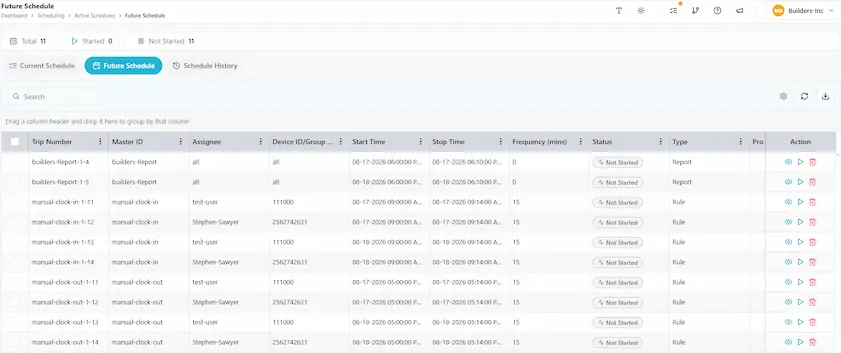
We created a schedule that would run 9am-5pm, Sunday-Saturday. When we checked the future schedules for our worker, the screen showed “manual clock-in” as the Master ID, which threw us off in terms of Auto Clock-In/Out.
Check the future schedules for workers
Verdict
allGeo is an extremely difficult app to navigate. From the perspective of a construction team with crews working multiple sites, this app isn’t user friendly. While setting up geofences, creating tasks, and assigning employees to schedules is intuitive, the whole platform feels like a computer programming terminal instead of a workforce management app. Even though job costing and EVV tracking is included, their presence doesn’t make this an automatic time tracking app that we would recommend to construction teams.
Integrations
ADP
Sage
Deel
Microsoft Power Automate
Trimble Viewpoint Vista & Viewpoint Spectrum
Public API
Additional Features
Live location tracking
Smart forms
Breadcrumbs
Custom QR codes
E911 Integration
Pricing
14-day free trial; Customers must contact allGeo for pricing
Why construction teams switch to Timeero
There comes a time when teams need more than geofence restricted clock-ins. For example, construction teams switch to Timeero when their business needs outgrow the simplicity of basic time tracking systems.
Here are three reasons why construction teams choose Timeero in the field.
1. Segmented Tracking
What sets Timeero’s mileage tracking system apart from other apps, is its Segmented Tracking.
Without this feature, workers would have to clock in and out as they arrive at and depart from each job site to stop mileage tracking. Segmented Tracking takes that pain away by automatically stopping mileage tracking when crews arrive at each job site, and then picks it back up when they leave the job site for the next location.
There’s no need for workers to clock in and out when they arrive at each stop, the app continues logging the details needed for IRS compliance without any manual input on their end.
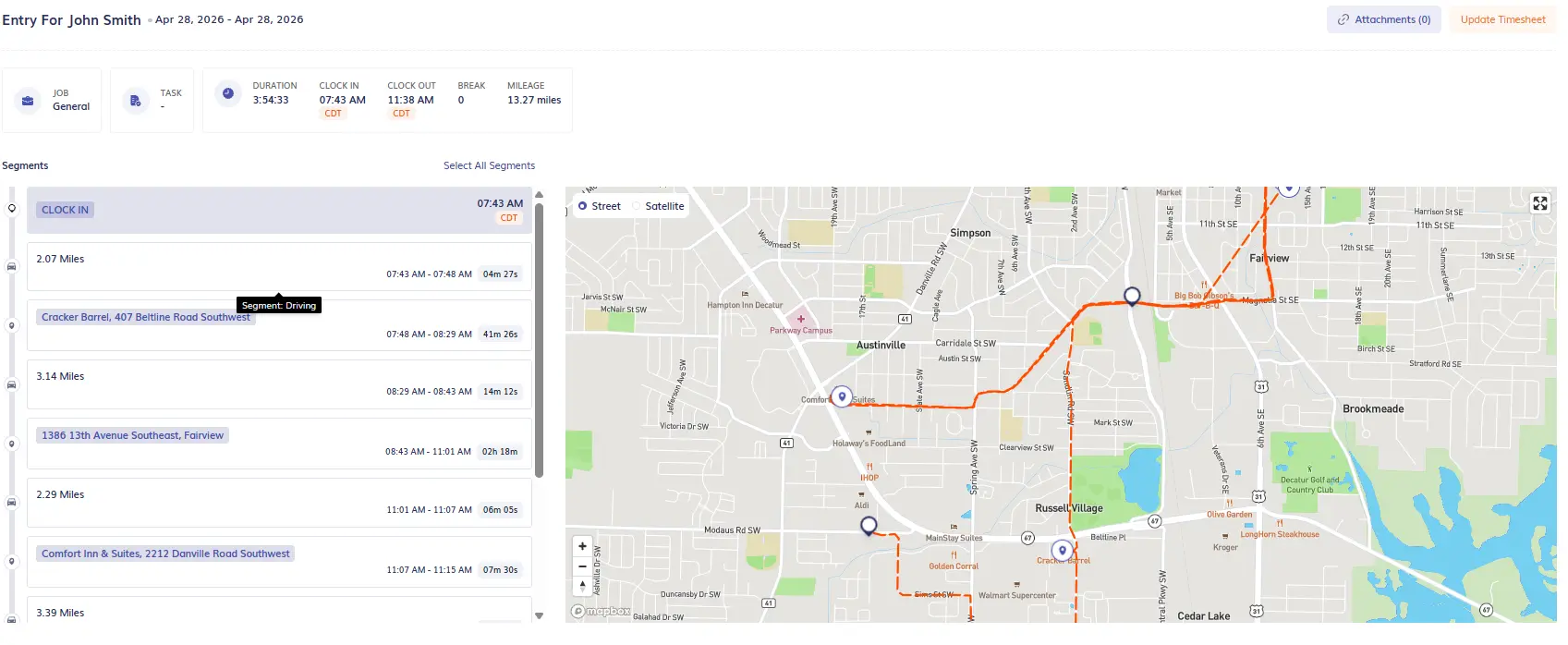
Employers can review where crews have been during the work day, seeing exactly how much time was spent at each location by viewing the Segmented Tracking timeline associated with daily timecards.
Segmented Tracking timeline
2. Mileage tracking with drive-detection technology
Construction crews traveling between job sites are responsible for manually recording their own mileage unless they use an app equipped with mileage tracking. For teams that make multiple stops during the day, mileage tracking is non-negotiable.
Out of the 5 automatic time tracking apps that we tested, Timeero, Workyard, and allGeo capture mileage via GPS technology. But only Timeero uses motion detection technology to log miles, whereas Workyard and allGeo use GPS breadcrumbs to compute mileage from the total driving route. This means that if a worker was to walk or ride public transit, the app would recognize the trip as miles driven and they would be reimbursed for mileage that was not actually traveled.
A GPS mileage tracking app that uses drive-detection technology increases the accuracy of mileage reimbursement and reduces the amount of mileage-related disputes.
3. Commute mileage exclusion for accurate reimbursement
Paying for time not worked is not the only problem that construction teams face during payroll. When crews are in charge of keeping track of their own mileage each week, commute mileage is often submitted as part of their weekly travel. But according to the IRS, commute mileage is non-reimbursable.
Timeero is one of the only GPS mileage tracking apps that automatically deducts commute mileage from total miles, keeping reimbursements accurate and tax compliant.
Making the right call for your construction team
All of the apps listed in this review include features that simplify how you manage construction teams in the field. But if you are looking for an app with automatic time tracking in particular, your choice should meet most, if not all of your business needs.
For construction teams that need genuine hands-off clock-in/out, dependable offline tracking, automatic mileage tracking with drive-detection technology, Segmented Tracking, and commute mileage exclusion Timeero is proven to be the best choice.
A true automatic time tracking app automatically clocks workers in and out when they enter or leave a geofenced area without them ever needing to pull out their phones. Automatic time tracking eliminates missed punches, reduces time theft, and decreases the amount of payroll cleanup.
What is the difference between automatic clock-in and geofenced clock-in?
An automatic clock-in requires no action from the user. The app will automatically clock the employee in or out as they arrive at and depart from job sites. Geofenced clock-ins still require manual input from the employee for them to be able to clock in.
Do auto clock-in and out apps work for construction crews at multiple job sites?
Yes. If the auto clock-in and out app allows users to draw multiple geofences, then crews can use the app to automatically clock in and out as they work across job sites.
Does Timeero have automatic time tracking?
Yes, Timeero supports automatic time tracking. No manual work is required on the employee’s end to clock in or out.
How does Timeero’s Auto Clock-In/Out feature work?
Timeero’s Auto Clock-In/Out feature requires the admin or manager to first draw a geofence around the job site. Then they must select the appropriate action (clock-in and clock-out) that triggers when the employee enters or leaves the geofence. Work Schedule settings must also be configured before Auto Clock-In/Out can work properly.
Start a free Timeero trial and get GPS time tracking running today.
Jessica is a skilled writer and proofreader with a unique flair for crafting engaging and impactful content. Her work reflects her ability to connect with clients on a personal level while successfully addressing their most pressing concerns. Jessica's professional background includes: teaching, social media marketing, and e-commerce. She resides in Alabama and loves the Golden Girls sitcom.



.webp)

.webp)

%202.svg)


.png)
.png)


.png)


