27 Timeero MCP Prompts to Ask ChatGPT and Claude About Your Workforce Data
Jessica Packard
Last update on:
September 29, 2026 9:33 AM
Published on:
TL;DR
Ask Timeero MCP about hours, mileage, jobs, schedules, breaks, and location data.
Follow up on an answer to dig deeper without pulling another report.
Connect different data points to understand labor, mileage, schedules, and job performance.
Use these 27 questions as a starting point for exploring your workforce data.
You rarely have just one question about your workforce data.
You might start by asking which jobs used the most hours last week. Then you want to see the mileage for those jobs. Then you want to know who worked them, or whether the hours were in line with the schedule.
Normally, getting that answer the usual way means opening a report, picking the dates, adding filters, exporting data, and putting the pieces together yourself.
Timeero MCP Server lets you ask those follow-up questions right where you started. You can move from hours to mileage, jobs, schedules, or location without having to start over with a new report each time.
Timeero already has the workforce data. MCP makes it easier to explore that data and connect the pieces as you go.
Here are 27 questions to try.
You don't need to learn a new tool to get answers about your team.
Timeero MCP connects your workforce data to ChatGPT or Claude, so you just ask.
The easiest place to start is with questions you already ask about your workforce.
Jump to
Tip
Don't overthink the prompt, just start with the question that's on your mind. If you want more detail, just ask. You can go from hours to mileage to the people who worked the job without starting a new report.
Time & labor
1. How many hours did my team work last week?
2. Who worked the most hours last week?
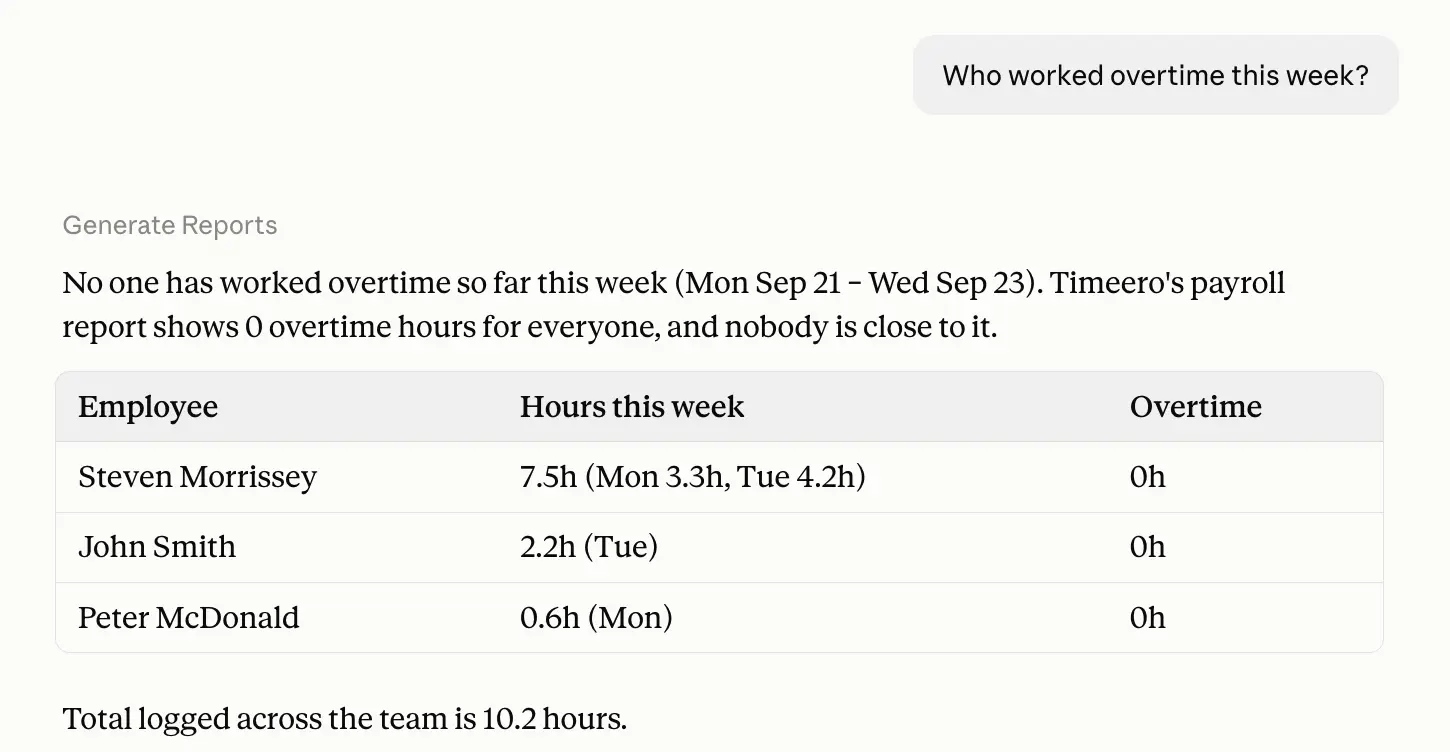
3. Who worked overtime this week?
4. Which employees worked more hours than scheduled?
Tip
Start with the numbers. Then ask about the people or jobs behind them.
Mileage
5. How many miles did my team drive last week?
6. Which employees drove the most miles this month?
7. Which jobs required the most mileage last week?
Tip
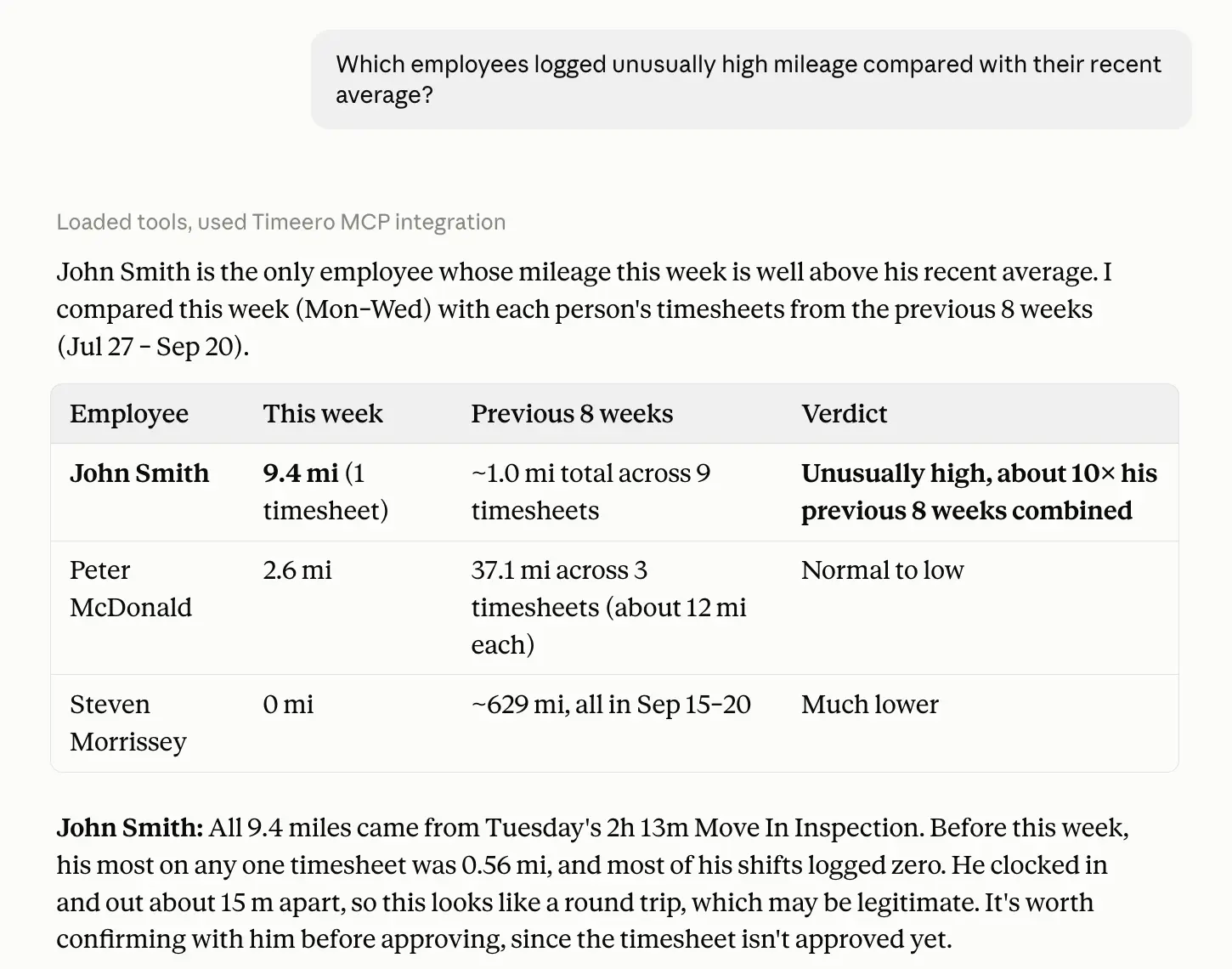
Mileage gets more useful when you tie it to a job or worker. Ask where the miles came from, not just how many were logged.
Location
8. Were there any clock-ins outside the job’s geofence this week?
9. Where was [employee] working yesterday?
10. Which jobs don't have a geofence set up?
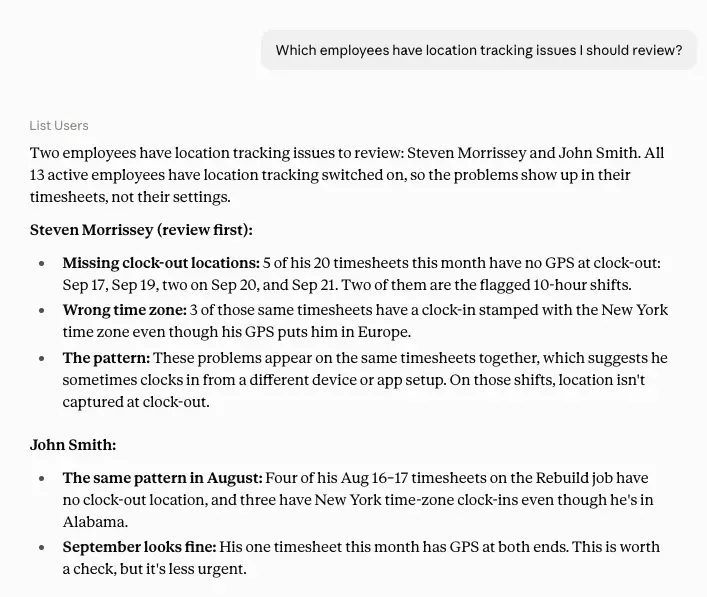
11. Which employees have location tracking issues I should review?
Tip
Location data becomes more useful when you connect it to the job and the shift. Start by looking for issues, then ask which employee, job, and shift were involved so you can see what happened.
Jobs
12. How many hours did we spend on each job last week?
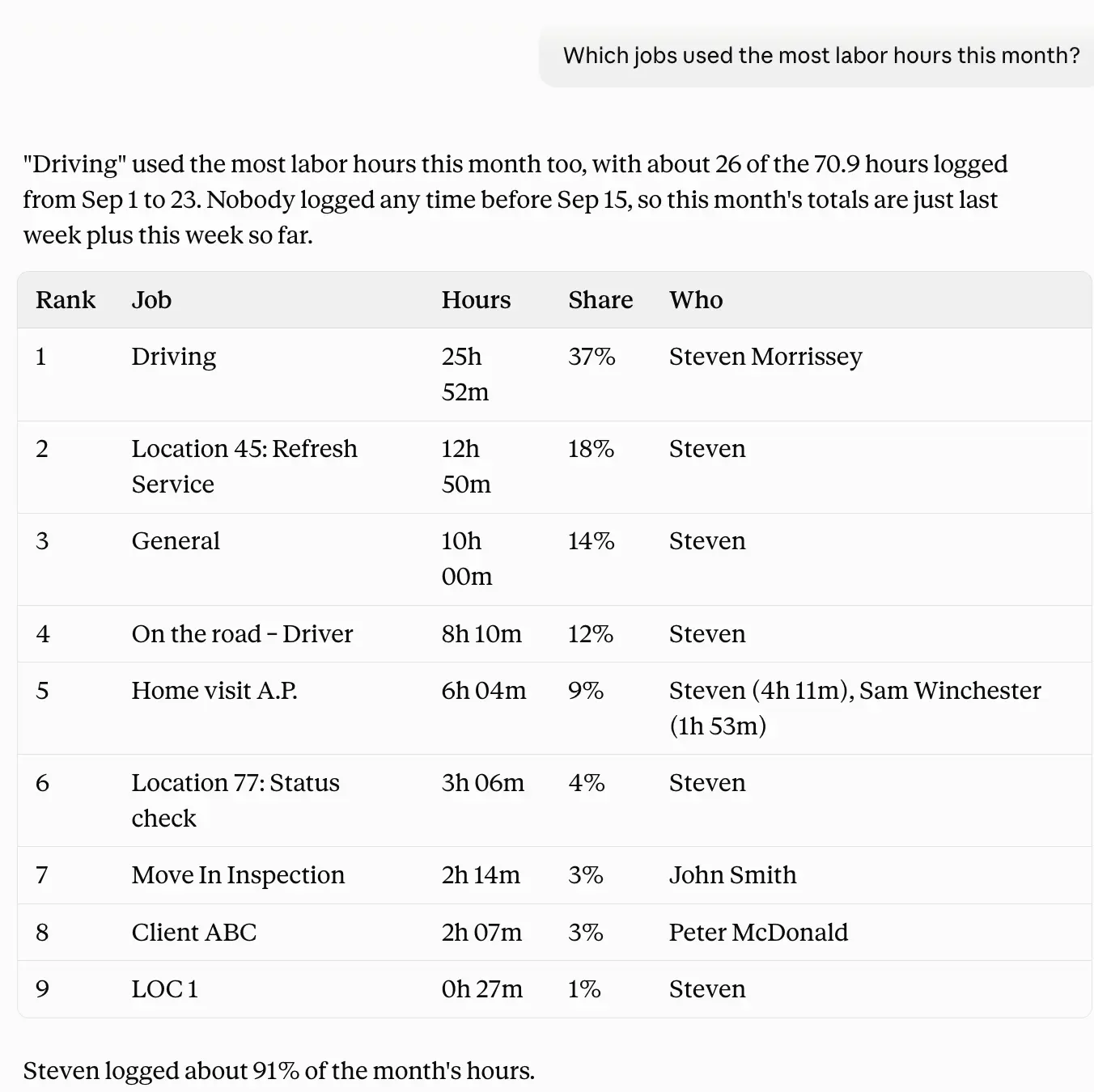
13. Which jobs used the most labor hours last week?
14. Which jobs took longer than expected based on their schedules?
Tip
Jobs bring different pieces of workforce data together. Start with the job, then look at the people, hours, mileage, schedule, and location data connected to it.
Breaks
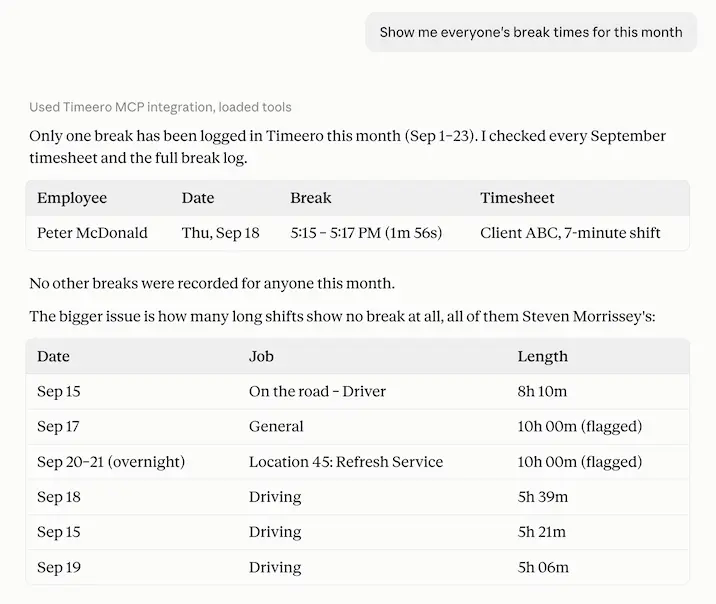
15. Who worked more than six hours without a recorded break?
16. Which employees have missing or incomplete breaks?
17. Did anyone miss a meal break this week?
Tip
Find a missing or unusual break? Ask what happened on that shift. You can check the employee’s hours, job, and other breaks from that day.
California breaks / Premium pay
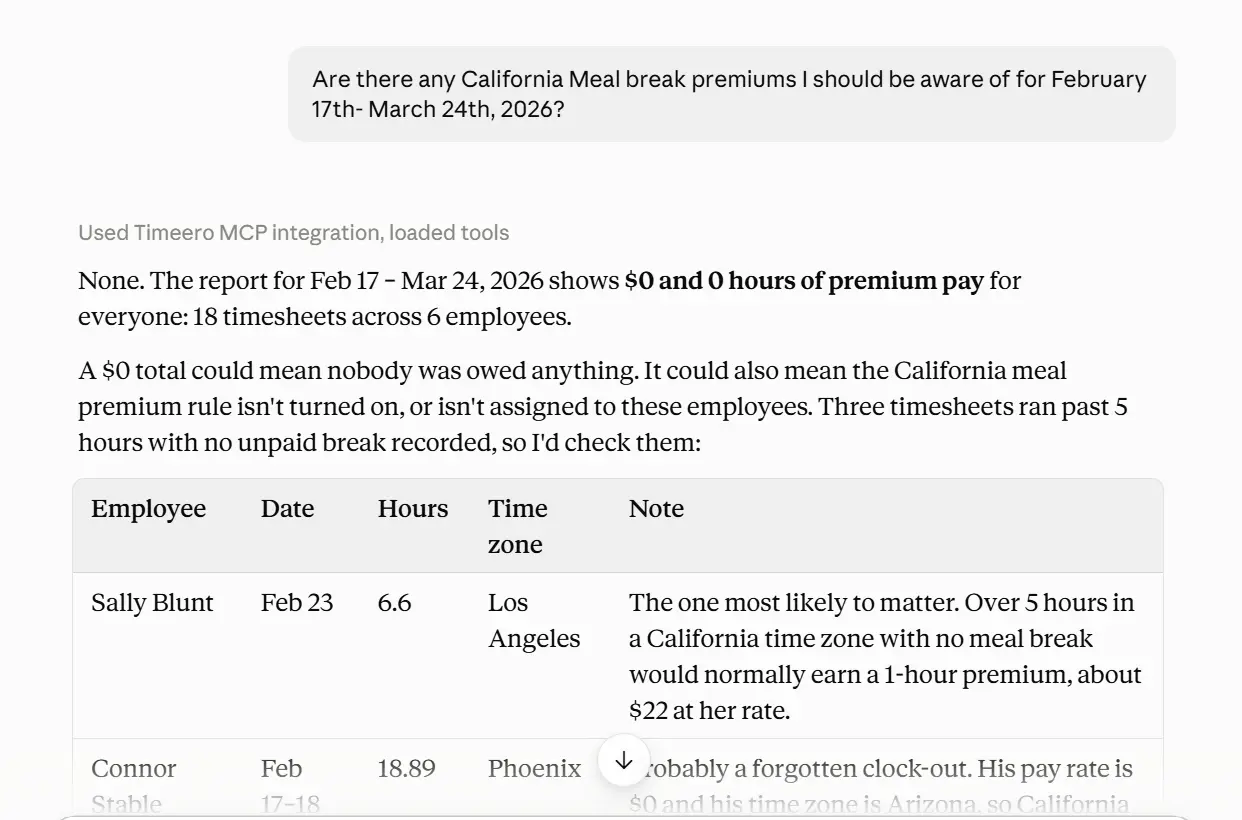
18. Are there any California meal break premiums I should review this pay period?
19. Are there any employees with repeated meal break issues this month?
20. Which potential meal break violations have a premium-pay entry?
Tip
Review potential break issues before payroll closes. Start with affected employees, then ask for the date, shift, job, recorded break length, and any premium-pay entries associated with the shift.
Schedule
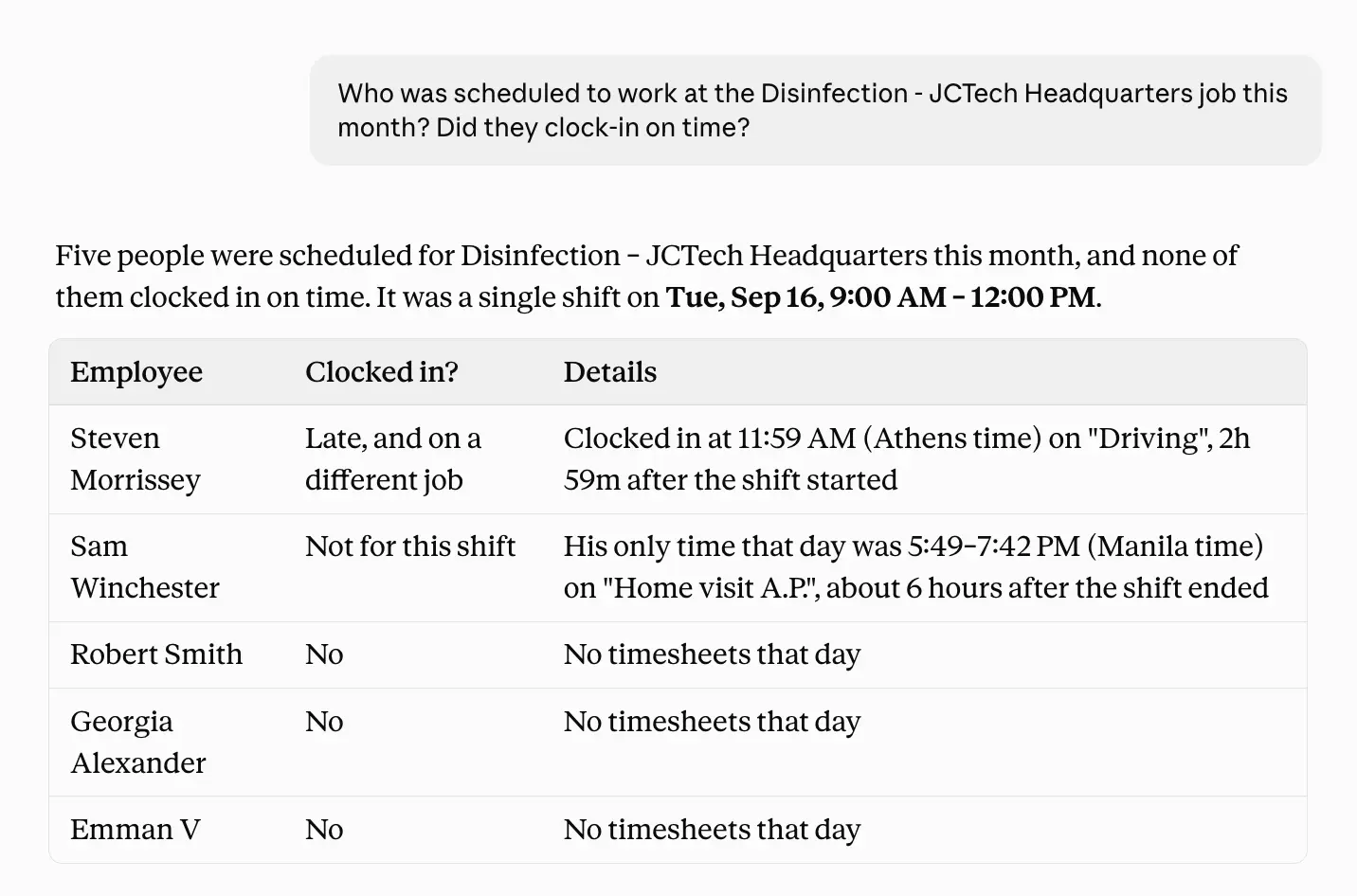
21. Who is scheduled to work tomorrow?
22. Which upcoming shifts do not have an assigned employee?
23. Which employees are scheduled for overlapping shifts?
24. Which employees worked at more than one location this week?
Tip
Schedules tell you what was planned. Ask about actual hours, clock-ins, jobs, or location to see what happened in practice.
Make changes in Timeero
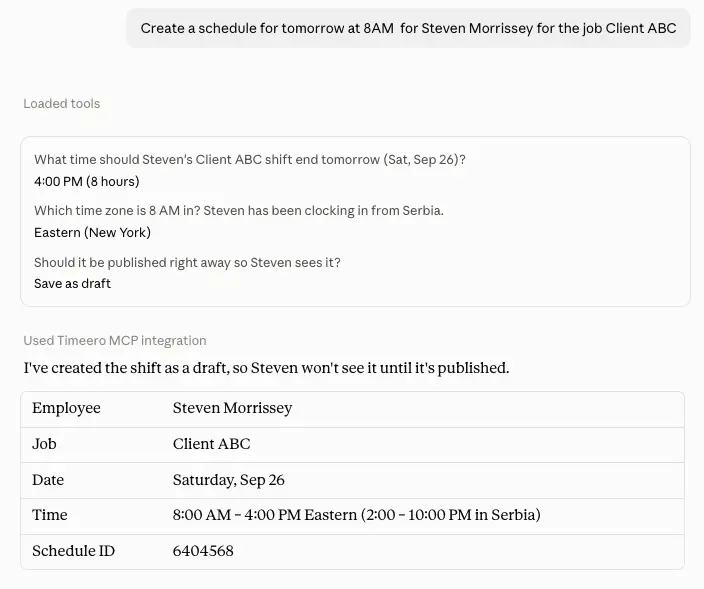
Timeero MCP can do more than answer questions. If you turn on write permissions, you can also ask the AI to make certain changes in Timeero.
For example, you can ask it to:
25. Approve the timesheets for [job] from last week.
26. Create a schedule for [employee] for next week.
27. Add [employee] to [job].
Tip
Start with read-only access while you get familiar with MCP. When you're ready, turn on the specific actions you want to use.
You decide what the assistant can do
Timeero MCP doesn't give the assistant unlimited access to your account.
You decide what each connection can access and what actions it can take. Read, write, and delete permissions are managed separately.
You can keep a connection read-only or enable specific actions, such as approving timesheets. Write and delete actions only run when you've enabled the appropriate permission.
That gives you control over how you use MCP, whether you're simply asking questions about your workforce or taking specific actions in Timeero.
The best Timeero MCP prompts are the ones you'd actually ask
You don't need to memorize these prompts.
You probably already have questions you ask when checking your team's hours, jobs, or mileage.
Start with one. If the answer brings up another question, ask that next.
You might start with hours and end up looking at mileage. Or you might spot a break issue and want to see what happened on that shift. That's really the point.
Timeero MCP lets you ask AI questions about your Timeero data. Connect it to ChatGPT or Claude and ask about hours, timesheets, schedules, jobs, mileage, GPS, breaks, time off, and more.
Which AI assistants work with Timeero's MCP server?
You can connect Timeero to ChatGPT, Claude, Cursor, and other tools that support remote MCP servers.
Can the AI change my timesheets, or only read them?
You decide. You can keep the connection read-only if you just want to ask questions and view your data. If you want the AI to make changes, you can turn on specific actions, like approving timesheets.
Do I need a specific Timeero plan to use the MCP server?
To use Timeero MCP server, you’ll need to subscribe to the Premium plan.
Can the AI spot problems in my data, like no-shows or unusual mileage?
It can help you find useful information in your Timeero data. Ask about who hasn't clocked in, unusual mileage, scheduled vs. actual hours, or clock-ins outside a job's geofence.
What can't the Timeero MCP server do?
Timeero MCP can only access the data and actions you've made available through your connection. It can't access restricted data, take actions you haven't enabled, or make changes without the right permissions.
Everything about your team's time, mileage, and jobs already lives in Timeero.
Connect it to your AI assistant, and stop digging through reports for answers you could just ask for.
Jessica Packard is a B2B SaaS content strategist lead who helps companies turn SEO and content into real growth. With a mix of creativity and data-driven thinking, she builds strategies that drive traffic, generate leads, and make content a core part of the business.




%202.svg)


.png)
.png)



.png)


