AI assistants connected to your workforce records can help you analyze your maintenance team's labor hours, property visits, and mileage without manually reviewing multiple reports.
You can connect Timeero to ChatGPT or Claude through the Timeero MCP server, giving the AI assistant access to the time and mileage records your technicians have logged at each property.
With access to these records, the assistant can compare your technicians' labor hours across months, break down mileage by technician, identify flagged or unapproved timesheets, and help prepare maintenance updates for property owners.
AI-generated answers aren't always accurate, so verify important findings against the original records, especially when reviewing unusual time entries or reconciling individual timesheets with reported totals.
A property owner wants to know why maintenance costs at one of your buildings increased last month. To explain the increase, you need to review technician hours, compare them with the previous month, and check recorded mileage. Even though Timeero tracks technicians' hours, GPS locations, and mileage by property, reviewing and reconciling these records across several locations can still be tedious.
This problem isn't uncommon. In a Reddit post, a maintenance technician complained about the lack of proper systems for managing work across roughly 175 properties. He had just two weeks to assess operations as he moved into a supervisory role. His team of six technicians and two gardeners relied on paper work orders, handwritten hours, and receipts for owner billing. With over 200 open work orders, including duplicates, and no reliable performance reports, he struggled to track outstanding work and identify potential billing gaps.
AI for property management can make analyzing those records easier. Through Timeero's MCP server, you can connect your workforce data to ChatGPT or Claude and ask questions about maintenance activity without manually comparing multiple reports.
In this guide, I'll show you how to connect Timeero to an AI assistant, analyze maintenance hours and mileage, investigate unusual timesheets, and prepare property-owner updates using verified records.
Track Property Maintenance. Analyze It With AI.
Track your technicians' hours, GPS locations, and mileage across properties with Timeero. Connect to ChatGPT or Claude to analyze your workforce records and get answers faster.
Even when your maintenance team's hours and mileage are properly recorded, answering a question about a particular property may require checking several reports. An AI assistant connected to your workforce data lets you retrieve and analyze that information by asking questions in plain language.
For example, you can:
Review labor hours by property: Find out how many hours your technicians logged at a particular property over a given period, including each technician's contribution.
Compare maintenance activity: See how your team's recorded labor hours and mileage changed between months, and identify the timesheets behind those differences.
Investigate unusual time entries: Review flagged timesheets, unusually long shifts, and records awaiting approval to identify what needs further investigation.
Prepare maintenance updates: Summarize verified labor hours, timesheets, and mileage into a report you can share with a property owner.
Of course, an AI assistant can only analyze the records it has access to, and its findings may not always be accurate. For example, it might identify an unusually long timesheet but be unable to explain why the technician logged those hours if the available records contain no explanation. In such cases, you'll need to investigate further before drawing conclusions about why the shift was unusually long.
What you'll need
To work through the examples with your own maintenance records, you'll need three things:
Time and mileage records organized by property. Your technicians' timesheets should show which property or job they worked on. GPS records, where available, will help with the property-visit checks later in the guide.
An AI assistant that supports MCP connections. Choose ChatGPT or Claude. I connected both to Timeero for this guide, but you only need to connect one of them to your Timeero account.
A Timeero account with Public API access. Timeero's MCP server connects your workforce records to your chosen AI assistant. You'll use a Timeero Public API key to authorize the connection, which I'll show you how to set up in Step 2.
Keep in mind: You don't need to have everything set up to get started. If you're already using Timeero, you can follow along with your existing property jobs and maintenance records. Otherwise, the screenshots and examples will help you understand how the process works.
I'll walk you through setting up properties in Timeero and connecting an AI assistant in the next two steps. You'll need actual time and mileage records to run the same analyses with your own data.
Step 1: Set up each property as a job in Timeero
Before you can ask ChatGPT or Claude how many hours your technicians spent at a property, your time records need to identify that property. In Timeero, you can create a separate job for each building, apartment complex, or service location.
Use consistent names, such as “Property name: Service type,” so you can easily identify the right property in reports and AI responses.
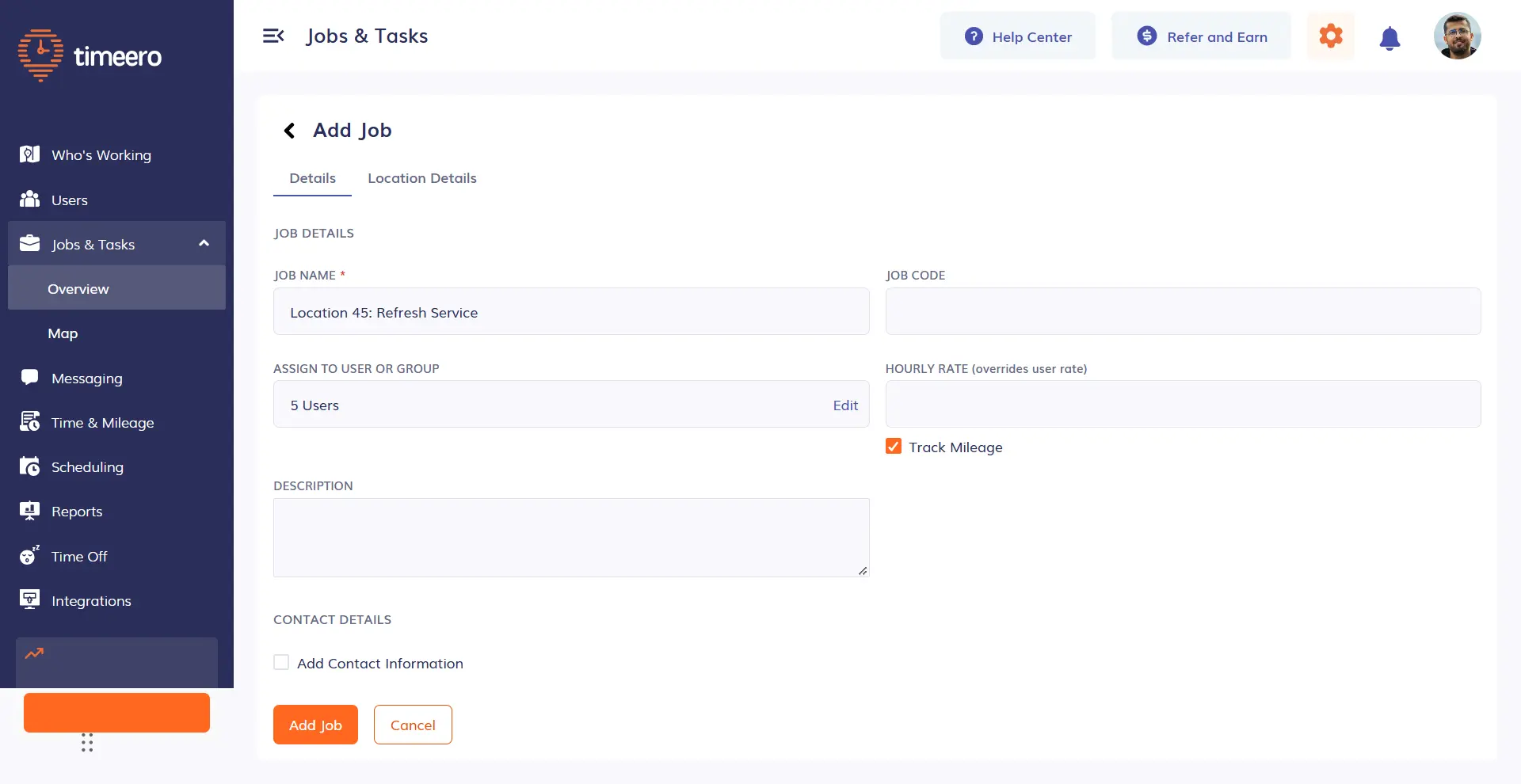
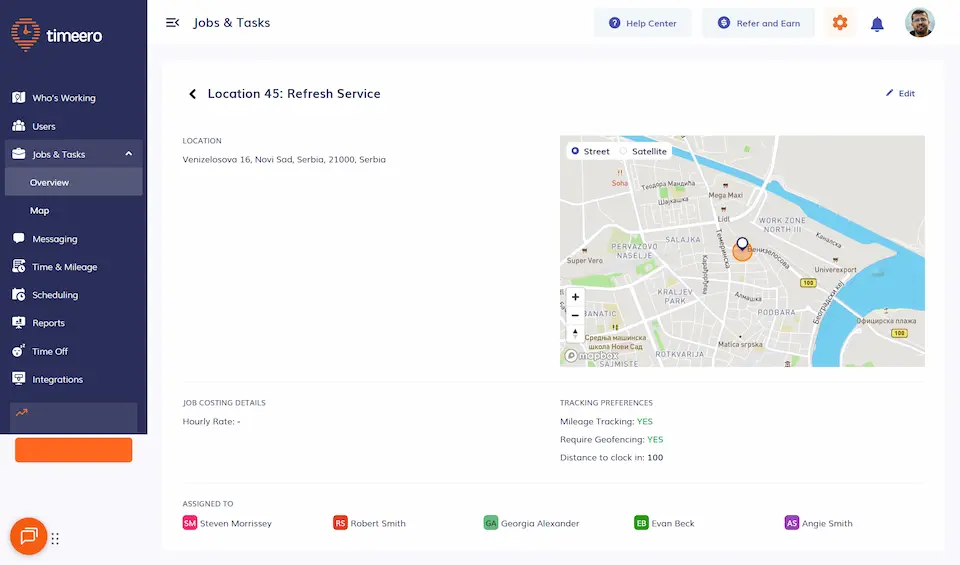
For this guide, I used an existing Timeero job called “Location 45: Refresh Service.” You can follow the same steps using a property from your own account.
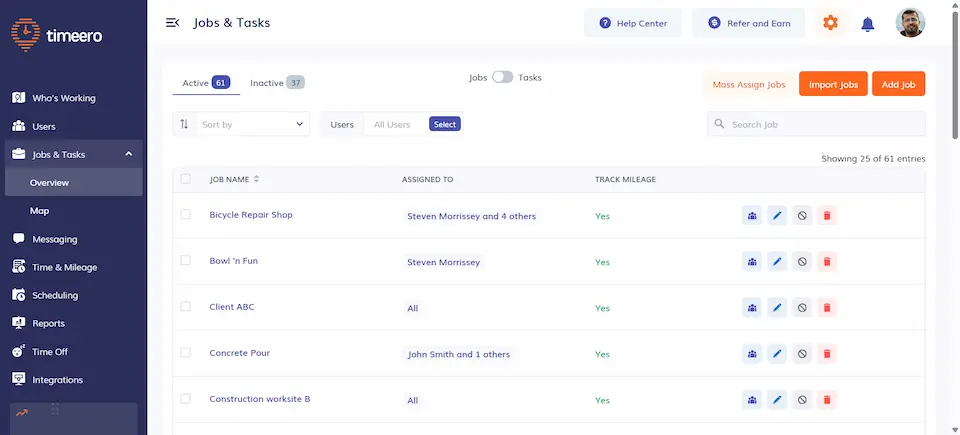
1. In Timeero, go to Jobs & Tasks → Overview and click Add Job.
Timeero Jobs & Tasks overview, with Add Job in the upper-right corner.
2. Under Details, enter the property's name. You can also add a Job Code and Description to identify the work. If you use job-specific labor rates, enter an Hourly Rate. This rate overrides the employee's rate in the Report by Job. Turn on Track Mileage to record mileage for technicians who have mileage tracking enabled.
Job Details fields for naming the property and configuring mileage tracking.
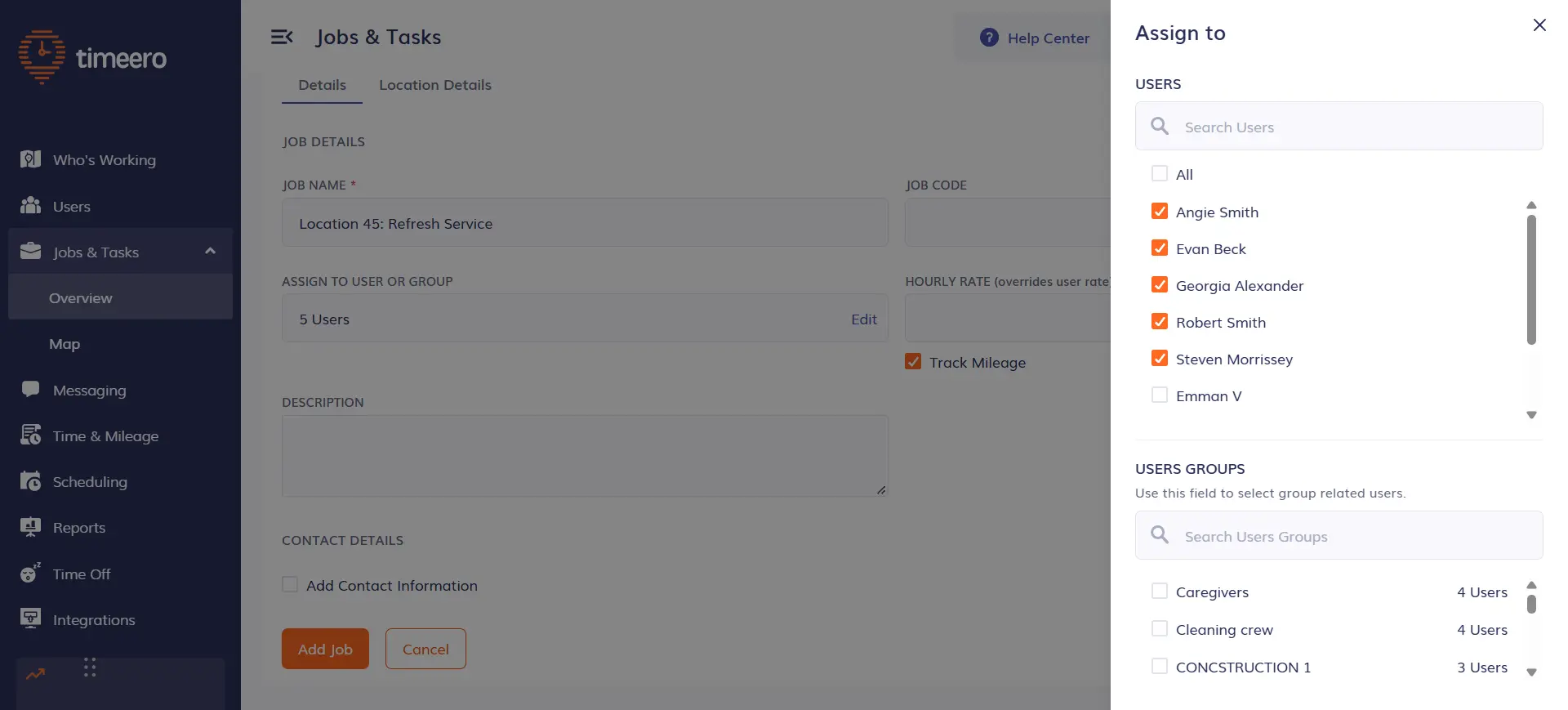
3. Under Assign to User or Group, click Add (or Edit if employees are already assigned). Select the technicians or groups who should be able to clock time against the property.
Select the technicians or groups assigned to the property job.
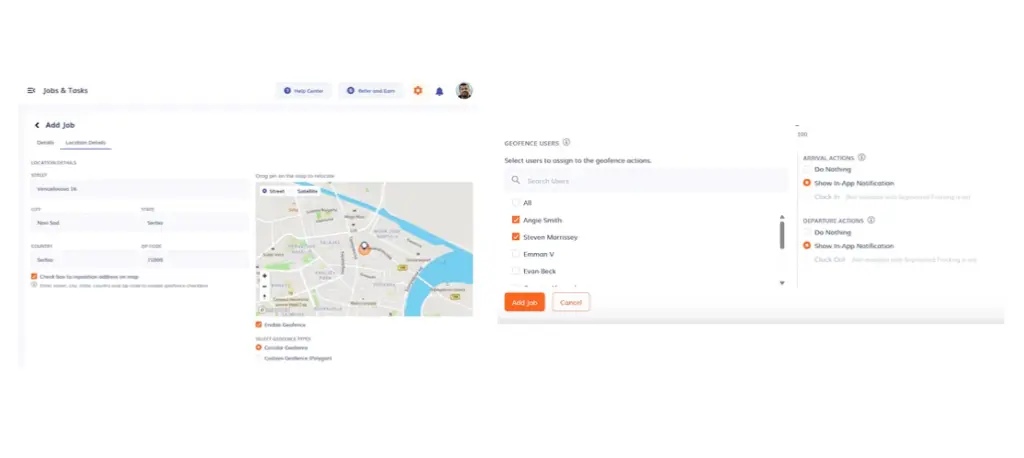
4. Open Location Details and enter the property's address. Check the map pin to make sure it marks the correct location. Then select Require Geofencing and set the boundary around the property. I used a 100-meter circle, but you can also draw a custom polygon for an irregularly shaped property. Configure arrival and departure notifications if you want technicians to receive clock-in and clock-out reminders or if you want to enable auto clock-in/out.
Location Details with the property's geofence boundary and notification settings.
5. Review the settings and click Add Job. Open the saved job to confirm the address, assigned technicians, mileage tracking, and geofence.
Saved job overview showing assigned technicians, mileage tracking and geofencing.
Why is geofencing important? A technician can clock time against a job without necessarily being at the property. Timeero uses the geofence to check where technicians clock in and out, flagging timesheets when punches occur outside the configured boundary. You can also restrict clock-ins to employees within the geofence.
These records can help you investigate property visits, although they don't prove that a technician completed the assigned maintenance work. For detailed instructions, read our guide to setting up geofences for jobs.
Keep in mind: If your technicians sometimes forget to switch jobs, Auto Clock-In/Out can automatically clock them in and out when they enter or leave a configured property. It supports both circular and custom polygon geofences, but cannot be used alongside Segmented Tracking, which records travel between stops.
Step 2: Connect Timeero to ChatGPT or Claude
Before connecting Timeero to an AI assistant, make sure you have:
A Timeero account with Public API access. The Timeero MCP server requires Premium features, but you don't have to subscribe immediately. If you're new to Timeero, you can start with a 14-day free trial, which includes Public API access.
ChatGPT or Claude. ChatGPT requires an eligible paid plan, while Claude's Free plan supports one custom connector.
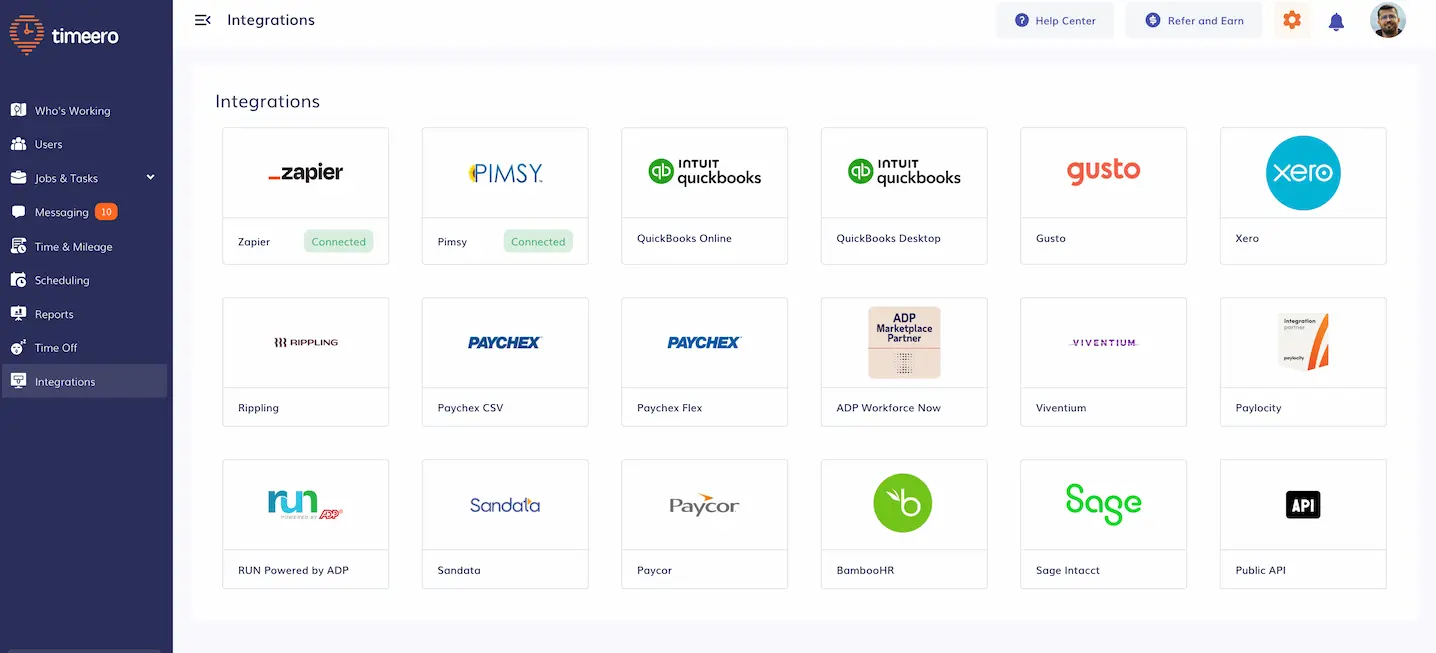
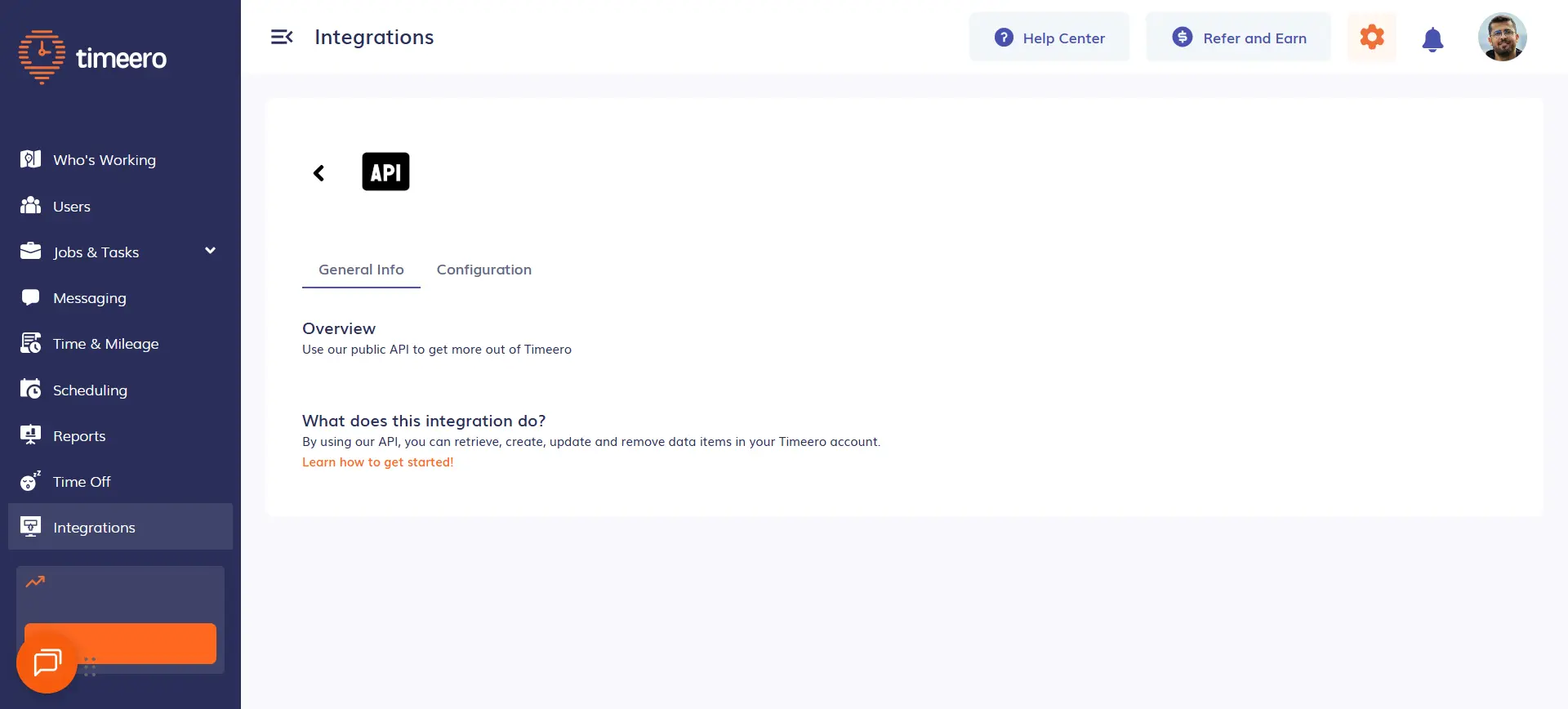
A Timeero Public API key. In Timeero, open Integrations → Public API, select Configuration, then copy your key (or generate one if you don't already have one).
I connected both assistants for this guide, but you only need one to follow along. Keep your API key private: enter it on Timeero's connection page, not in a regular AI chat.
Timeero's Integrations page, with the Public API integration near the bottom.
Timeero's Public API page, showing the Configuration tab without exposing the API key.
Option 1: Connect Timeero to ChatGPT
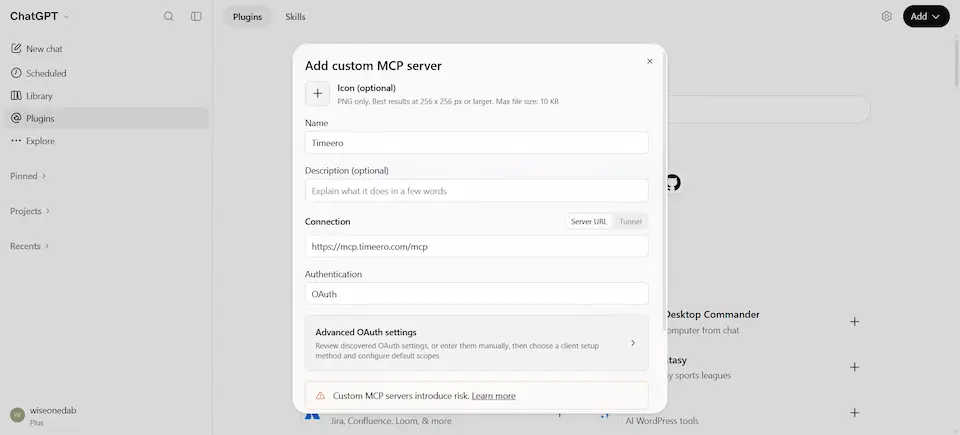
1. In ChatGPT on the web, go to Settings → Plugins and turn on Developer mode. Select Browse plugins, click the plus icon, then choose Create app → Create MCP App. Name it Timeero, select Server URL, enter https://mcp.timeero.com/mcp, and choose OAuth. Acknowledge the warning and click Create.
ChatGPT custom MCP connection settings for Timeero.
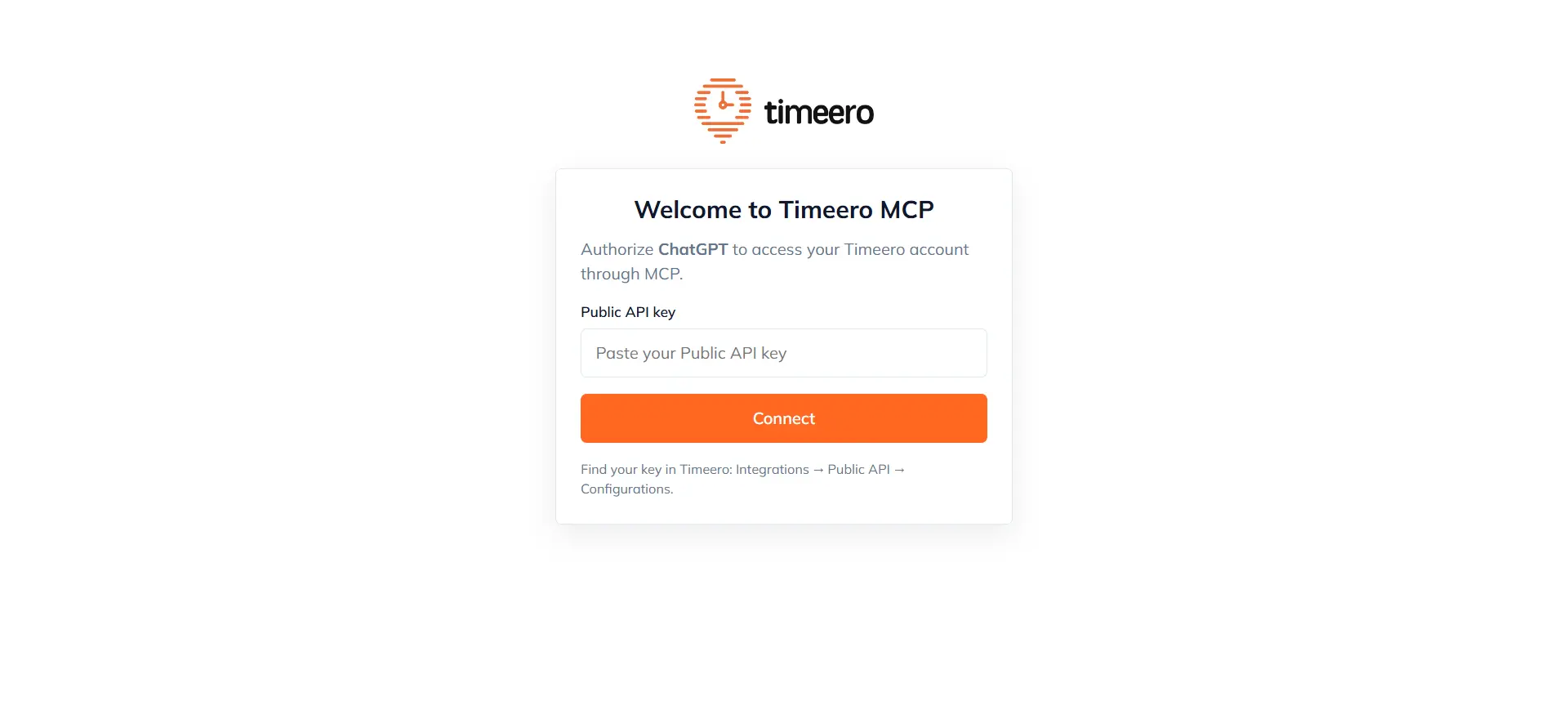
2. When the Timeero connection page opens, paste your Public API key into the designated field and click Connect.
Enter a Timeero Public API key to connect ChatGPT.
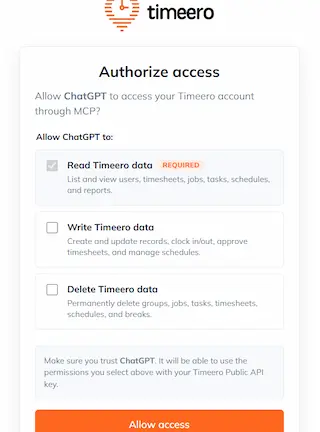
3. On the authorization screen, leave Write and Delete unchecked, then click Allow access. Read access is included automatically and is all you need to review your technicians' hours, mileage, and recorded visits.
Timeero authorization with Write and Delete permissions disabled.
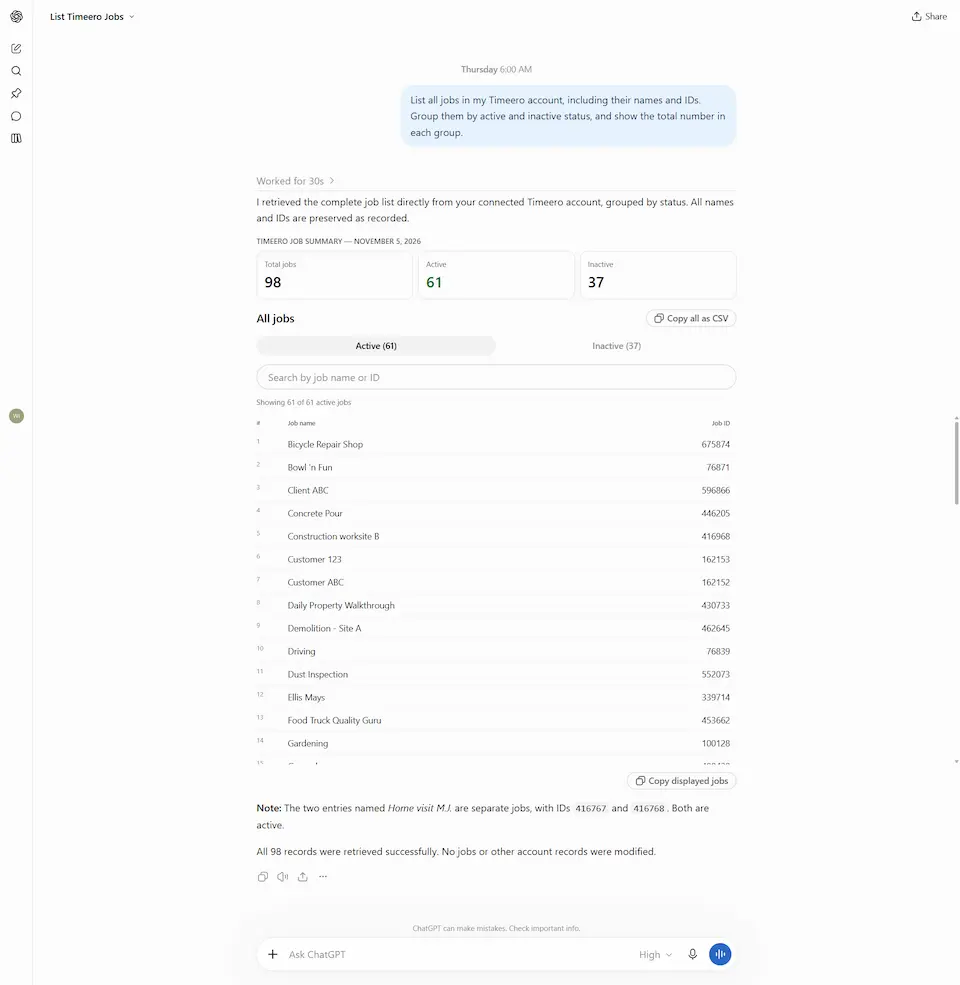
4. Open a new ChatGPT conversation to confirm that the connection was successful. For example, try this prompt:
“List all jobs in my Timeero account, including their names and IDs. Group them by active and inactive status, and show the total number in each group.”
When I tried this, ChatGPT returned 98 jobs from my Timeero account, grouped by active and inactive status. If you don't see your own records, check the connection and try again.
If you prefer Claude, the setup is similar. If you're using Claude's Free plan and its single custom connector slot is already occupied, you'll need to disconnect the existing connector before adding Timeero. For more details, see our Claude connection guide.
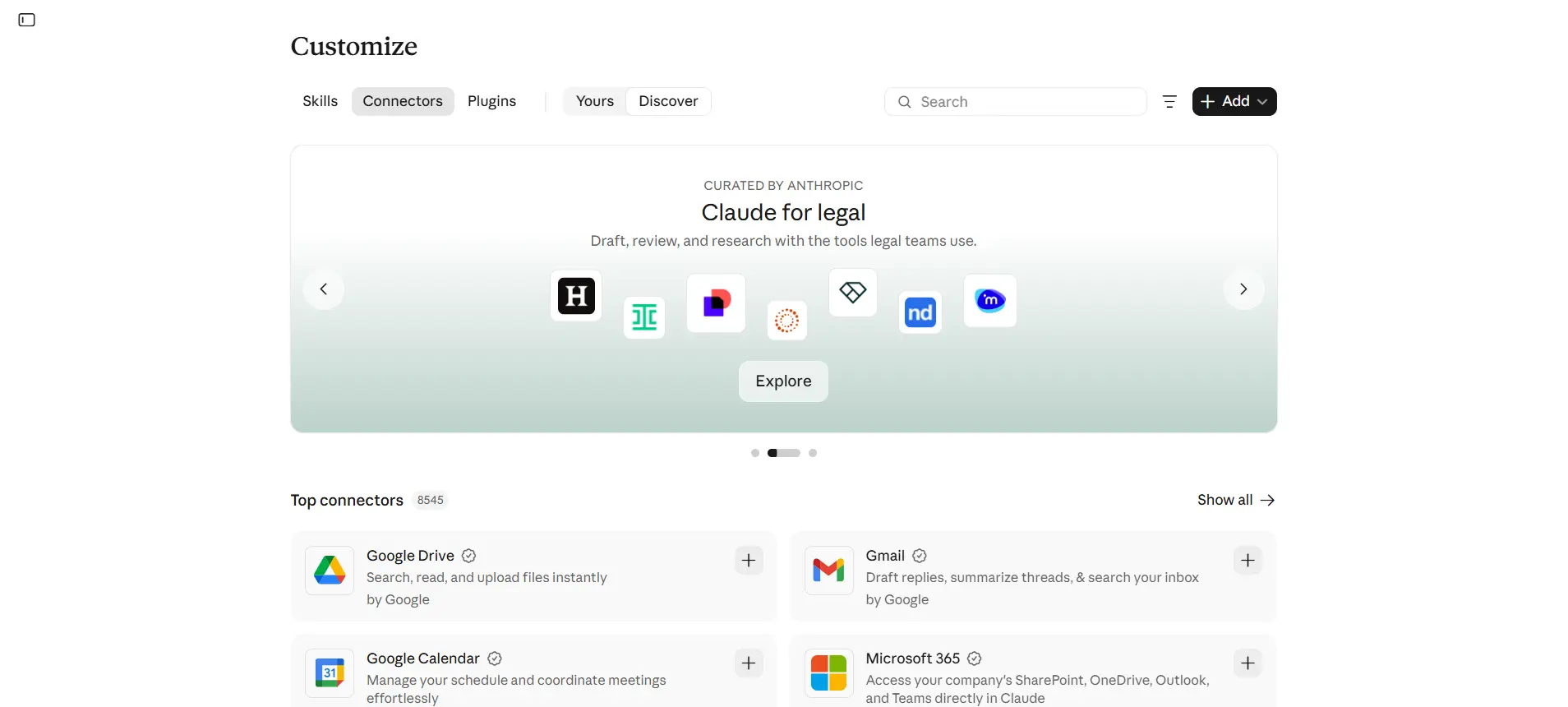
1. In Claude, open Customize → Connectors, click Add, and select Add custom connector.
Claude's Connectors page showing where to add a custom connector.
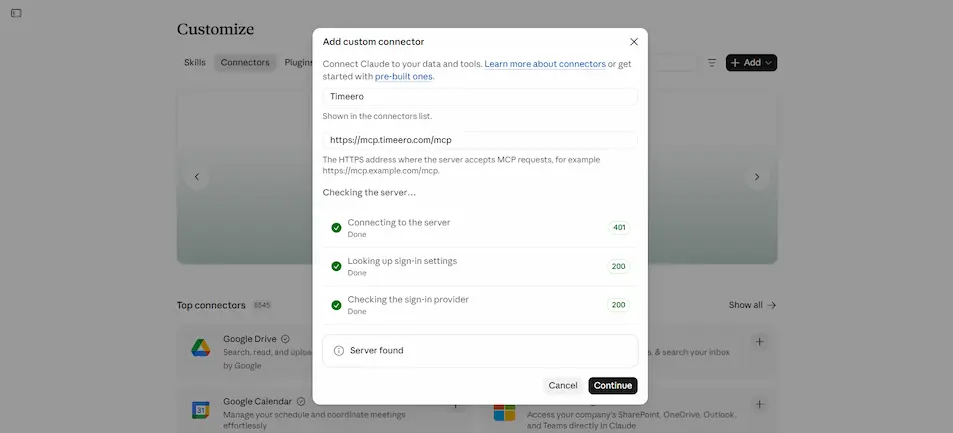
2. Enter Timeero as the connector name and https://mcp.timeero.com/mcp as the MCP server URL. Click Continue, then follow Claude's authentication prompts to finish adding the connector.
Claude's Add custom connector dialog with Timeero's name and MCP server URL.
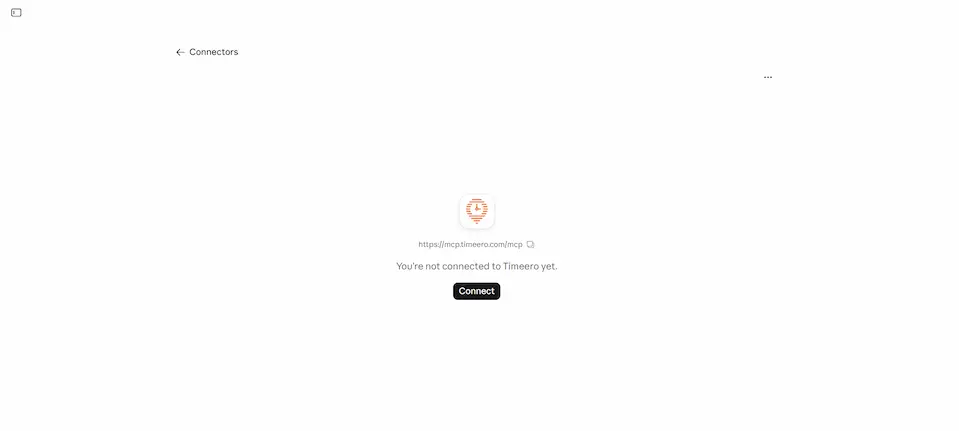
3. When Claude displays the Timeero connector page, click Connect to open Timeero's authentication page.
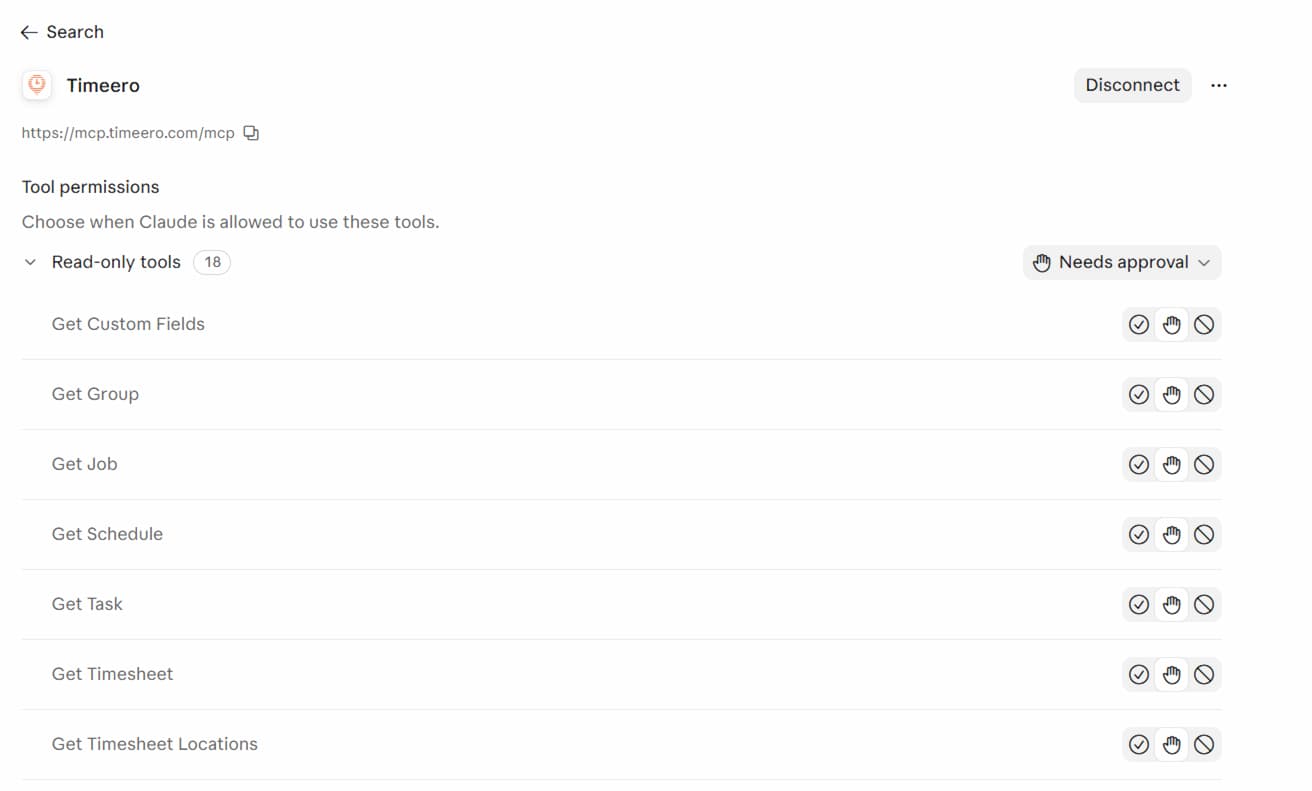
Claude's Timeero connector page with the Connect button.
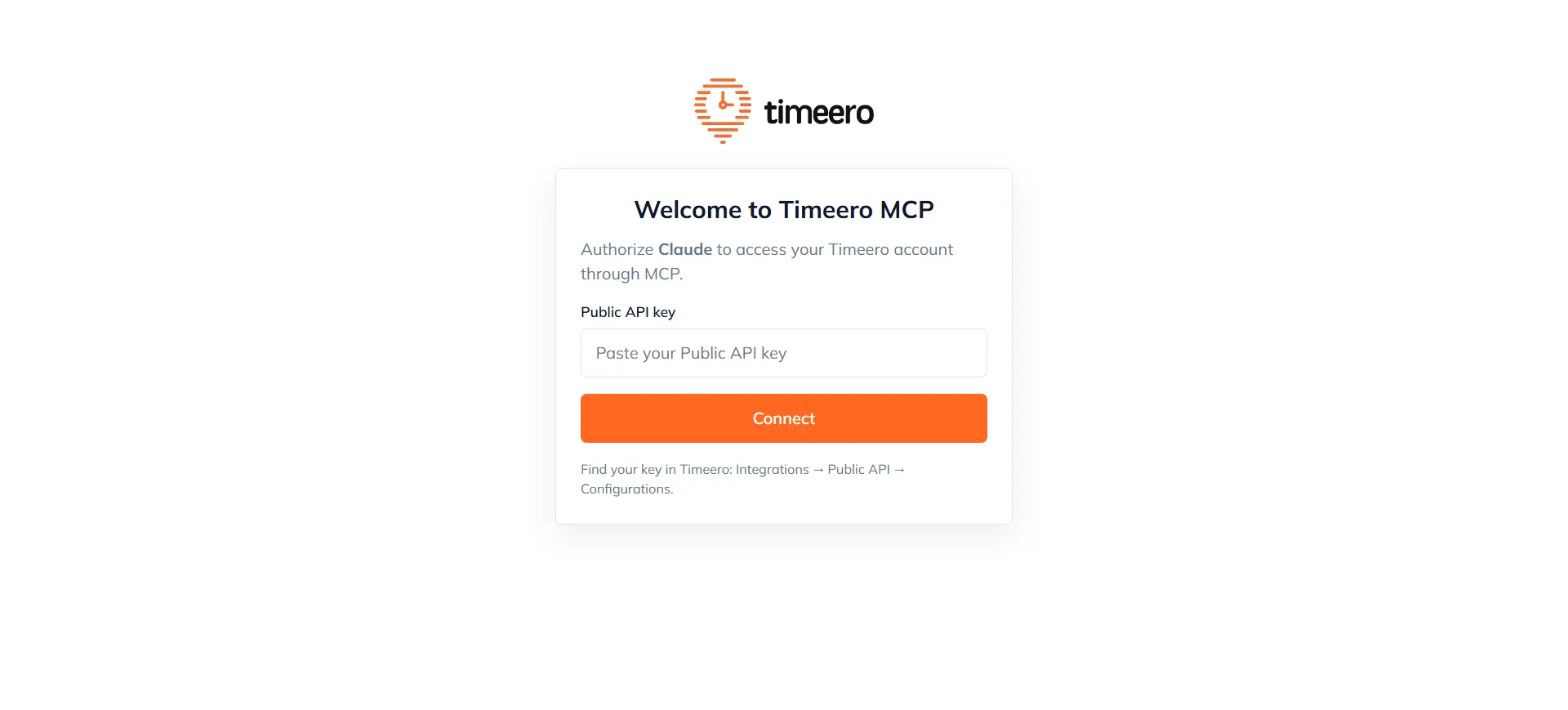
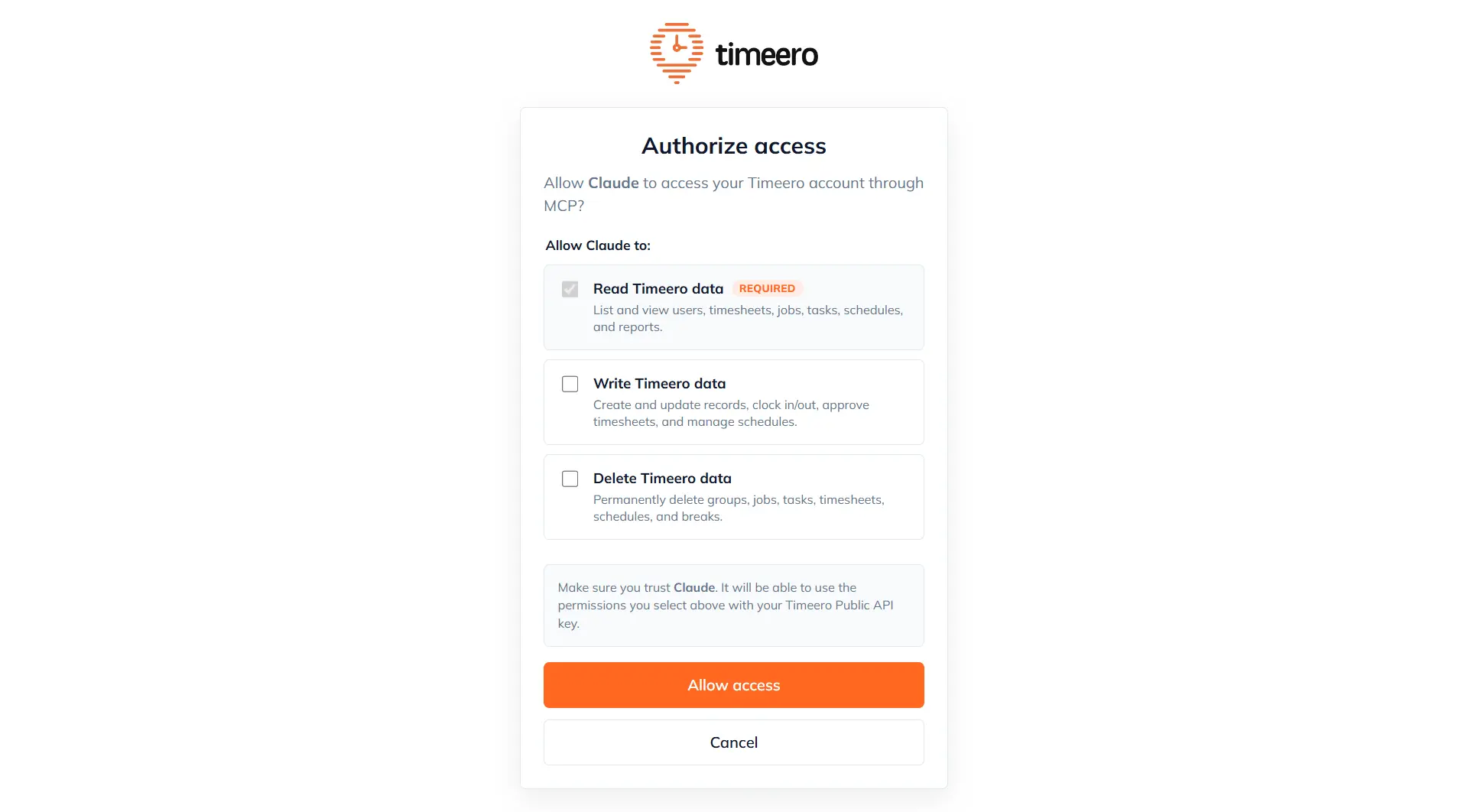
4. On the Timeero connection page, paste your Public API key and click Connect. Leave Write and Delete unchecked on the authorization screen, then click Allow access.
Enter a Timeero Public API key to connect Claude.
Authorize Claude with read access to Timeero data.
5. Return to Claude and check that Timeero appears among your connected tools.
Claude's connected Timeero tools and server information.
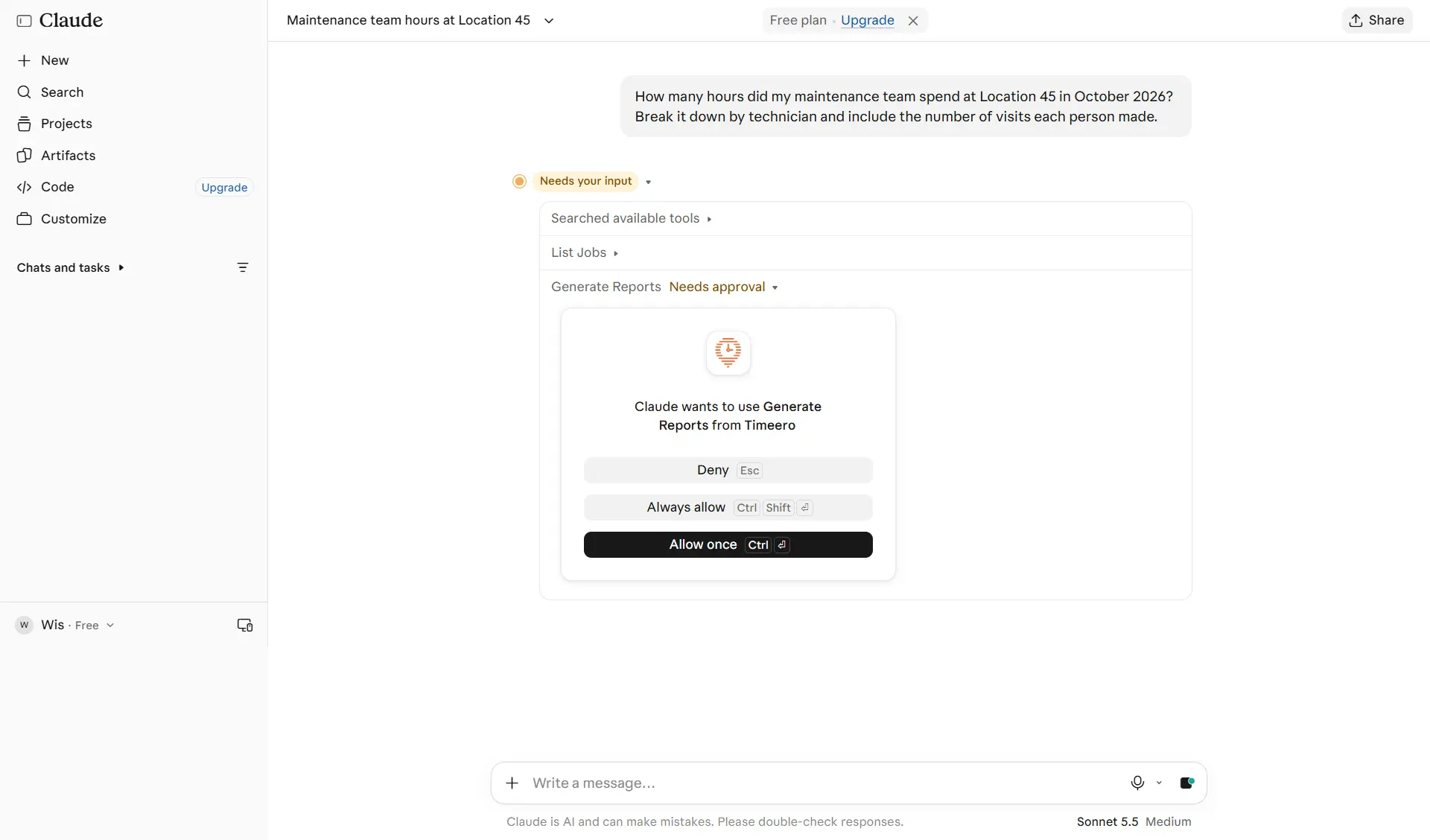
6. Open a new Claude conversation to check the connection. For example, try this prompt. Claude may ask you to approve its Timeero reporting tool before returning an answer; select Allow once to proceed.
How many labor hours did my maintenance team record at [property name] in [month and year]? Break down the hours and number of timesheets by technician.
Claude requests permission to use the Timeero reporting tool.
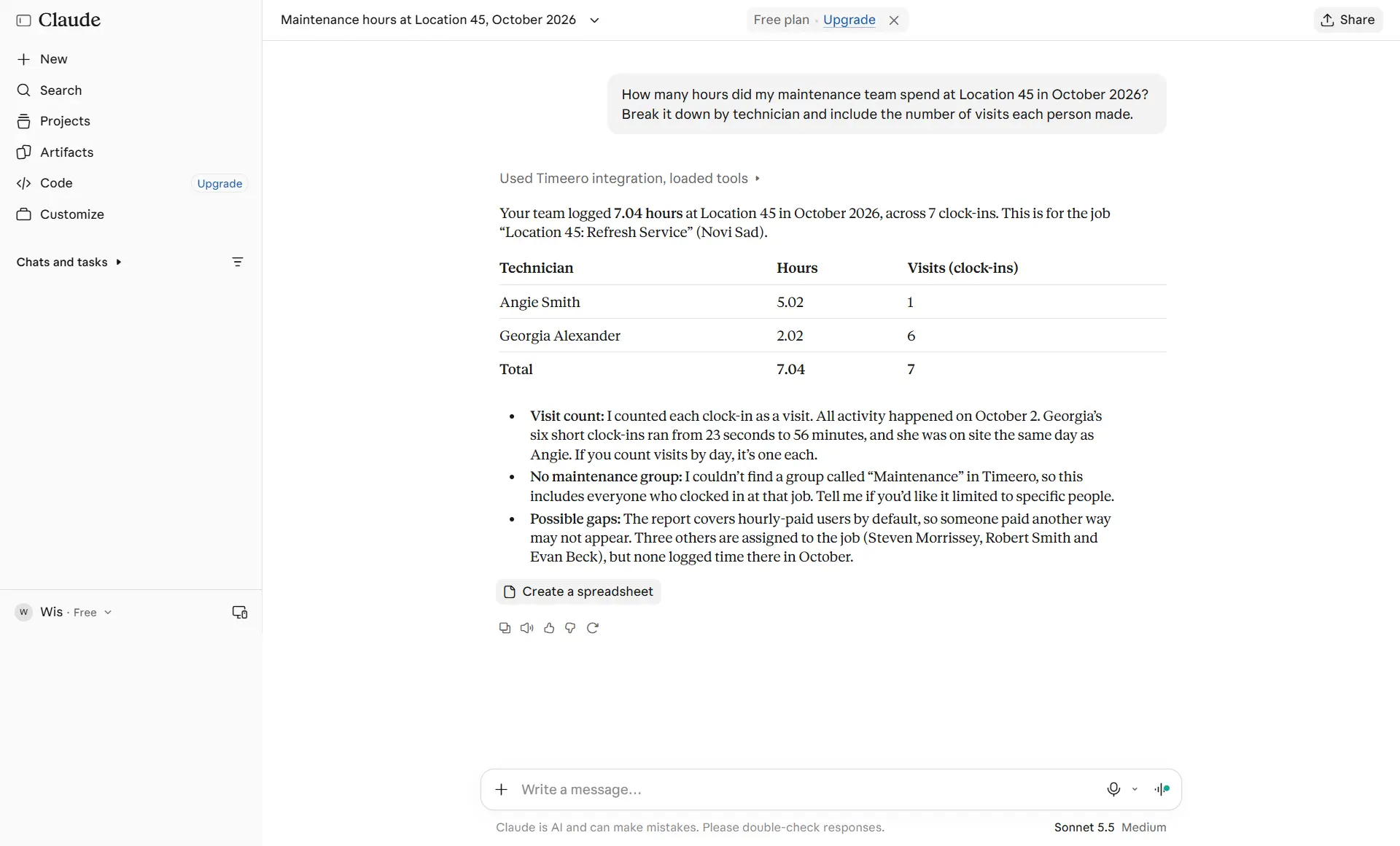
When I tried this for Location 45 in October 2026, Claude retrieved seven timesheets totaling 7.04 labor hours. That confirmed it could access my Timeero records.
Claude's October maintenance hours by technician and clock-in count.
Step 3: Analyze labor hours and visits by property
With Timeero connected to ChatGPT or Claude, you can check how many labor hours your technicians recorded at a property, compare hours across properties, and review individual time entries.
How many labor hours did our technicians record at [property name] from [start month] to [end month]? Break down the hours and number of timesheets by month, and show which technicians logged time.
2. To compare labor hours across properties
Compare the total labor hours recorded at [property A], [property B], and [property C] during [date range]. Rank the properties from highest to lowest and show their job IDs and total hours.
3. To check individual time entries
Show me the individual timesheets for [property name] during [date range]. Include each technician's name, clock-in and clock-out times, recorded duration, and any available GPS or geofence records.
For example, I asked ChatGPT to analyze labor hours recorded at a specific property from April through October 2026. It returned 47.75 hours across 20 timesheets, with September accounting for the most recorded time at 16.94 hours.
Monthly labor report for Location 45, showing recorded hours, timesheets, employees and AI-generated trends from April through October 2026.
With a monthly breakdown of labor hours, you can see how much time your technicians spent working at each property and identify months with unusually high or low recorded hours that may need further investigation. In my example, September had the highest recorded labor hours, so I'd start by reviewing the individual timesheets to see which technicians contributed to the total and investigate why more hours were recorded that month.
Step 4: Compare labor costs and trends
Comparing maintenance hours across months can help you spot changes in labor demand at a property and identify timesheets worth reviewing. You can also use the recorded hours to estimate labor costs if you have the applicable hourly rates.
Try these prompts to investigate changes in your maintenance team's labor hours and costs.
1. To compare monthly labor hours
How did maintenance hours at [property name] change between [month 1] and [month 2]? Show the total labor hours and number of timesheets for each month, including the difference.
2. To investigate unusual timesheets
Were any timesheets unusually long, flagged, or unapproved at [property name] during [date range]? Show the individual records, including employee names, recorded hours, and approval status.
3. To estimate labor costs
Estimate labor costs for [property name] in [month 1] and [month 2] using the recorded hours. Identify any hourly rates or other information needed for an accurate estimate.
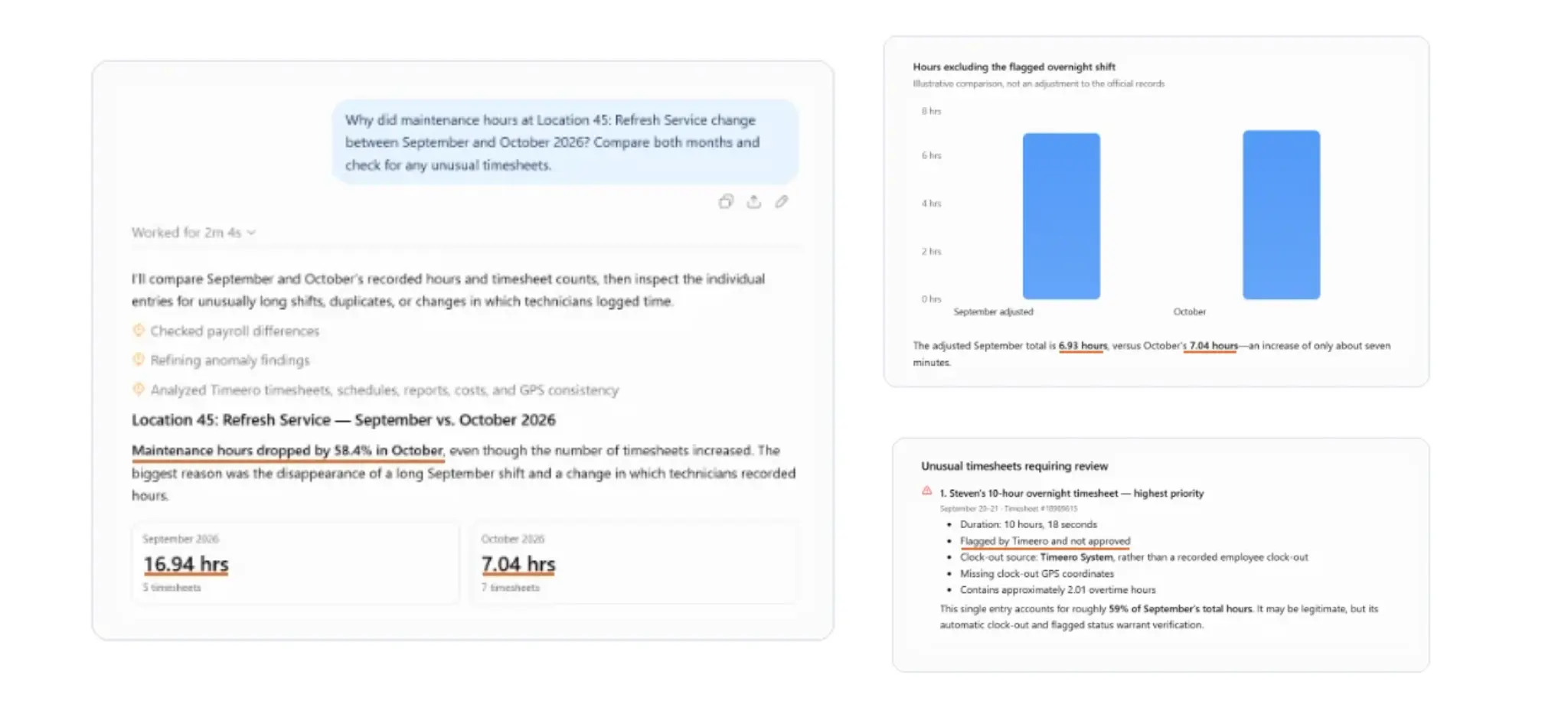
For example, I asked ChatGPT to compare maintenance hours at Location 45 for September and October 2026. September recorded 16.94 hours across five timesheets, compared with 7.04 hours across seven timesheets in October. That's a decrease of approximately 58% in recorded labor hours, even though the number of timesheets increased.
When I investigated the individual records, ChatGPT identified a September timesheet lasting just over 10 hours that was flagged and unapproved.
ChatGPT compares maintenance labor hours and timesheets for September and October 2026 at Location 45 and identifies a flagged, unapproved timesheet.
Comparing these records can help you understand which technicians and time entries contributed to changes in labor hours. In my example, the unusually long September timesheet accounted for a substantial portion of that month's total. I'd review the entry and confirm the hours before drawing conclusions about why labor hours decreased in October.
If you're looking to estimate your labor costs, you'll need to provide the applicable hourly rates and account for overtime or job-specific rates. It's also important to verify the estimates against your payroll records before relying on them.
Want to analyze your own maintenance team's labor hours and costs? Start your 14-day free trial to track employee hours by property and explore your workforce data.
Step 5: Review mileage and travel between properties
When your maintenance technicians work across multiple properties, tracking their mileage can help you understand how much travel is associated with each location and identify unusually high mileage records that may need further investigation.
Here are three prompts you can use to review your technicians' recorded mileage and travel between properties.
1. To review mileage by property
How many miles did our technicians record at [property name] during [date range]? Break down the mileage by technician and show the total.
2. To identify high-mileage timesheets
Which technicians or timesheets recorded the most mileage at [property name] during [date range]? Include the dates, employee names, and miles recorded.
3. To investigate travel between properties
Does Timeero have recorded travel-time segments between [property A] and [property B] during [date range]? Show the recorded mileage and travel time, if available.
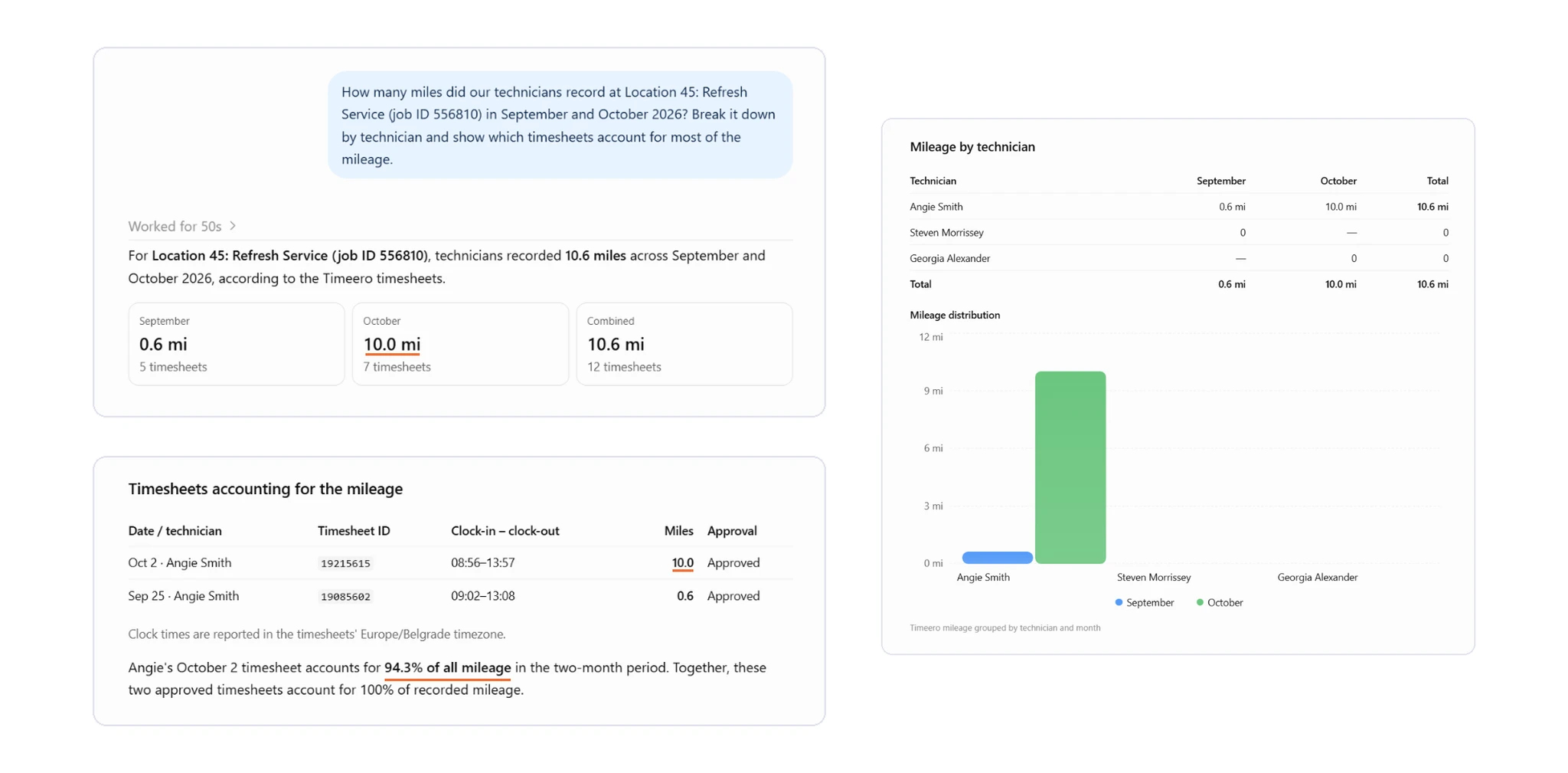
For example, I asked ChatGPT to review the mileage recorded at Location 45 in September and October 2026. It found 0.60 miles in September and 10.00 miles in October, with all 10 October miles coming from a single timesheet.
ChatGPT breaks down recorded mileage at Location 45 by technician and timesheet for September and October 2026.
By reviewing mileage by technician and timesheet, you can see how much travel was recorded against each property and identify entries that may need further investigation. In my example, all 10 miles recorded in October came from one timesheet, so I'd review that entry to verify the mileage and understand what contributed to it.
To check how long technicians spent driving between properties, you can use Timeero's Segmented Tracking add-on, which records travel time and mileage between job sites. If you use this feature, verify any AI-generated travel summaries against your original records in Timeero. For more details, read our guide on Segmented Tracking for property managers.
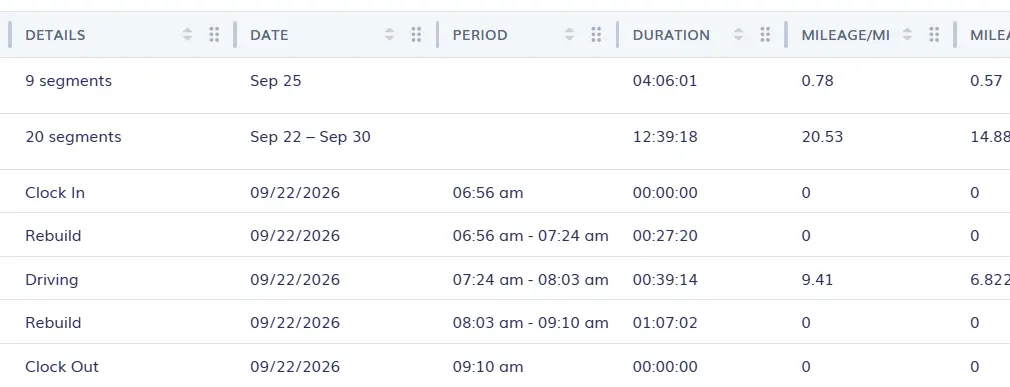
To inspect recorded driving time, open Reports → Segmented Tracking Reports in Timeero, choose an employee and date range, and generate the report. Expand an employee's row to see individual work and driving segments.
Timeero Segmented Tracking report showing separate work and driving segments in September 2026.
For example, the report shows a driving segment lasting 39 minutes and 14 seconds over 9.41 miles on September 22, alongside separate work segments. This dashboard example covers multiple jobs and is separate from Location 45's ChatGPT mileage results above. Review individual segments rather than treating the report's total duration as driving time.
Step 6: Check property visits and attendance records
When technicians work across multiple properties, you need to know when they clocked in and out and whether they were at the assigned locations. With Timeero's GPS and geofence records, you can review their recorded clock-in and clock-out locations and identify entries that may need further investigation.
Here are three prompts you can use to review property visits and technician attendance.
1. To check who clocked in at a property
Who clocked in at [property name] on [date]? Show each technician's name, clock-in and clock-out times, and recorded hours.
2. To investigate geofence violations
Were any clock-ins or clock-outs recorded outside the geofence at [property name] during [date range]? Show the affected timesheets and technicians.
3. To review GPS location records
Show the available GPS location records for [employee name] at [property name] on [date]. Include the recorded coordinates and any available geofence information.
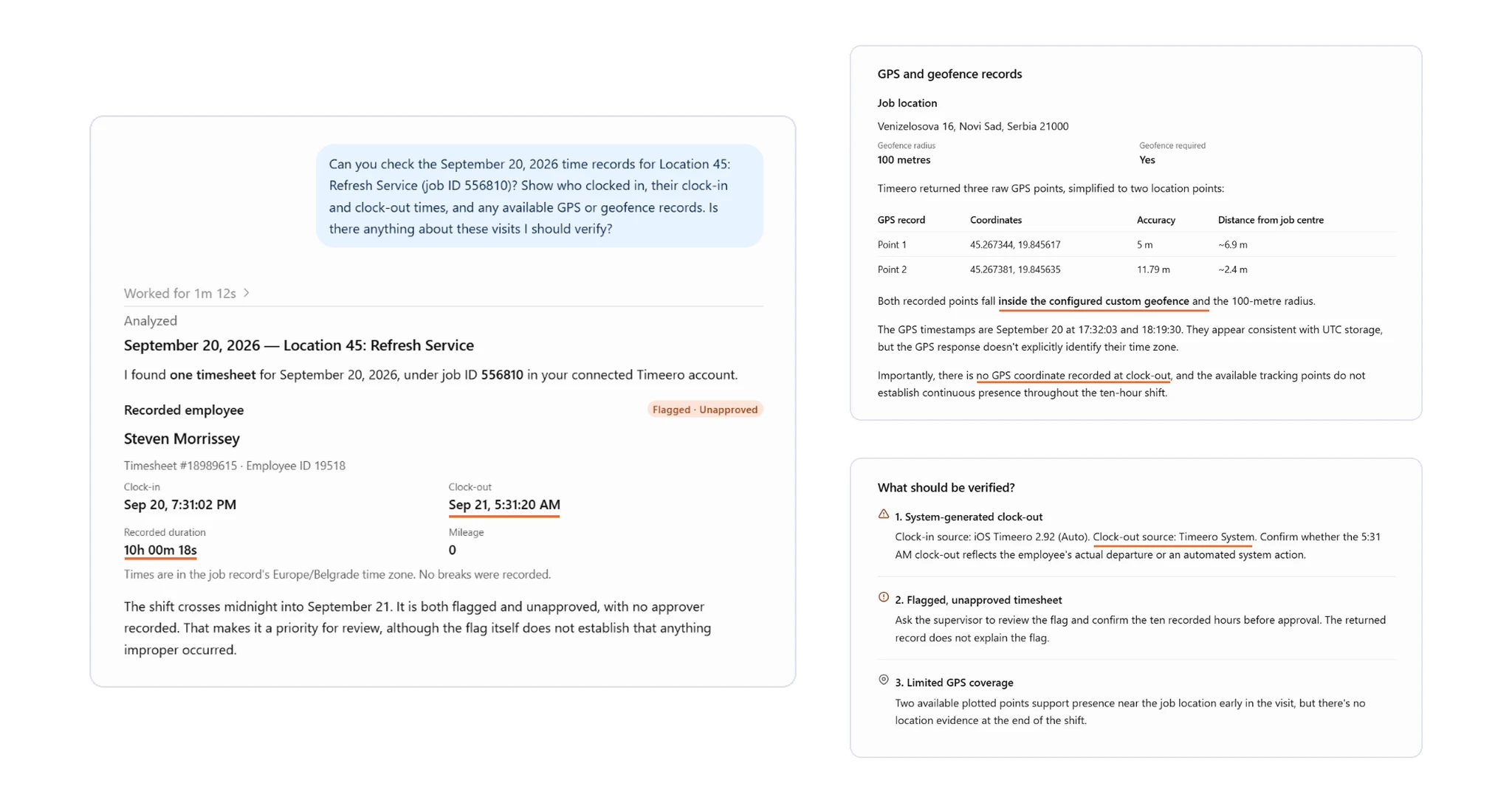
For example, I asked ChatGPT to review the clock-in and clock-out records for Location 45 on September 20, 2026. It identified a flagged, unapproved timesheet lasting just over 10 hours and returned two GPS location points within the property's geofence.
ChatGPT reviews a flagged overnight timesheet at Location 45, showing the technician's clock-in and clock-out details, GPS records, and geofence information.
By reviewing these records, you can check whether technicians clocked in at their assigned properties and investigate unusual attendance entries. In my example, the GPS points were within the property's geofence, but I'd still review the flagged timesheet and confirm the work performed before approving it.
You can also compare clock-in times with assigned schedules to investigate late arrivals. However, you'll need the relevant schedule records to make that comparison. In my test, ChatGPT couldn't find schedules for the job during the period reviewed, so I couldn't verify whether the technician arrived on time.
Step 7: Investigate productivity and time-record accuracy
Reviewing your technicians' timesheets can help you identify unusually long shifts, unapproved hours, and inconsistencies in recorded work time. You can use these findings to investigate potential attendance issues and understand how your team spends its time at each property.
Here are three prompts you can use to review your maintenance team's time records.
1. To identify flagged or unapproved timesheets
Were any timesheets flagged or unapproved at [property name] during [date range]? Show each record, including the technician's name, recorded hours, and approval status.
2. To compare technicians' recorded work hours
Which technicians logged the most labor hours at [property name] during [date range]? Break down the hours and number of timesheets by technician.
3. To verify recorded labor hours
Show the individual timesheets for [property name] from [start date] to [end date]. Include each technician's name, recorded duration, and approval status. Check whether the individual hours add up to the reported totals.
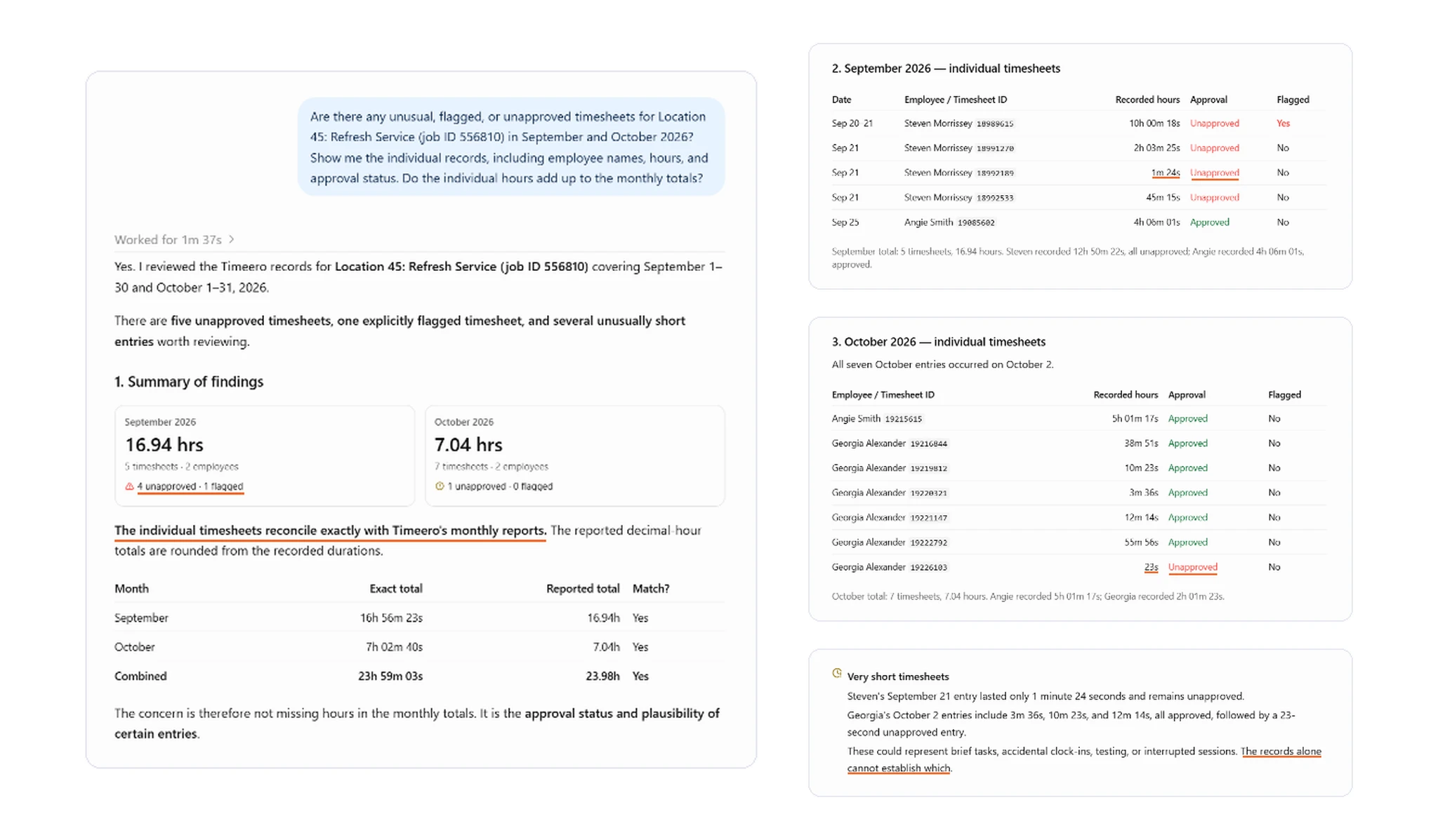
For example, I asked ChatGPT to review the individual timesheets for Location 45 in September and October 2026. It retrieved 12 timesheets: five from September and seven from October, with the individual hours matching the monthly totals.
However, four September timesheets were unapproved, including the flagged entry lasting just over 10 hours. In October, six of the seven timesheets were approved.
ChatGPT reviews individual timesheets for Location 45 in September and October 2026, including employee hours, flagged entries, approval statuses, and reconciliation with monthly totals.
By reviewing individual timesheets, you can identify records that need further verification before approving hours or preparing maintenance reports. In my example, I'd prioritize the flagged September entry and the other unapproved timesheets to confirm the recorded hours with the technicians involved.
Keep in mind that recorded hours alone don't establish technician productivity. A longer shift could involve more complex maintenance work, while several shorter entries may represent different tasks or visits. Check the relevant work records before drawing conclusions about employee performance.
Step 8: Turn verified findings into a property-owner update
After reviewing your maintenance team's labor hours, mileage, and timesheets, you can use ChatGPT or Claude to prepare updates for property owners. This helps you summarize the work recorded at each property, explain changes between reporting periods, and highlight any issues that still need attention.
Here are two prompts you can use to prepare maintenance updates for property owners.
1. To summarize your findings
Summarize the recorded labor hours, timesheets, and mileage at [property name] during [date range]. Highlight the main findings and identify any records that need verification before sharing an owner update.
2. To draft a property-owner email
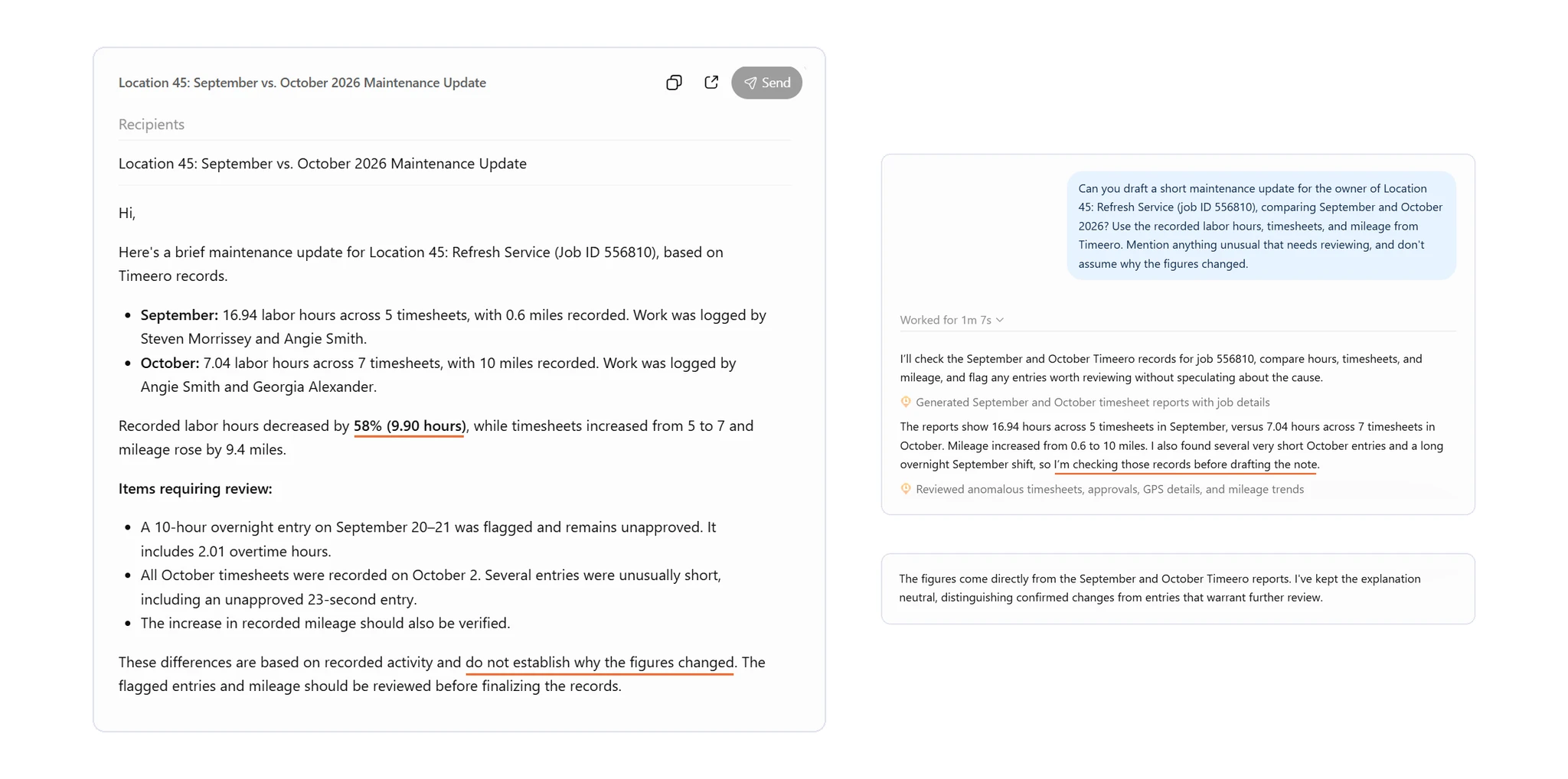
Write a short email to the owner of [property name] summarizing our maintenance team's recorded hours and mileage during [date range]. Include any outstanding issues that need review.
For example, I asked ChatGPT to draft a maintenance update for Location 45 comparing September and October 2026. It summarized the 58% decrease in recorded labor hours, the increase in timesheets from five to seven, and the rise in recorded mileage from 0.60 to 10.00 miles. It also highlighted the flagged, unapproved September timesheet that needed further verification.
ChatGPT drafts a property-owner maintenance update comparing September and October 2026 labor hours, timesheets, and mileage at Location 45.
You can use the generated summary as a starting point for communicating maintenance activity to property owners without manually compiling the figures into a report. Before sharing it, verify the recorded hours, mileage, and any flagged timesheets against your original Timeero records.
What an AI assistant cannot tell you
An AI assistant connected to Timeero can help you analyze your maintenance records, but some questions require additional information or human verification. Here's what you should know:
Missing records: If GPS data or employee schedules are unavailable, the assistant may not be able to verify where technicians clocked in or whether they arrived on time.
Work completion: Clock-in and GPS records can help verify a technician's recorded location, but they don't confirm that the assigned maintenance work was completed.
Flagged timesheets: A flagged or unapproved timesheet may need further investigation. Check the recorded hours and discuss any discrepancies with the technician before deciding what action to take.
Incomplete results: Long reporting periods or missing information may affect the assistant's answers. Try shorter date ranges and ask for the underlying records to verify the findings.
Use AI for property management decisions with better evidence
Using AI for property management can help you understand where your maintenance team's time and resources go. By analyzing labor hours, mileage, property visits, and timesheet records, you can identify issues that need attention and make more informed decisions.
Timeero is a GPS time tracking and workforce management platform for field teams. By connecting it to ChatGPT or Claude, you can ask questions about your maintenance operations, review the underlying records, and prepare updates for property owners.
Want to start analyzing your own maintenance team's data? Start your 14-day free trial to track your technicians' hours and mileage across properties.
FAQs
Which AI is best for property management?
The best choice depends on your workflow and whether it supports a secure connection to your workforce data. ChatGPT and Claude can both retrieve Timeero records through the Timeero MCP server when correctly connected.
Can ChatGPT or Claude see my maintenance team's hours and mileage?
Yes, when an authorized Timeero MCP connection is available and those records exist. They can query supported timesheets and mileage reports, although the detail returned depends on the data and tool.
Will AI replace property managers?
No. AI can summarize records and flag questions, but property managers must verify the evidence, communicate with employees and owners, and make operational decisions.
Can an AI assistant change or delete my Timeero data?
Permissions matter. If you authorize only Read and disable Write and Delete, the connection can retrieve data without those modification permissions. Review the permissions whenever you connect a new assistant.
What Timeero plan do I need to connect an AI assistant?
You need a Timeero Premium plan with Public API access to connect an AI assistant through our MCP server.
Is my Timeero API key safe when I connect an AI assistant?
Yes. Your Timeero Public API key is encrypted and used for MCP tool calls. To protect your account, keep your API key private and leave Write and Delete permissions disabled unless you need them.
Turn Your Maintenance Records Into Actionable Insights