How To Use AI For Construction: Check Your Crews' Hours, Overtime And Mileage By Job Site
Emman Velos
Last update on:
November 25, 2026 11:16 AM
Published on:
November 25, 2026
TL;DR
Connecting your workforce records directly to an AI assistant helps you analyze crew hours, overtime, and mileage without having to dig through scattered spreadsheets.
You can securely connect Timeero to ChatGPT or Claude using the Timeero MCP server, which lets you ask plain-language questions about your job sites and get immediate answers.
With your data connected, the assistant can calculate labor costs, break down drive time, identify overtime trends, and even handle routine tasks like approving timesheets.
While AI surfaces valuable insights, it does not replace your accounting software, and construction managers remain fully responsible for reviewing data and making final business decisions.
A contractor is pricing a new project and wants to understand how much labor a job like this requires. Getting that answer usually means digging through past timesheets, sorting out overtime, and tallying up mileage across multiple job sites.
When your workforce data is scattered across separate logs, assembling the numbers is a project in itself. That administrative roadblock makes it harder to nail down your true labor costs, spot hidden inefficiencies, and bid your future projects with confidence.
Timeero solves the scattered data problem by automatically tracking your crews’ hours, overtime, and mileage. But you can actually take it a step further by using artificial intelligence (AI) for construction to streamline your construction data.
With Timeero’s MCP Server, you can connect all of this information directly to AI assistants like ChatGPT and Claude. Instead of piecing together reports by hand, you can ask plain-language questions about your crews and get immediate answers.
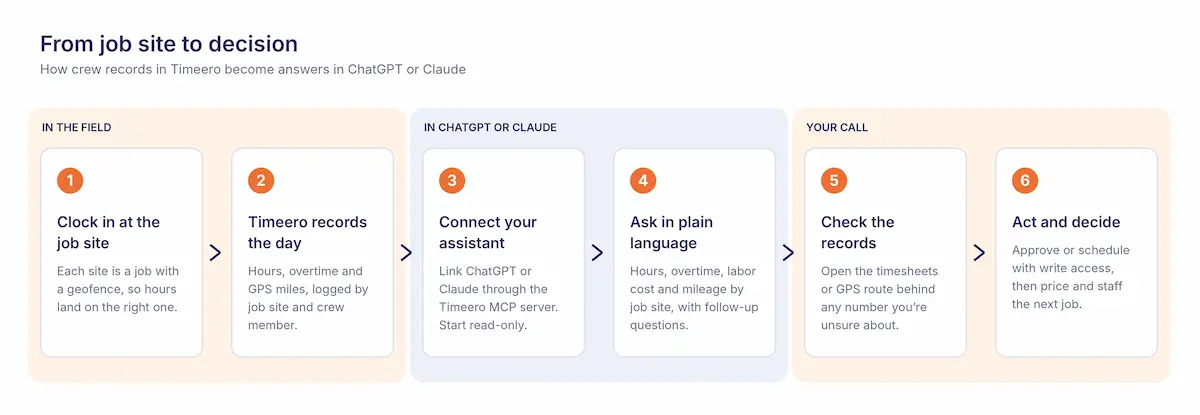
How crew records in Timeero turn into answers you can check and act on.
How construction companies are using AI
For an industry built on physical labor, construction generates an overwhelming amount of manual data entry and paperwork. To help ease that administrative burden, contractors are finding highly practical ways to apply artificial intelligence across the entire project lifecycle.
Here is a quick look at five common ways AI is showing up in construction:
Estimating and takeoffs: AI speeds up the bidding process by analyzing blueprints and quantifying materials to support tighter, more accurate cost estimates.
Project scheduling: By analyzing project variables, AI can spot scheduling conflicts before they happen, helping managers optimize timelines and allocate resources without the guesswork.
Document management: Instead of having office admins drown in paperwork, AI tools quickly review contracts, RFIs, specifications, and other massive project files.
Safety and progress monitoring: Some systems analyze daily site images to identify potential safety hazards and keep a close eye on overall construction progress.
Workforce and labor management: AI analyzes the daily reality of your crews, including hours worked, overtime, mileage, and labor costs, to help improve project planning and resource allocation.
While many AI tools for construction focus heavily on project planning and site monitoring, you don't need to overhaul your entire operation to see a return. Construction companies can use AI right now to make better decisions using the workforce data they already collect every single day.
Your crews' hours, overtime and miles are already being recorded.
Timeero tracks them by job site and lets ChatGPT or Claude answer your questions about them.
Before diving into how to use AI for construction, complete these 5 steps to get your Timeero workforce data talking to your assistant:
Time and mileage records already organized inside your Timeero account.
An active account with a compatible AI tool like ChatGPT or Claude.
A connection to the Timeero MCP server to link your data to the AI.
A Timeero Premium account, which includes the Public API access required to make this work.
The right AI subscription tier.
Plan requirements
ChatGPT: you need a paid plan to use MCP connections.
Claude: the Free plan supports one custom connector. On Team or Enterprise plans, only an Owner can add it.
Step 1: Organize your construction job sites in Timeero
Artificial intelligence is only as smart as the data you feed it. Before you connect your tools or reference Timeero MCP, you need to ensure your records clearly identify exactly where the work occurred. If your time records are disorganized, your AI analysis will be just as messy.
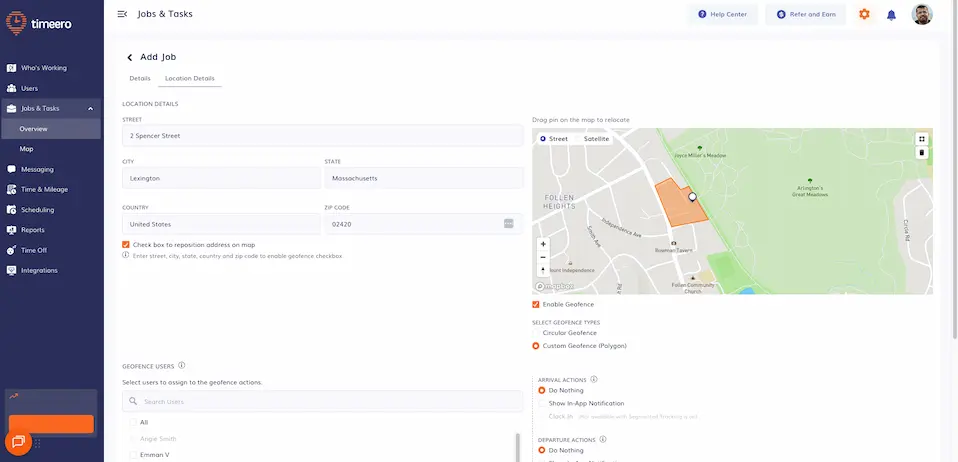
To set each construction site up as a separate job with a geofence in the Timeero web portal, follow these steps:
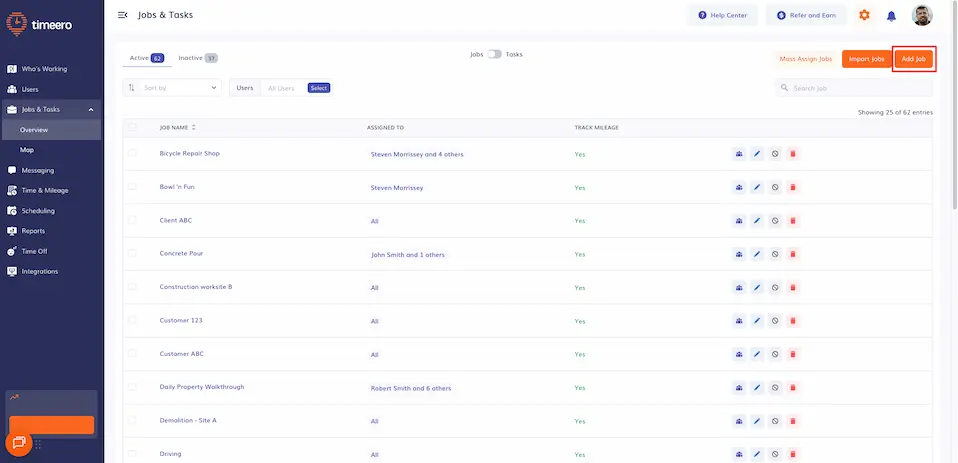
1. Navigate to Jobs & Tasks on the web portal and click Add Job in the upper right corner.
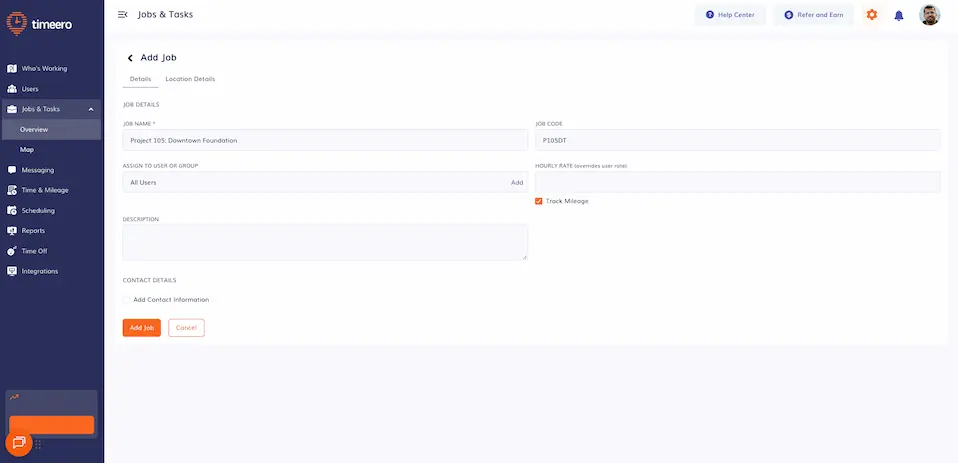
2. Name your job using a consistent format like "Project 105: Downtown Foundation" because standardized naming matters when asking AI assistants to retrieve specific records.
3. Under Details, enter an optional Job Code or Description, set a job-specific Hourly Rate if it needs to override an employee's standard rate, and check Track Mileage to record travel for eligible crew members.
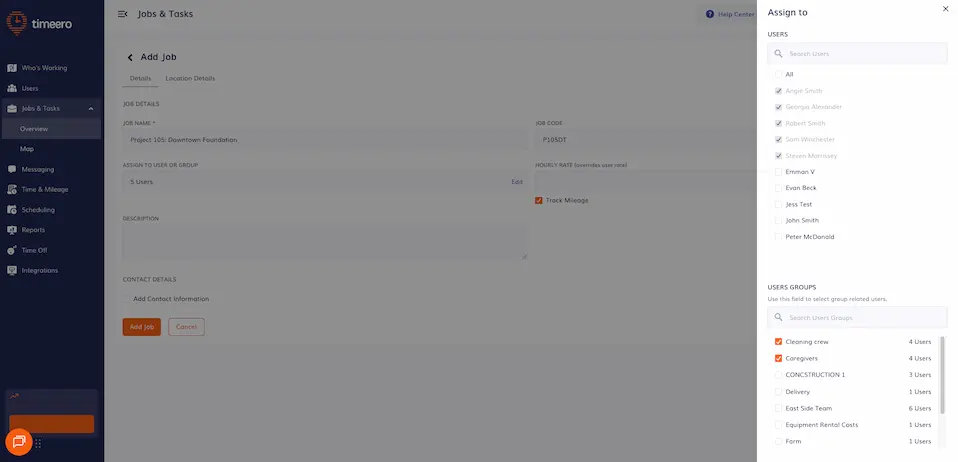
4. Under Assign to User or Group, select the specific crew members or groups who will be working at that site so they can select the job when clocking in.
5. Switch to Location Details, enter the job site address, and verify that the map pin lands on the exact location.
6. Check the box next to Require Geofencing and set your boundary. You can drag the bar to create a circular geofence (with a 100-meter minimum radius) or click to draw a custom polygon shape around irregular property lines.
7. Click Add Job to save your site.
Setting up these digital boundaries ties clock-ins directly to the correct construction site and automatically flags any punches made outside the designated area.
Once your jobs are named and your boundaries are set, you can enable Auto Clock-In/Out, which automatically clocks crew members in and out when they enter or leave a job site's geofence.
However, when Auto Clock-In/Out is active, travel between job sites is not recorded. Teams that need to track drive time and mileage between sites will need Timeero’s Segmented Tracking instead.
Step 2: Connect Timeero to Claude or ChatGPT
Connecting your workforce data to an AI assistant requires an authorized setup. Both connections use the exact same MCP URL (https://mcp.timeero.com/mcp) and your Timeero Public API key to link your data.
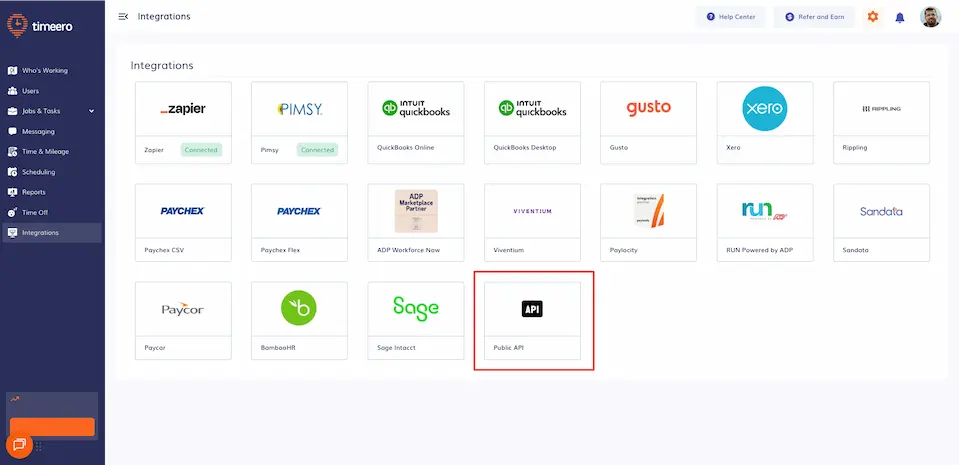
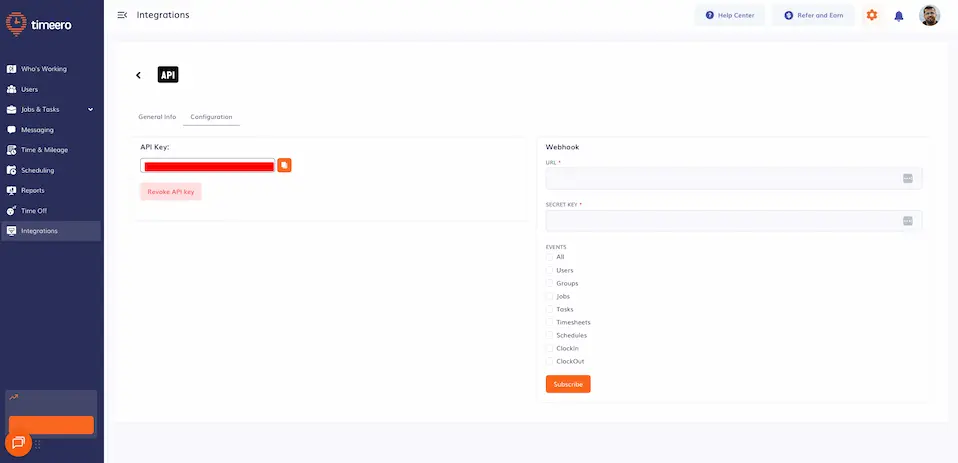
Before opening your AI app, you need to grab that key. In your Timeero account, navigate to Integrations, select Public API, and open the Configuration tab to copy your key. Keep this key private like a password.
How to connect Claude
If you want to use Claude for construction reporting, follow these steps:
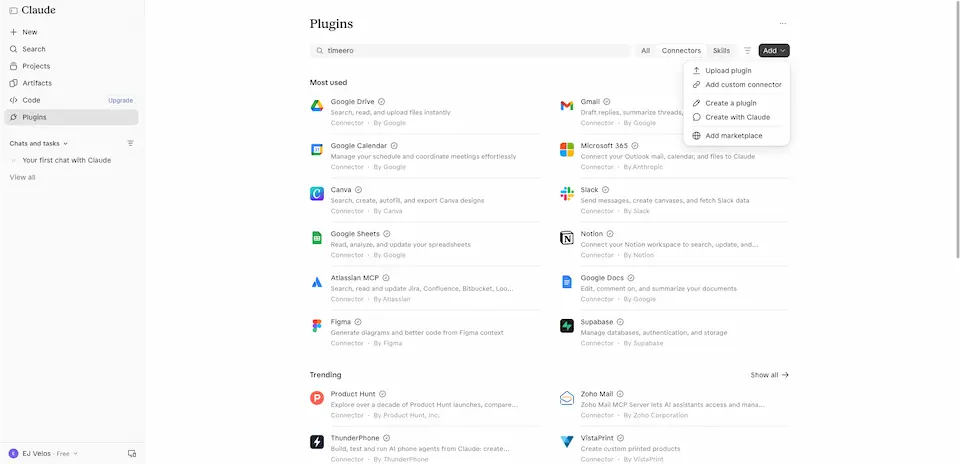
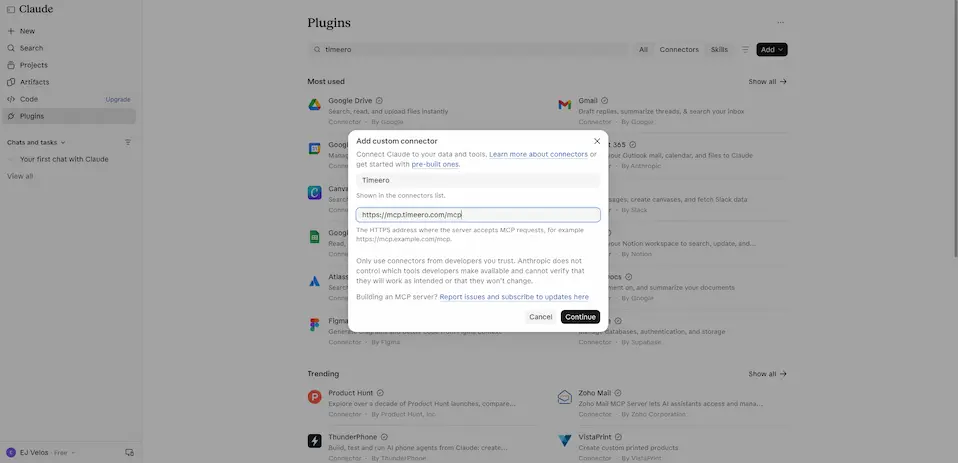
Open Claude, head to your Settings, and select Connectors under Plugins to add a new custom connector.
Name the connector “Timeero” and enter the MCP URL (https://mcp.timeero.com/mcp).
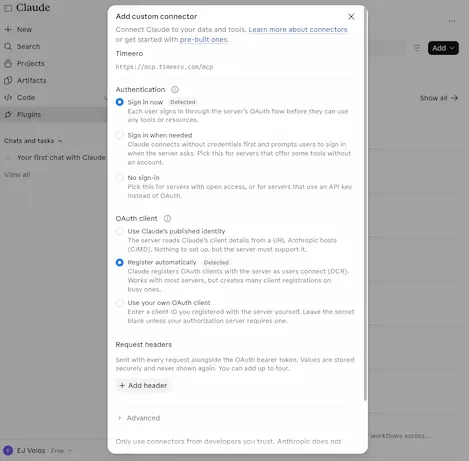
Click Connect and paste your Timeero Public API key when prompted.
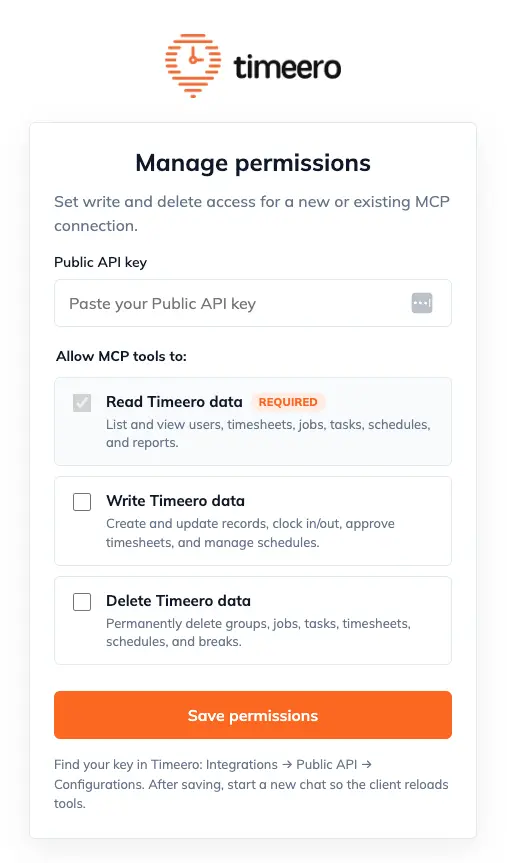
Leave Write and Delete unchecked on the Authorization access screen before clicking Allow access.
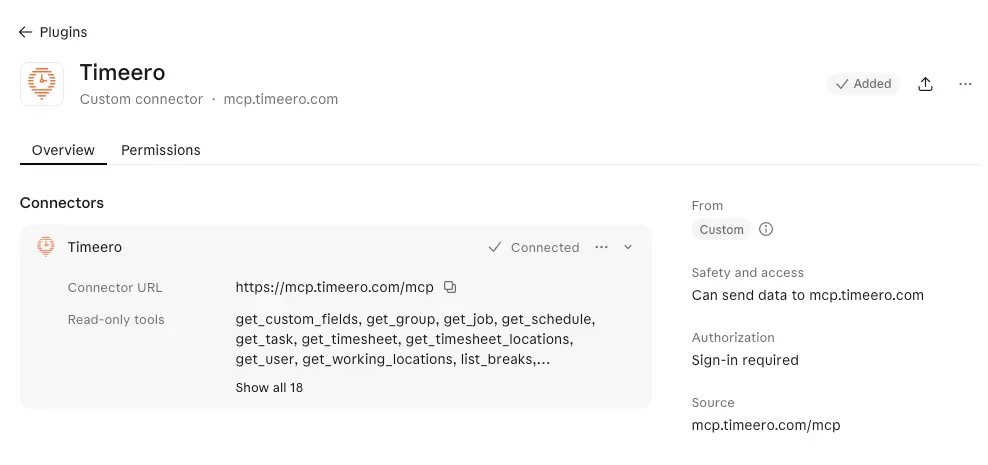
Return to your Claude dashboard and verify that Timeero shows up in your connected tools.
In your Claude dashboard, “Added” with a check mark signifies you have successfully connected to the Timeero MCP server.
If you prefer using ChatGPT for construction workforce tracking, the setup is just as straightforward:
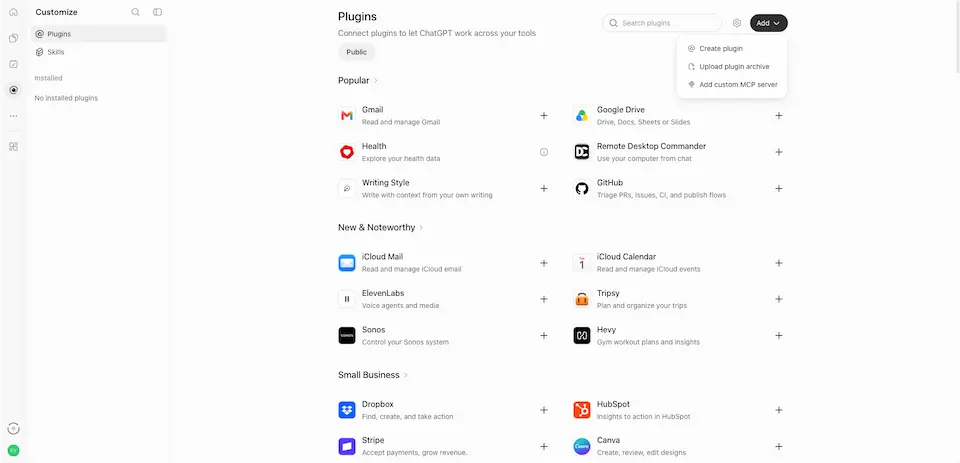
In ChatGPT, open your Settings and scroll down to Integrations> Plugins. Click on Browse directory.
In the main Plugins page, navigate to Add > Add custom MCP server. Select OAuth under Authentication, check “I understand…” and click Create a plugin to continue.
On the Authorization access screen, remember to leave Write and Delete unchecked before clicking Allow access.
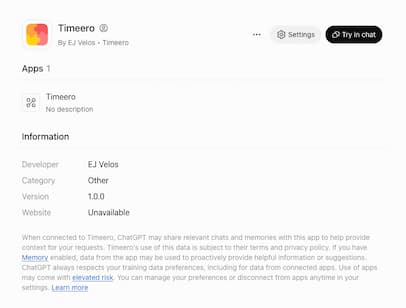
After you’re redirected to the newly added plugin page, click Try in chat to test the connection with your first prompt.
Step 3: Analyze your crew’s hours and overtime by job site
Tracking exactly where your labor hours go across multiple active job sites is usually a massive headache. Once your AI assistant is connected, you no longer have to export timesheets and filter spreadsheets just to get a clear picture of your labor distribution.
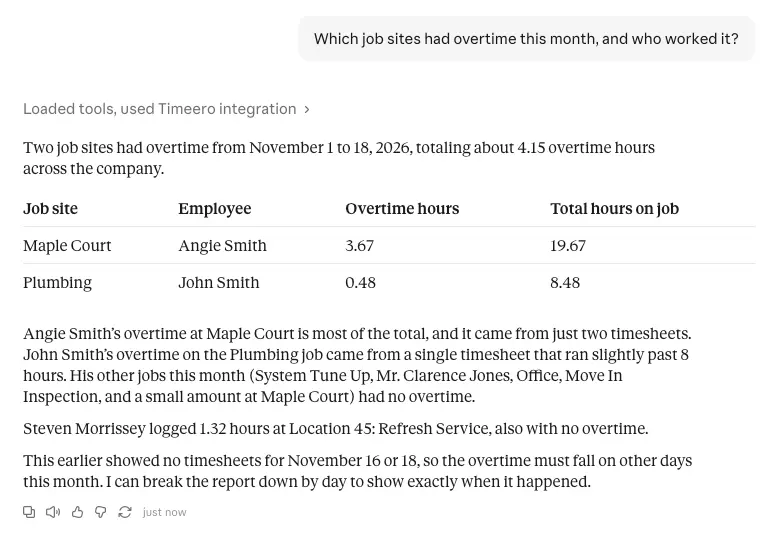
Instead, you can ask questions in everyday language to find out how many crew hours went into each job site this week or month, which job sites had overtime, and which employees worked those extra hours.
A great way to test the connection is with a simple warm-up question. For these examples, we’re going to use Claude. Try asking your assistant “Who is clocked in right now and which job site they are working at?”
From there, you can dig deeper. You can ask the assistant to return the total hours for every job site, specifically asking it to separate regular hours from overtime.
The best part is that you can ask a follow-up question without having to start over or pull a brand new report. If one project looks a little heavy on overtime, simply reply to the AI and ask which crew members logged those extra hours.
Here are a few example prompts to try with your own records (just be sure to run each in your demo account before using it live):
"Show total crew hours for each job site last week, with regular and overtime hours split."
"Which job sites had overtime this month, and who worked it?"
"Who is clocked in right now, and at which job site?"
Step 4: Calculate labor costs and monitor job budgets
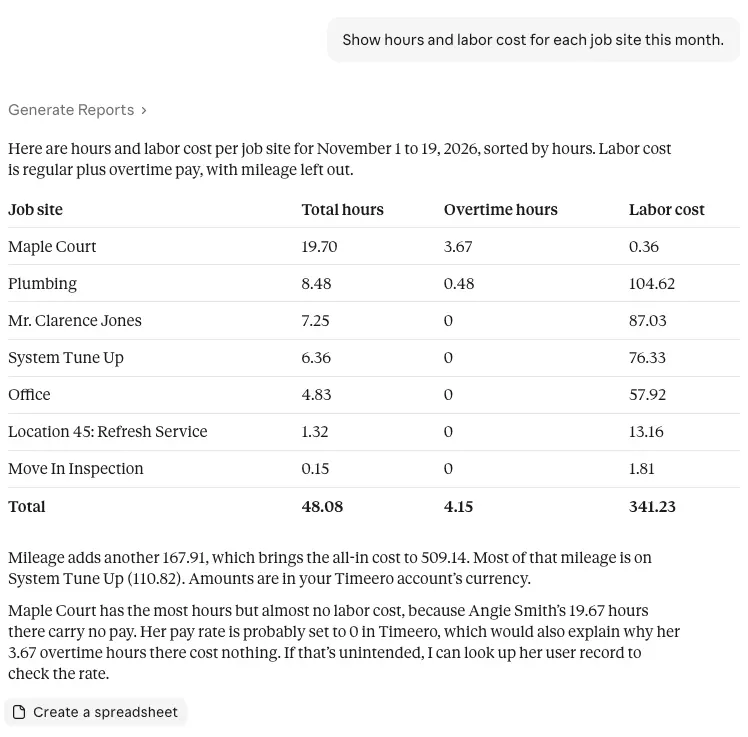
Your AI assistant can show hours and labor costs by job site in a single response. This calculation includes wages based on pay rates configured in Timeero, plus any recorded mileage. This is not necessarily your fully burdened labor cost, so check our guide on how to calculate labor cost for a deeper dive.
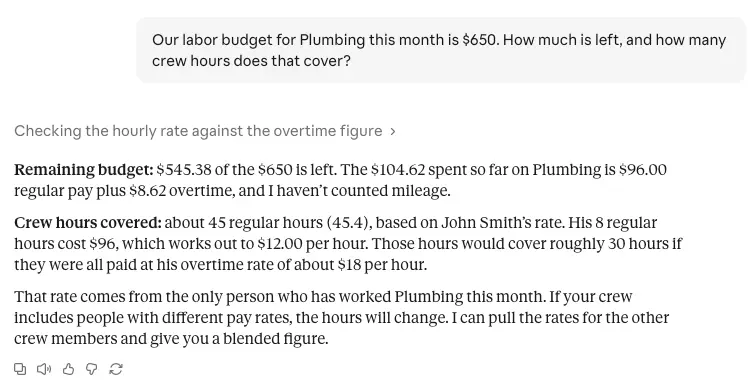
You can also give the assistant a job budget and ask it to calculate the remaining amount. It simply subtracts the current labor cost from the budget. By dividing that remaining amount by an assumed hourly rate, the AI estimates how many additional crew hours you can still afford. Keep in mind that actual results will vary with different pay rates, overtime, and labor burden.
If the AI identifies a pay-rate mismatch or unapproved timesheets while running these numbers, you can investigate those discrepancies immediately.
Try these prompts to monitor your budgets:
"Show hours and labor cost for each job site this month."
"Our labor budget for [job site] this month is $[amount]. How much is left, and how many crew hours does that cover?"
"Here are this month's labor budgets for [three job sites]. Compare each with actual labor cost."
Step 5: See mileage and drive time between job sites
Construction crews rarely stay planted at one location all day. Between morning supply runs, equipment drop-offs, and bouncing between active projects, travel eats up a big chunk of the workday. However, looking at timesheets alone makes it tough to tell how much of your crew's time went into actual site work versus sitting behind the wheel.
Once Timeero is connected to ChatGPT or Claude, you can quickly find out how many miles your crews recorded for each job site, which employees are driving the most, and roughly how much time they spend on the road between sites.
Try asking your AI assistant these three prompts:
1. To review mileage by job site and crew member
"Show mileage for each job site last month, by crew member."
2. To see who is driving the most on a specific project
"Which crew members drove the most miles for [job site] last month?"
3. To estimate daily drive time between sites
"How much time did [crew member] spend driving between job sites yesterday?" (Note: This prompt returns an estimate rather than an exact driving log.)
For example, if you ask the assistant to break down last month's mileage for a project like Oakridge Commercial Build, it might pull 142 total miles across four workers, showing that one foreman accounted for 85 of those miles.
With that breakdown in front of you, you can immediately see who is doing the heavy driving and decide whether too many mid-day supply runs are pulling your leads off the job site.
Step 6: Compare periods, spot patterns, and check what's behind them
Retrieving a single number is helpful, but the real value of an AI assistant comes from comparing that data over time. By looking at billing periods side by side, construction managers can identify patterns and investigate potential inefficiencies before they escalate.
You can ask the assistant questions like:
Which job sites are using more labor hours than previous months?
Which employees are accumulating the most overtime?
Are mileage or driving patterns changing?
What is behind an unexpected increase in labor costs?
Find the trends
Your AI assistant can quickly run month-over-month comparisons of hours and overtime by job site. You can also use it to identify employees with the highest overtime or mileage, helping you pinpoint exactly which projects need closer attention.
Just remember that an unusual number is a reason to investigate, not absolute proof of a problem. A sudden spike in overtime at a specific site might simply mean your crew had to push through the weekend to beat a rainstorm.
Drill down into the details
When you spot a trend that needs a closer look, you can ask the AI to look at specific timesheets behind a total to understand the context. You can even ask it to retrieve the GPS route for a specific employee and date to see exactly where they traveled.
To get the most accurate answers, always remind your team to use the exact job site and employee names exactly as they appear in Timeero.
Try these prompts to investigate your data:
"Compare hours and overtime for each job site this month versus last month."
"Which job sites have shown increased hours over the past three months?"
"Give me an employee summary for [crew member] this month."
"List the timesheets behind the total hours for [job site]."
"Show the GPS route for [crew member]'s timesheet on [date]."
Up until now, we have focused on retrieving information. But an AI assistant can do a lot more than just read your data. With the appropriate permissions, it can actually perform routine actions for you.
Before you can execute these commands, you must deliberately turn on write permissions in your setup. If you are updating permissions on an existing connection, remember to start a brand new chat so the tools have a chance to reload.
You can control this write access when you initially connect the tools, or you can change it later by visiting the Manage permissions page. To do this, simply go to mcp.timeero.com/mcp/permissions, update your write access, and then reload the MCP tools in your client.
Safe and controlled updates
You do not have to worry about the AI going rogue and messing up your payroll. The assistant will always ask for your confirmation before making any changes to your Timeero account.
Take action directly from the chat
Once your write permissions are ready, you can execute practical, everyday tasks without clicking through multiple menus. You can approve a batch of timesheets, set up a new project, or fix a time entry when someone forgets to clock out.
Try these prompts to manage your workforce:
"Approve last week's timesheets for [job site]."
"Create a new job called [job site name]."
"Schedule [crew members] at [job site] next Monday to Wednesday, 7 a.m. to 3:30 p.m., and publish it."
"[Crew member] forgot to clock out yesterday at [job site]. Set the clock-out to 3:30 p.m."
Step 8: Use AI insights to make better construction decisions
The real value of AI for contractors is turning raw field data into actual business outcomes. While knowing how many hours a project took is nice, using that data to protect your profit margin is the real goal.
Here is how verified workforce data and AI-generated insights can help construction managers make smarter moves:
Price future projects more accurately: Use actual crew hours and labor costs from similar completed projects to inform estimates for upcoming jobs.
Allocate crews more effectively: Identify which job sites need additional workers and where resources could be reallocated.
Plan for overtime: Identify projects with increasing labor hours before overtime becomes a recurring expense.
Monitor project budgets: Identify jobs that are approaching their labor budgets and investigate the reasons.
Improve operational efficiency: Identify unusual mileage and travel patterns that may indicate opportunities to improve scheduling or job assignments.
You can even ask the assistant to draft a short labor summary for a project manager or client based on the exact data it retrieves. Instead of spending thirty minutes typing up a status update, the AI can organize the key numbers into a clean, professional format in seconds.
Where Timeero's records end and your other construction tools take over
While connecting AI to your workforce data is a massive time saver, it does not replace your core estimating, accounting, project management, or construction management software.
Keep these specific boundaries in mind as you build out your tech stack:
Project financials stay put: Estimates, bids, materials, and other project financial information remain safely in the software where those records are maintained.
Driving time is an estimate: As we mentioned earlier, driving time generated by the AI assistant is always an estimate unless Segmented Tracking is used for a more detailed breakdown.
No certified payroll: Timeero's MCP server does not produce certified payroll reports. If you need help managing prevailing wage requirements, take a look at our guide on certified payroll reporting.
By keeping your financial data in your accounting software and your labor data in Timeero, you get the best of both worlds: accurate project numbers and a workforce tool that finally gives you straight answers.
Put AI to work for your field crews
For a contractor, trying to price and staff the next project using scattered timesheets and incomplete labor information is a frustrating guessing game. Connecting your workforce records to an AI assistant makes it much easier to understand crew hours, overtime, mileage, and job costs.
Instead of manually pulling reports and calculating totals, managers can ask questions in plain language and investigate the answers with the Timeero MCP. If you are ready for clean, dependable data that does not slow your team down, start your free trial today.
Frequently asked questions (FAQs)
What is the best AI for construction?
The best AI is the one that actually works with the data you already have without forcing you to learn a complicated new system. ChatGPT and Claude are both strong choices because they can connect securely to your existing workforce records through the Timeero MCP server.
How is AI used in construction?
While many contractors use AI to speed up estimates or review massive project files, it is also highly effective for day-to-day operations. Construction companies are increasingly using AI to analyze their crew hours, overtime, and mileage to catch budget issues early and improve resource allocation.
Can ChatGPT or Claude see my crew's hours and mileage?
Yes, when you connect them to your Timeero account, both ChatGPT and Claude can read your supported timesheets and mileage reports. They will only see the data you have given them permission to access.
Can I upload my timesheets to ChatGPT instead of connecting an app?
You can, but a manual export is just a static snapshot of your data. By connecting your live account, the AI assistant can see real-time updates and actually take action on your records instead of just reading an old spreadsheet.
Can an AI assistant change or delete my Timeero data?
An AI assistant can only change your data if you deliberately give it permission to do so. Read access is on by default, but you are always in full control of whether to enable write and delete permissions.
What Timeero plan do I need to connect an AI assistant?
To connect an AI assistant through our MCP server, you will need a Timeero Premium plan. This tier includes the Public API access required to make the connection work.
Is my Timeero API key safe when I connect an AI assistant?
Yes, your Timeero Public API key is safely encrypted and used exclusively for MCP tool calls. To keep your account secure, just remember to keep your key private and leave write and delete permissions unchecked unless you specifically need them.
Price and staff your next job from real crew hours, not guesswork.
Track hours, overtime and mileage by job site, then ask your AI assistant what they mean.
Emman is a passionate writer with more than 6 years of digital marketing experience under his belt. As a licensed chemical engineer with a passion for writing, he marries the technical with the creative to create engaging copy that converts. He is also a certified #girldad who spends most of his day playing with his three girls when he's not busy writing.