Employees clocking in before their scheduled shift creates paid time nobody approved, and manual review almost never catches it before payroll runs.
Ten minutes per employee per day adds up fast. Across a 10-person team at $20 an hour, you're looking at roughly $8,000 a year in unauthorized payroll.
Time tracking software with schedule-based controls stops the early punch before a time entry exists, rather than flagging it after the fact.
Work Schedule Settings in Timeero define the exact clock-in window for your team, and any punch outside it is rejected before it reaches your payroll.
One employee clocking in 15 minutes before their shift, five days a week, costs you just over an hour of unauthorized pay per week. Across a 10-person team, that's more than a week of paid time each month that nobody approved. By the time payroll runs, it looks like any other timesheet.
Early clock-ins come from two places. Some employees arrive early and tap the clock-in button out of habit, without any intent to pad their hours. Others do it deliberately: clocking in from the car before walking in, or asking a colleague to punch in for them. Timeero's schedule and location controls address these types before they reach your payroll.
In this article, you'll learn why early clock-ins happen, what the legal risk is if you try to fix them after the fact, and how to configure Timeero so the problem stops before it starts.
Early punches reaching your payroll before you can catch them?
Work Schedule Settings in Timeero reject them before a time entry exists.
An early clock-in occurs when an employee starts a time entry before their scheduled shift begins, creating paid time the employer didn't authorize. They come in three forms:
Accidental: the employee arrives early, gets settled, and taps clock-in out of routine without checking the start time.
Deliberate: the employee clocks in remotely before leaving home, or a colleague clocks in on their behalf.
Grey area: the employee is genuinely on site doing setup work, but the schedule doesn't cover that time.
The grey-area category is the one most employers handle wrong. If an employee is on site and working, that time may be compensable under the FLSA. Deleting it from the timesheet creates its own liability. The right answer is to schedule and pay for legitimate early work, not to delete punches after the fact.
Is clocking in early considered time theft?
Yes. Unauthorized early clock-ins are paid time the employer didn't approve. Whether that rises to formal action depends on the pattern, the intent, and the jurisdiction. Consult legal counsel for guidance specific to your situation.
Why do employees clock in early?
Most early clock-ins come down to habit. An employee who arrives at 7:45 for an 8:00 shift taps clock-in on arrival because that's their routine, not because they're trying to pad their hours.
Some are deliberate. Buddy punching is when one employee clocks in on behalf of another who isn't on site yet, one of the hardest forms of time fraud to catch without a way to verify who's actually behind the punch. Remote clock-in works the same way solo: someone starts their shift from home or the car before they've actually arrived.
How to prevent employees from clocking in early with Timeero
Timeero addresses early clock-ins at the schedule level, the location level, and the device level. Here's how to configure each layer.
1. Set a written policy first
No technical control lands well without a policy behind it. Employees need to know the authorized clock-in window, what counts as a violation, and what happens if the rule is broken, before the system starts rejecting their punches.
A single line does the job: "Employees may clock in no earlier than 5 minutes before their scheduled start time. Earlier punches require prior manager approval."
Put it in the handbook, cover it at onboarding, and reference it if a pattern emerges. A documented policy is also a prerequisite if discipline ever follows.
2. Use software with schedule-based clock-in controls
Click through the Work Schedule Settings tour to see how the clock-in window is configured, start to finish.
Most time tracking apps offer rounding: an early punch gets adjusted forward to the scheduled start time, so the entry is created and then modified. That still means an unauthorized time entry was created.
Work Schedule Settings in Timeero take a different approach. The clock-in attempt is rejected before any time entry is created. The employee sees an error message and the punch doesn't register.
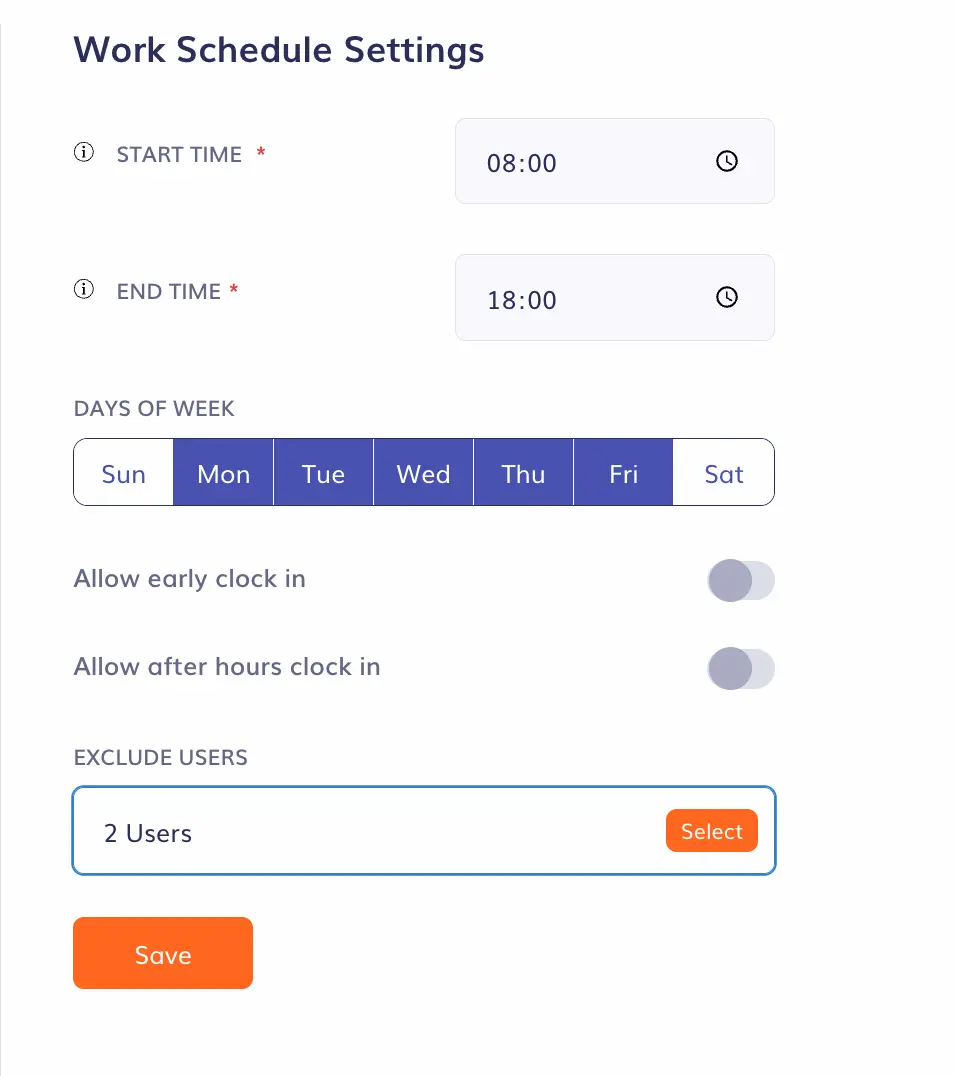
You can configure a Start Time and End Time for the window, set which days it applies, toggle an Allow early clock-in exception for controlled situations, and add an Excluded Users list so managers and on-call staff bypass the window. Changes apply account-wide immediately.
When someone tries to clock in outside the window, they see: Clock-In Not Available. Your work schedule does not allow clocking in at this time.
📌 Note
Work Schedule Settings control clock-in only. Employees can always clock out at any time, on any day, with no restriction. If your crew has the opposite problem, forgetting to clock out at the end of the day, see why field employees keep missing clock-outs.
3. Add Geofencing
Geofencing closes the gap Work Schedule Settings can't: it stops clock-ins from employees who aren't at the job site at all. With the requirement on, a time entry can only be created from inside the defined boundary, GPS-verified at the moment of clock-in. An employee in a car, at home, or in a nearby parking lot can't start a timesheet.
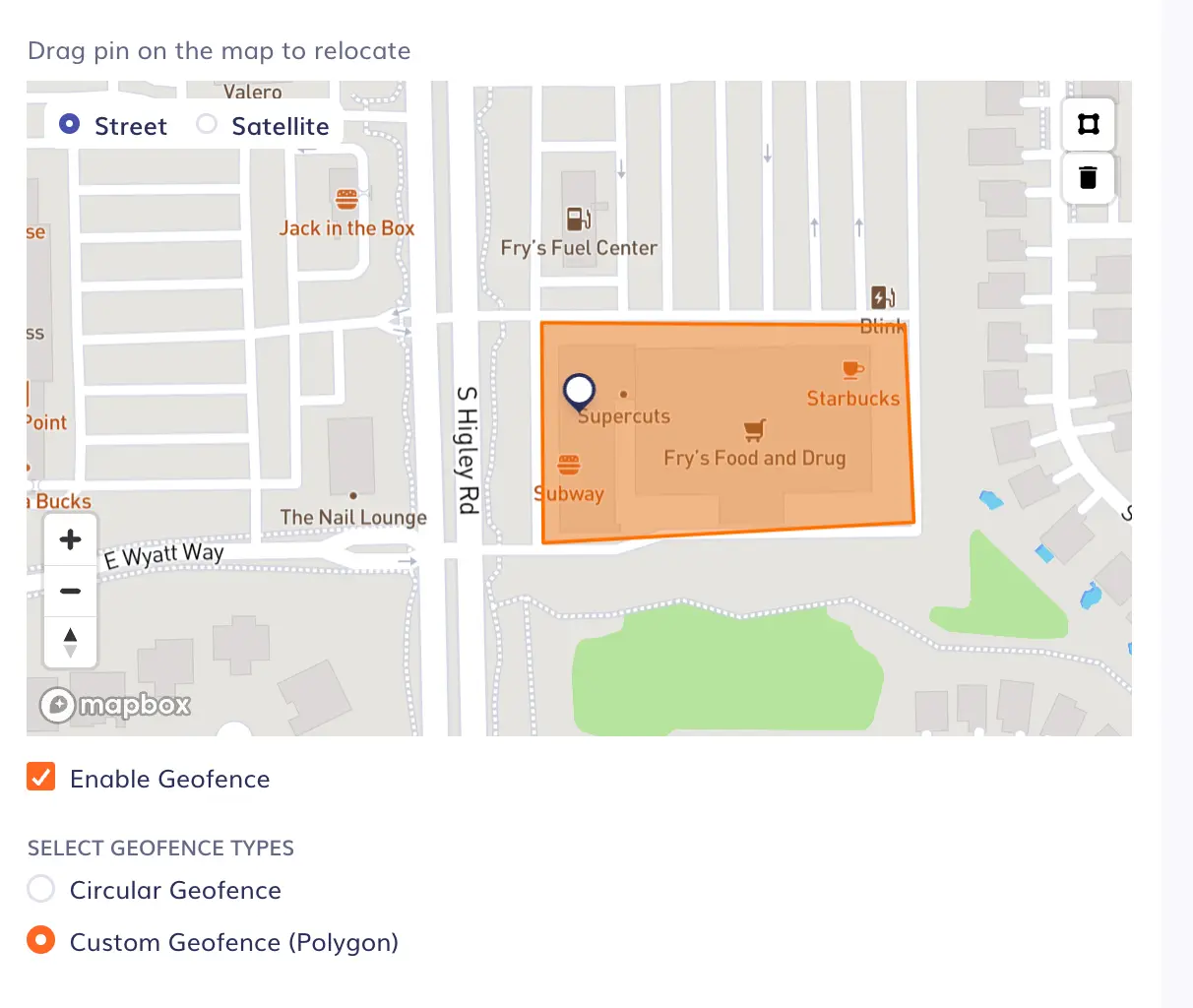
Polygon geofencing lets you match the actual shape of a job site instead of a fixed circular radius.
A clock-in window handles early punches from employees who are on site. Geofencing handles early punches from employees who aren't. For sites with irregular shapes like large outdoor worksites or multi-building campuses, polygon geofencing lets you draw the boundary by shape rather than a fixed radius.
4. Enable Auto Clock-In/Out
Auto Clock-In/Out removes the manual step entirely. When an employee enters the geofence boundary, Timeero waits 1 minute to confirm on-site presence, then clocks them in at the actual entry time and sends a push notification.The employee doesn't need to open the app.
Two things govern when it fires. First, Work Schedule Settings must be configured. Without a defined schedule, Auto Clock-In/Out won't trigger. Second, it only fires during the authorized window. An employee who arrives at the geofenced site before their start time will not be automatically clocked in. The geofence and the schedule both have to be satisfied.
5. Use the Kiosk app with Facial Recognition
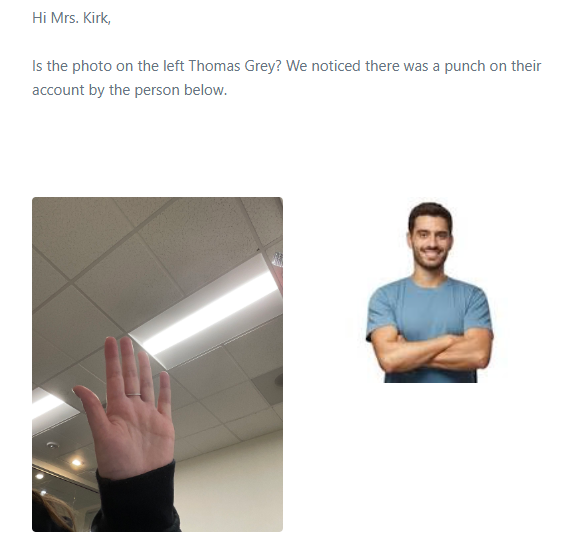
On the Timeero Kiosk app, Facial Recognition verifies the identity of the person clocking in, closing the buddy-punching gap that phone-based clock-in can't.
Facial Recognition on the Kiosk app confirms the person at the device matches the account before the punch registers.
The Kiosk app runs on an iPad mounted at a job site entrance or front desk. Each employee selects their name, enters their PIN, and the camera verifies the person at the device matches the account. A mismatch sends an email alert to the administrator. It's best suited for shared worksites and warehouse environments where individual phone-based clock-in isn't practical.
6. Set up late clock-in alerts
Late clock-in alerts notify administrators when an employee hasn't clocked in within 10 minutes of their scheduled start time. They're the other side of the window problem: Work Schedule Settings catch the early punches; late alerts surface the missed ones without manual timesheet auditing. Both require a configured Work Schedule.
7. Set an auto clock-out threshold
An auto clock-out threshold closes a time entry after a configured number of hours. An employee who forgets to clock out doesn't accumulate hours indefinitely. Set it above your longest legitimate shift so valid entries aren't cut short.
What about legitimate early arrivals?
Work Schedule Settings handle this without opening the window company-wide. The Allow early clock-in toggle creates a controlled exception for specific situations.
Users bypass the clock-in window entirely, useful for managers and on-call staff who need to clock in outside scheduled hours.
The Excluded Users list lets managers and on-call staff bypass the window entirely. If early arrival genuinely involves work like setup, equipment checks, or a pre-shift briefing, the right answer is to schedule and pay for that time.
How to set this up in Timeero
Setup
Work Schedule Settings
1Go to Company Settings > Work Schedule Settings.
2Set a Start Time and End Time for the clock-in window.
3Select the working days the window applies to.
4Toggle Allow early clock-in on or off for controlled exceptions.
5Add Excluded Users for managers and on-call staff.
6Save. Changes apply account-wide immediately.
Setup
Geofencing
1Go to Company Settings > General.
2Enable "Require users to be within geofence to clock in."
3Go to Jobs & Tasks > Update Job > Location Details.
4Enter the address and configure the boundary (circular or polygon).
5Assign employees to the job.
Setup
Auto Clock-In/Out
1Confirm Work Schedule Settings are configured first.
2Go to Company Settings > General.
3Enable "Enable Auto Clock In/Out & Notifications."
4Employees receive a push notification when clocked in automatically.
Accurate timesheets start before the first punch
Paper timesheets and manual review put you in the position of catching early clock-ins after the payroll damage is done, if you catch them at all. By then the entry is in the system, the pay period may have closed, and the conversation with the employee is already awkward.
Timeero is a GPS time tracking and workforce management platform for field teams, which controls clock-ins before they happen instead of catching them after the fact. When your clock-in window, geofence, and Auto Clock-In/Out are set up together, unauthorized time doesn't reach your payroll in the first place. You stop cleaning up timesheets after the damage is done and start trusting the ones that come in.
Employees get a clear, consistent process instead of a policy that only gets enforced when someone notices. And in shared-device environments, the Kiosk app with Facial Recognition means the name on the timesheet is always the person who actually worked the shift.
Setting the clock-in window, geofence, and Kiosk take a few minutes in Company Settings, and it only has to happen once. From there, every timesheet reflects when your crew actually arrived, not when they remembered to tap the app. Start a free 14-day trial and see the difference on your next pay period.
Frequently asked questions
What's the difference between time rounding and a schedule-based control?
Time rounding adjusts an early punch to the scheduled start time after the time entry is already created. A schedule-based control rejects the clock-in attempt before any entry is created. The employee sees an error message and no unauthorized time enters the system. Work Schedule Settings in Timeero use the rejection model.
How does Geofencing stop remote clock-ins?
With Geofencing on, a clock-in attempt is only accepted when the employee's GPS position is inside the defined job site boundary at the moment of clock-in. An employee clocking in from home, a vehicle, or anywhere outside the boundary can't create a time entry, regardless of their scheduled start time.
Can Auto Clock-In/Out fire before an employee's shift starts?
No. Auto Clock-In/Out only triggers during the authorized Work Schedule window, even when the employee is physically inside the geofence. Arriving at the site early doesn't fire an automatic clock-in. Work Schedule Settings must be configured for the feature to work at all. Without a defined schedule, no auto clock-ins occur.
What is buddy punching and how do you stop it?
Buddy punching is when one employee clocks in on behalf of another who isn't on site yet, one of the hardest forms of time fraud to catch without a way to verify who's actually behind the punch. The Kiosk app's Facial Recognition verifies the identity of the person at the device before the punch registers, which closes a gap phone-based clock-in can't.
Do Work Schedule Settings affect when employees can clock out?
No. Work Schedule Settings control clock-in only. Employees can clock out at any time, on any day. There is no restriction on clock-out under any Timeero configuration.
Want timesheets that reflect actual hours worked, without the daily audit?
Timeero's schedule and location controls stop unauthorized clock-ins before they exist.
Andjelka is a researcher and writer with 7+ years in digital marketing. Her background in social work and journalism has sharpened her skill in connecting with people from all walks of life. For the past 4 years, she’s specialized in time, location, and mileage tracking. Outside work, she enjoys yoga, swimming, and unwinding with her cats while listening to Leonard Cohen’s music.




%202.svg)


.png)
.png)



.png)


