Sage Intacct Integration for Time Tracking & Payroll Automation
Jessica Helms
Last update on:
March 26, 2026 6:37 AM
Published on:
TL;DR
Manually importing employee hours into Sage Intacct can lead to payroll errors, delays, and inaccurate job costing. The Timeero + Sage Intacct integration syncs hours, mileage, projects, and earning codes automatically through an API. With GPS-verified timesheets and automated overtime classification, businesses can reduce manual entry, run more accurate payroll, and gain better visibility into field teams.
How you transfer employee hours into your payroll system can be the difference between accurate and timely disbursements and delayed or disputed payments. For many teams using Sage Intacct for payroll, manually importing time entries is their only method of choice. But the process isn’t always smooth sailing.
Teams with the current set up experience an increase in payroll errors, reconciliation delays, and inaccurate job costing – consequences that are costly for any company.
But luckily there is a solution for these problems.
Sage Intacct users can integrate with Timeero for payroll automation and added workforce visibility.
In this article, we’ll walk through the basics of the Sage Intacct + Timeero integration, and discuss why teams looking to automate time, mileage, and payroll choose Timeero.
Turn hours of payroll into minutes.
Automate your workflow by integrating Timeero with your favorite payroll platform. Accuracy is just a click away.
The Sage Intacct + Timeero integration connects Timeero (GPS, time, mileage) and Sage Intacct (ERP, payroll, project accounting) via an API-based connection.
This integration removes repetitive data entry and allows hours and mileage to be exported directly from Timeero into Sage Intacct for payroll, project billing, and expense tracking.
What data syncs between Sage Intacct and Timeero?
The following data syncs between the two applications:
Employees
Projects
Tasks
Earning Codes
Billable vs. non-billable status
Mileage expenses
Entity alignment
How the integration works (step-by-step)
How to set up the integration
Navigate to Timeero → Integrations → Sage Intacct
Click Configuration
Click Enable
A similar window will appear requesting Sage Intacct credentials
Enter the required Sage information and click Log in
Most Sage Intacct users encounter payroll related errors as a result of disconnected time keeping systems. When Sage Intacct is connected with Timeero, users can automate time and mileage tracking and seamlessly export that data into Sage Intacct for payroll, no additional typing or calculations required.
Job costing
Timeero requires employees to select a job or task when clocking in. Hours worked are then attributed to the correct job/task in Timeero, which can be matched to the corresponding project/task codes in Sage Intacct for accurate job costing.
Billable vs. non-billable hours
Timeero allows users to configure their integration settings, specifically choosing to mark time entries sent to Sage Intacct as billable hours. This eliminates the need to manually update individual entries, since the integration automatically applies your chosen settings at export.
Classifying hours
Within Timeero, managers can customize company overtime rules. When overtime hours are worked, Timeero automatically applies the rules and classifies the hours worked according to pay type (regular, overtime, double overtime). Once the Sage Intacct + Timeero integration is enabled, Timeero’s pay types are mapped to Sage Intacct’s payroll codes for accurate processing.
Why teams choose Timeero for Sage Intacct
With so many different time and mileage tracking apps on the market, why do teams using Sage Intacct choose Timeero?
1. Added field team visibility
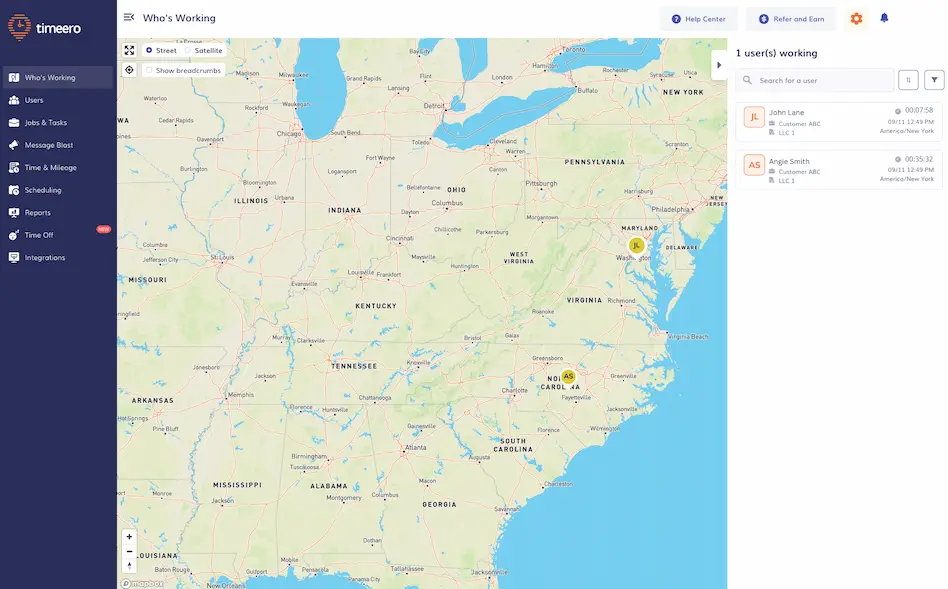
Timeero provides real-time insights into the whereabouts of teams spread across multiple job sites. When employees clock in, Timeero captures their location using GPS technology. Managers can then see where each employee is currently located as well as what job they are working on via Timeero’s Who’s Working dashboard.
With this level of visibility, managers can quickly reassign workers to jobs and keep better track of their teams’ locations.
2. Payroll-ready timesheets
Prior to integrating with Timeero, Sage Intacct users tracked employees’ time and mileage in a separate system. That data then had to be manually entered into Sage Intacct for payroll processing. The process was time consuming, and required HR teams to check data multiple times before payroll was finalized.
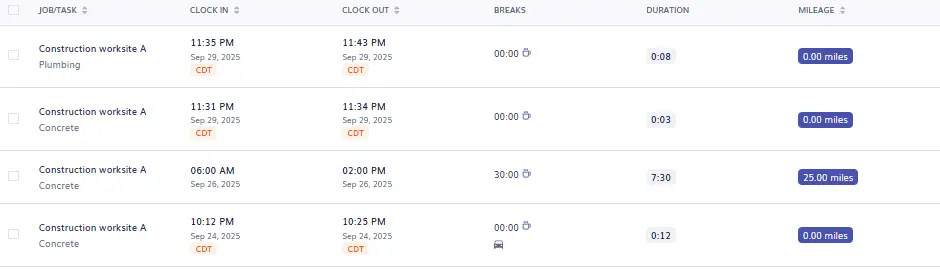
With Timeero, employees’ timesheets are automatically created as soon as they start a shift. Timesheets are detailed, and show the starting and ending time of shift, break times, overtime hours, job details, mileage, and PTO if any. As soon as management approves time and mileage, the data can be automatically exported to Sage Intacct for payroll, no further action needed.
3. Audit-ready records
Every time an employee clocks in or out using Timeero, the app captures their GPS location. This information is then attached to each time card entry, making employee timesheets easy to validate during audits or disputes.
Streamline payroll with the Sage Intacct + Timeero integration
Managing payroll becomes much easier when your time tracking and payroll systems work together. By connecting Timeero with Sage Intacct, businesses can automatically sync hours, mileage, and project data without manual entry.
The result is more accurate payroll, clearer job costing, and organized records that are easier to review when questions arise. With automated tracking and payroll-ready data, teams can spend less time reconciling records and more time focusing on their operations.
FAQs
What integrations are available for Sage Intacct?
Sage Intacct supports many integrations through its API and marketplace. Sage Intacct currently has 200-350+ integration partners.
Does Sage Intacct have an API?
Yes, Sage Intacct does have an API that allows other software systems to connect and share data automatically.
Is Sage Intacct an ERP system?
Yes, Sage Intacct is an ERP (Enterprise Resource Planning) system. It is a cloud-based financial management ERP.
Can Sage Intacct handle payroll directly?
No. Sage Intacct cannot handle payroll directly which is why most users integrate with an external payroll system.
How does time tracking sync with Sage Intacct?
To connect the time tracking system with Sage Intacct, users will need to use an API, or automated data export. Employee time and mileage are recorded in the time tracking system, managers approve the records within the software, the integration then maps the appropriate fields which can then be exported to Sage Intacct.
What is the best Sage Intacct time tracking integration?
The best Sage Intacct time tracking integration is Timeero, for its GPS-backed time and mileage records that increase field visibility.
Jessica is a skilled writer and proofreader with a unique flair for crafting engaging and impactful content. Her work reflects her ability to connect with clients on a personal level while successfully addressing their most pressing concerns. Jessica's professional background includes: teaching, social media marketing, and e-commerce. She resides in Alabama and loves the Golden Girls sitcom.



.webp)

%202.svg)


.png)
.png)



.png)


