Connecteam vs. Timeero: Which App is Better for Field Teams?
Jessica Helms
Last update on:
June 19, 2026 3:34 AM
Published on:
TL;DR
Field workers need a reliable app to automatically track their time, mileage, and location without manual input or connectivity issues. We tested both Connecteam and Timeero head-to-head across core field team features to see which app delivers the best experience for mobile workforces. While Connecteam is a powerful all-in-one workforce management platform, it falls short for field teams with its manual mileage tracking and lack of offline functionality. Timeero wins for field teams with automatic GPS mileage tracking, seamless offline syncing, and Segmented Tracking that gives managers stop-by-stop visibility into every workday.
Key takeaways
Field workers struggle to accurately track their time and mileage, relying on manual methods that are error-prone and inefficient.
Inaccurate tracking leads to payroll errors, missed compliance requirements, and an inability to detect time theft or unauthorized trips.
Both apps were tested side-by-side on core field team features — GPS tracking, auto clock-in, mileage, offline functionality, scheduling, and pricing — to determine which is truly built for field teams.
Timeero is the better app for field teams, offering auto clock-in/out, automatic mileage tracking, seamless offline syncing, and superior job-site visibility through Segmented Tracking.
How we tested Connecteam and Timeero
For this comparison, we tested both apps using the same fictitious field workday scenario. The accounts were configured for a small team (1 admin + 2 employees). We ran several tests to compare the functionality of each app’s GPS tracking, mileage tracking, scheduling, multi-stop tracking, and break tracking capabilities. To test the app’s offline functionality, the mobile device was placed in airplane mode. The results documented within this comparison reflect real product behavior.
See what your team looks like with real-time GPS visibility.
According to Connecteam's company overview, "Connecteam is a workforce management app for deskless employees providing a seamless, all-in-one experience for communications, day-to-day operations, and training."
Who is Connecteam designed for?
Connecteam is designed to simplify scheduling, increase the quality of communication, and expedite the employee onboarding process for businesses that employ deskless workers.
Key features
Connecteam offers customers a variety of workforce management features housed within three hubs: Communications, Operations, and HR & Skills.
SchedulingGeofencingIn-App messagingCustom forms & checklistsHR onboardingGPS-enabled time trackingTime off managementPayroll integrationsBreak tracking & reminders
Typical industries that use Connecteam
Connecteam is a workforce management app frequently used in the construction, cleaning, healthcare, retail, manufacturing, and food & beverage industries.
Timeero is a field workforce visibility app that automatically tracks employee time, mileage, and job activity with GPS precision.
Who is Timeero designed for?
Timeero is designed for field and mobile teams that are looking to increase visibility, transparency, and productivity across their workforce.
Key features
Auto Clock-In/OutSegmented TrackingCalifornia Breaks TrackingGPS-enabled time and mileage trackingRoute replay with breadcrumbsOffline trackingSchedulingPayroll integrationsTime off managementGeofencingBreak tracking & reminders
Typical industries that use Timeero
Timeero serves businesses of all sizes. However, the majority of Timeero users are field teams in the construction, property management, cleaning, sales, landscaping, and agriculture industries. Companies that operate in the state of California choose Timeero for its ability to reliably track California breaks.
An honest, side-by-side breakdown of features that matter most to field teams.
#Timeero#Connecteam
Feature
Timeero
Connecteam
GPS & Location Tracking
Segmented Tracking
Offline Tracking
Mileage Tracking
Breadcrumbs
Geofences
Time & Attendance
Auto Clock-In/Out
Total Tracking
Break Tracking
California Breaks Tracking
Absence Reminders
PTO Management
Workforce Management
Scheduling
Custom Forms
In-App Messaging
Facial Recognition
Payroll Integrations
HR & Onboarding
HR Onboarding
17
Features compared
5
Timeero-exclusive features
16
Features supported by Timeero
* Timeero leads in GPS tracking, mileage, offline capability & California compliance — Connecteam has an edge only in HR onboarding.
In-depth feature reviews
Although Connecteam and Timeero offer users several of the same features, there are stark differences between the way features are presented and utilized across both platforms.
This section compares the key features of Connecteam and Timeero, highlighting ease of use, encountered difficulties, and the differences in how the features operate. The results and screenshots are from my actual interaction with the applications.
GPS tracking
Connecteam
When I first downloaded Connecteam and clocked in the first time, the app correctly captured my clock-in location. When I reviewed my driving route, I noticed that there were no breadcrumbs, only my clock-in/out locations were documented.
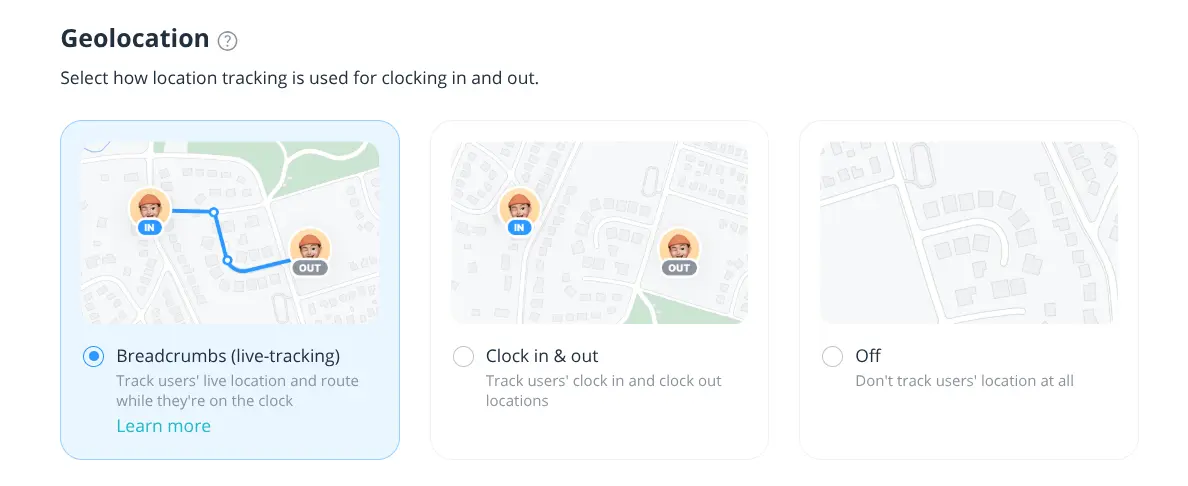
After exploring the app in more detail, I realized Connecteam’s default GPS settings are to capture location at the starting and ending points. If you’d like to track full driving routes, you need to customize your geolocation settings.
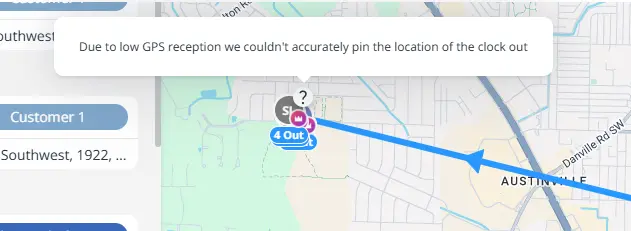
I didn’t run into any issues with Connecteam pinning incorrect GPS coordinates, but I did run into a snag at clock-out where my exact location was not pinned, due to low GPS reception.
The “?” pin indicates that the exact location could not be captured.
Timeero
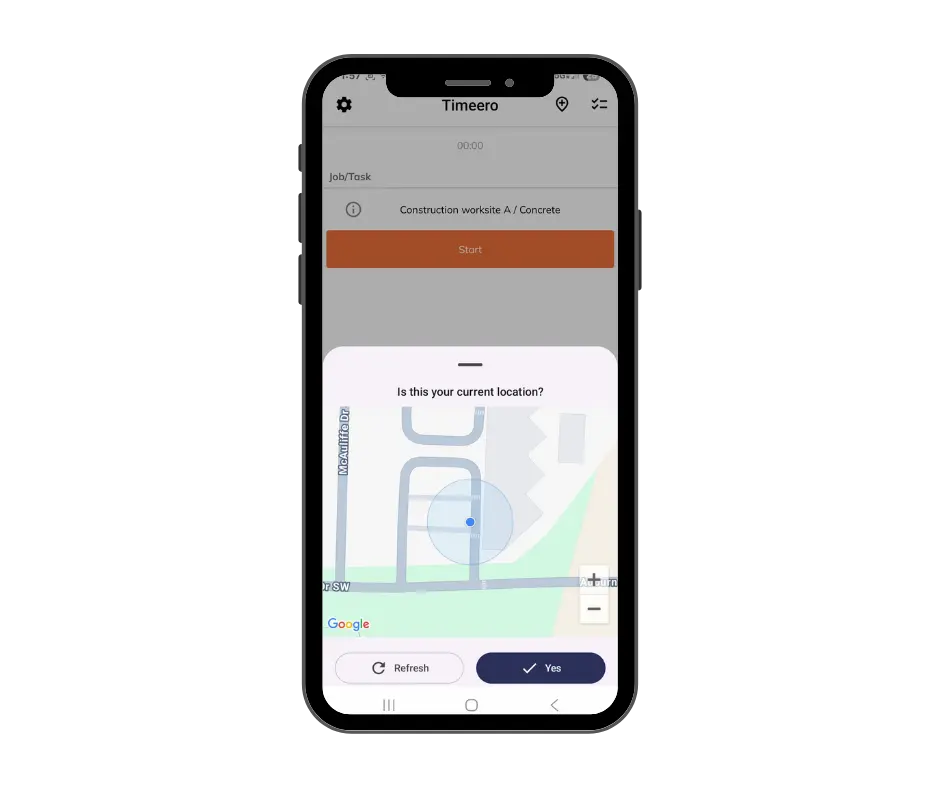
Timeero’s GPS tracking was activated as soon as I clocked in and confirmed my location.
I didn’t run into any issues with the app capturing my correct location throughout my driving route. I liked the fact that I was presented with a map to verify my location each time I clocked in or out.
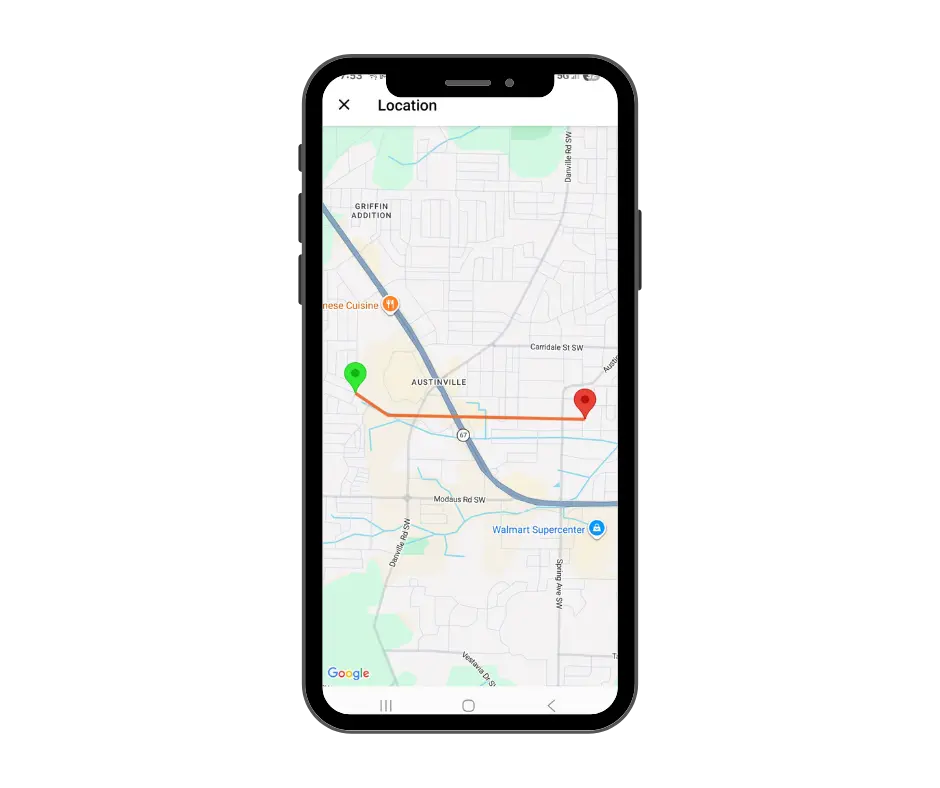
Timeero captured my correct starting and ending points.
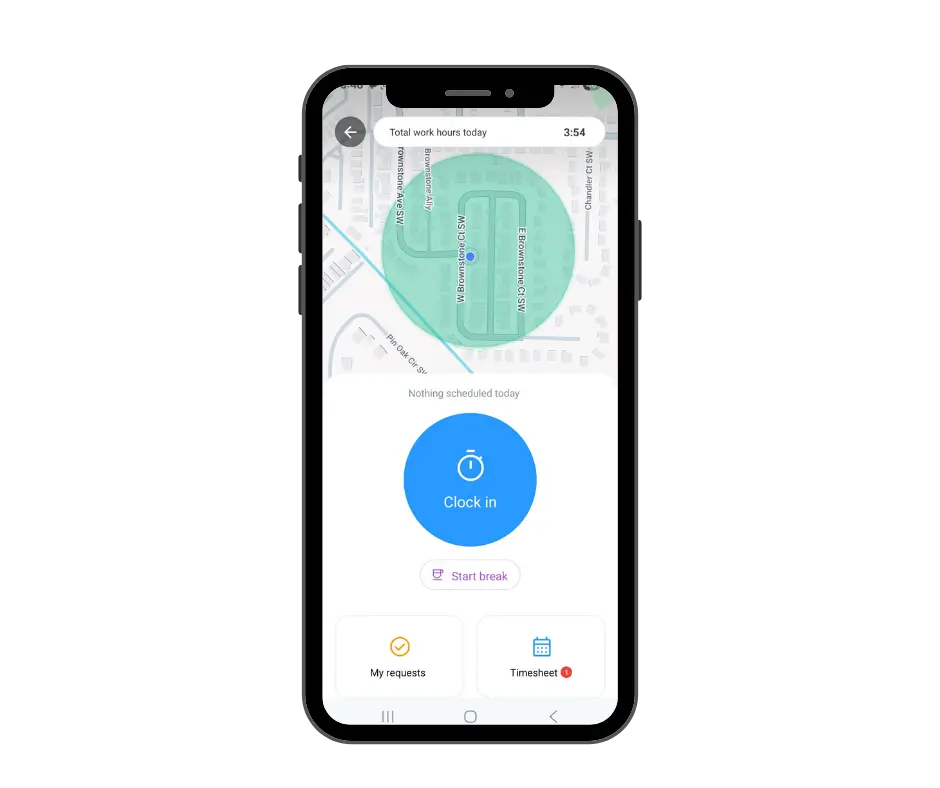
When I first clocked in, Connecteam captured my starting GPS location. Familiar with other GPS tracking apps, I believed that Connecteam would log my daily mileage using the GPS coordinates, but it did not.
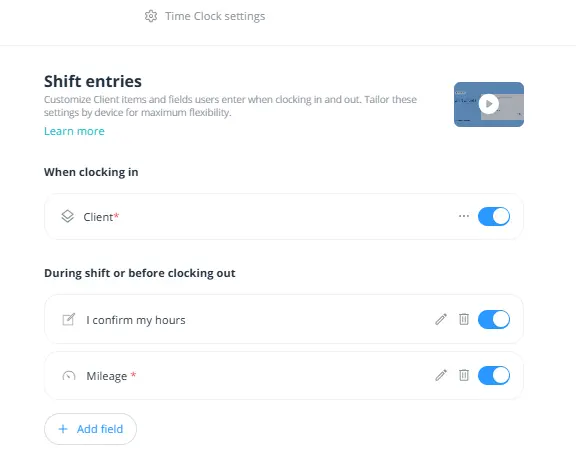
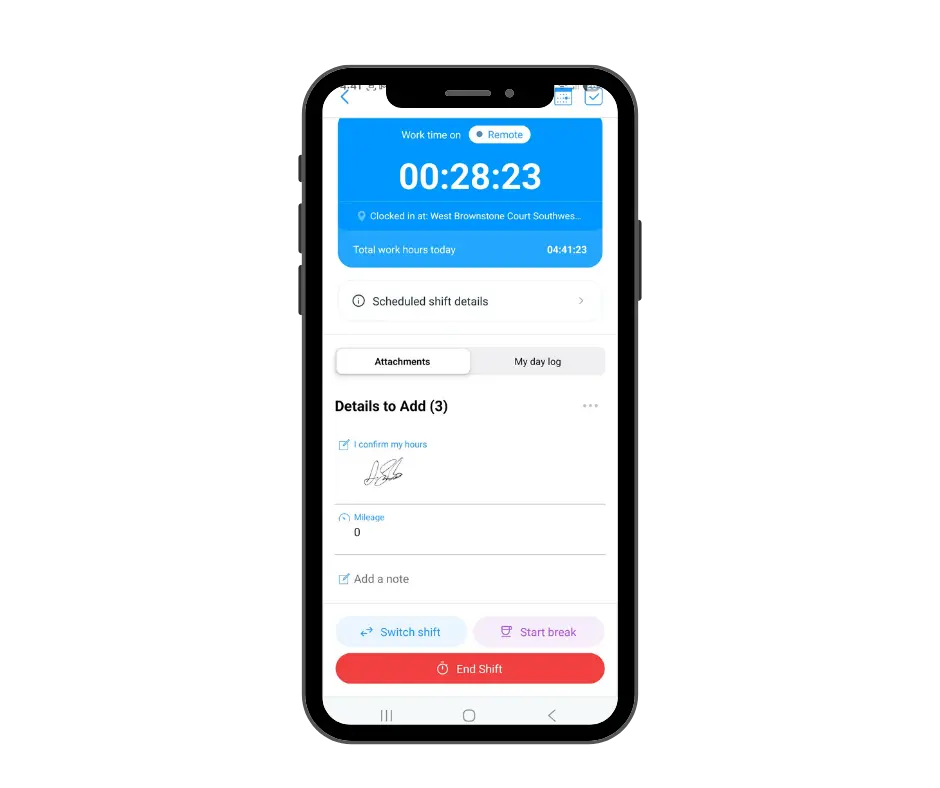
It took me some time to figure out how to capture mileage using Connecteam. I found out that the only way to collect employees’ mileage was to create shift entries within the Time Clock settings.
There is no automatic mileage tracking, despite the app collecting GPS data and driving routes. Employees manually fill out the shift entries at clock-out, which is where mileage is documented. Relying on employees to self-report their mileage at the end of a shift is essentially an honor system and research shows it tends to cost employers more than they realize.
Timeero
When I clocked in to start my shift, Timeero captured my starting location and began tracking mileage automatically. Once I clocked out, I reviewed my timesheet through the admin dashboard to see if the app tracked my mileage accurately.
My timesheet shows that for the 15 minutes I was clocked in, I drove 1.56 miles. I didn’t have to keep track of my mileage on paper or check my odometer.For field teams comparing their options, Timeero consistently ranks among the best mileage tracking apps for businesses that need automatic, GPS-verified mileage,not manual entry at clock-out.The app automatically calculated how many miles I drove based on the GPS route.
See how much you could save by switching from manual logs to automatic mileage tracking. Try the
Mileage Reimbursement Savings Calculator
to estimate your potential cost savings.
Offline functionality
Connecteam
To test Connecteam’s offline functionality, I put my device in airplane mode. I was already clocked in, so I tried to start a break. I was met with a spinning wheel, but no error code popped up letting me know that I needed to reconnect to the internet to continue tracking.
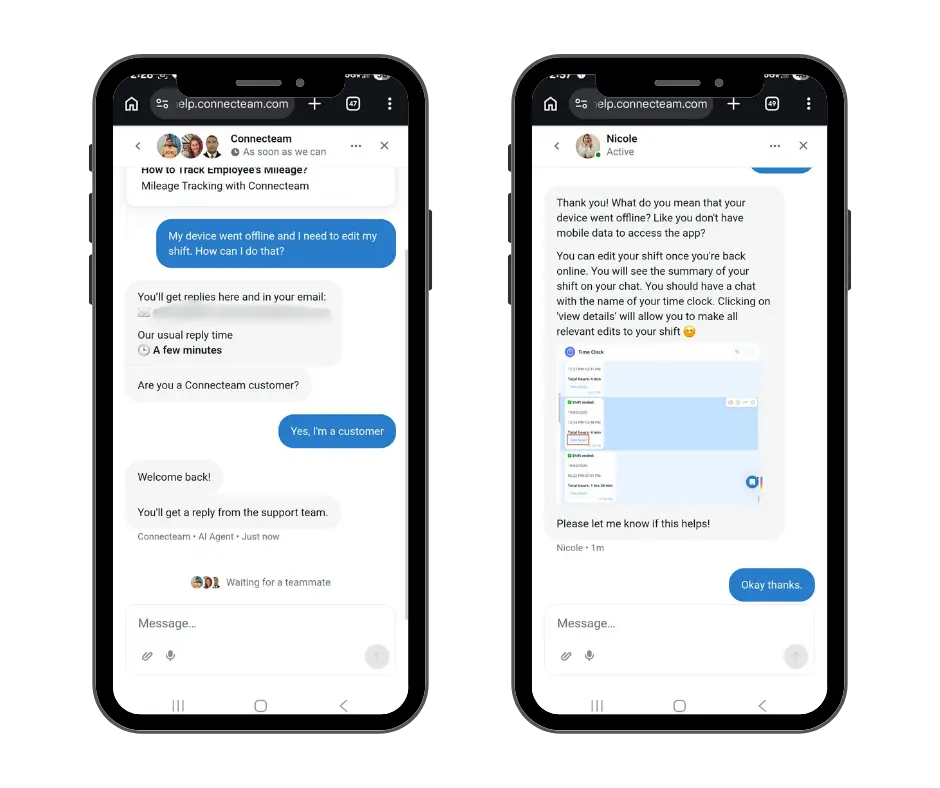
I didn’t know if Connecteam offered offline tracking or not, so I contacted customer support for help.
Transcript of my live chat with Connecteam support.
I learned that Connecteam requires an active internet connection to be able to function. Without service, all tracking stops. When the device reconnects, users will need to manually edit their shift times if they took a break or clocked out while service was lost.
Timeero
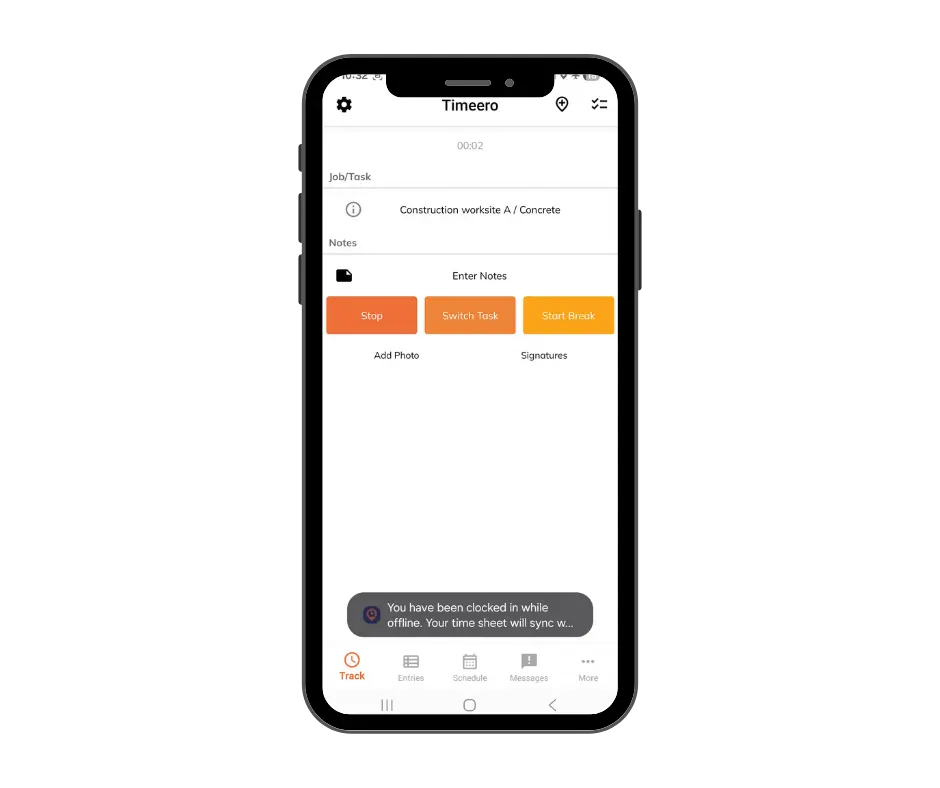
To test Timeero’s offline tracking, I put my phone in airplane mode and clocked in to start a shift. I was immediately shown a pop-up notification that said I was clocked in offline and the data would sync once connection was restored.
When internet connection was restored, I went back into the time and mileage records to check that my clock-in had synced to Timeero. My record was updated to reflect my actual start time.
Timeero’s offline tracking capabilities are a plus for field teams that work in remote or rural locations with little to no internet service. Companies can trust that employees’ time and mileage will be continuously tracked and synced to the system once internet connectivity is restored.
Field teams can’t afford gaps in tracking. Timeero continues recording data and syncs automatically when the connection is restored. See how it works in our
interactive offline tracking demo
.
Scheduling
Connecteam
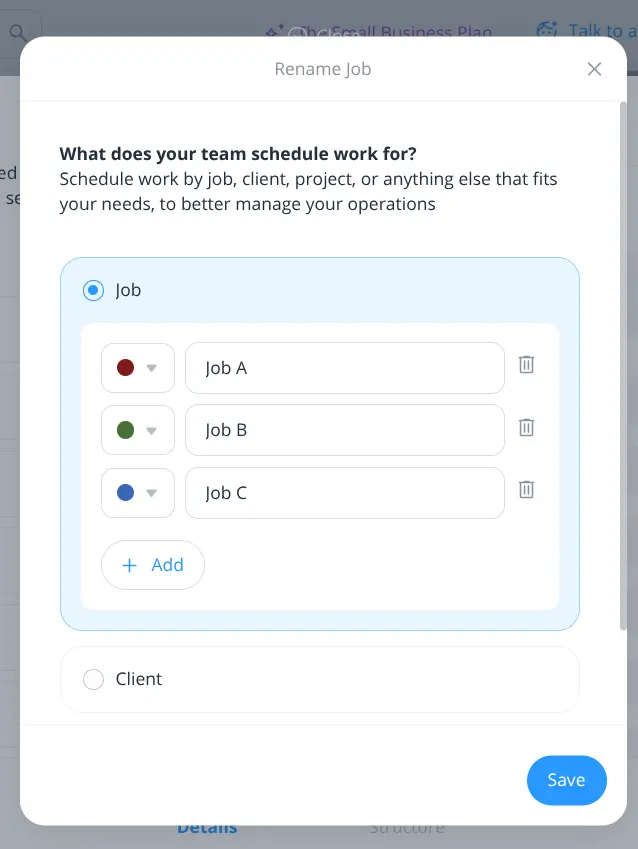
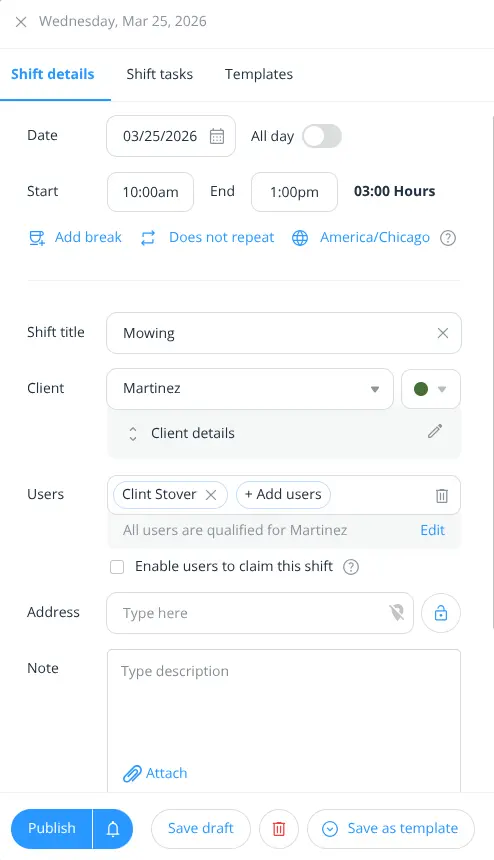
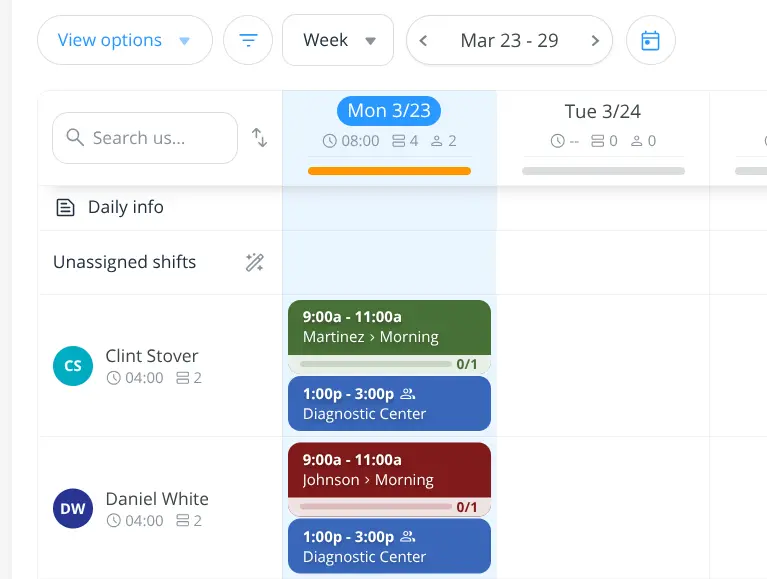
I was impressed with Connecteam’s scheduling interface. Before assigning shifts, you will need to decide how you want to schedule work, whether by job or by client. Each job or client is assigned a color, which makes it easy to see which jobs are scheduled for the day.
Once your job/client list has been created, you can then add and assign employees to shifts.
There are several icons and numbers on the schedule that can be confusing if you do not complete a tutorial walkthrough to learn what they mean. For example, the “0/1” under the client name indicates how many tasks have been assigned to that job.
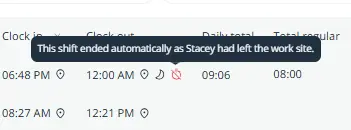
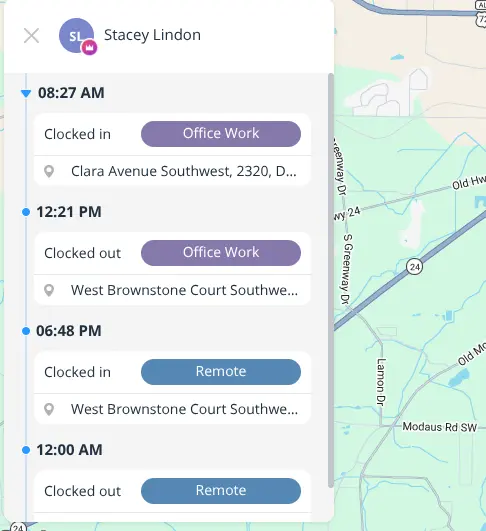
I did forget to clock out one evening, and the system automatically clocked me out at 12:00 am. However, I noticed that the clock out location was not correct.
Timeero
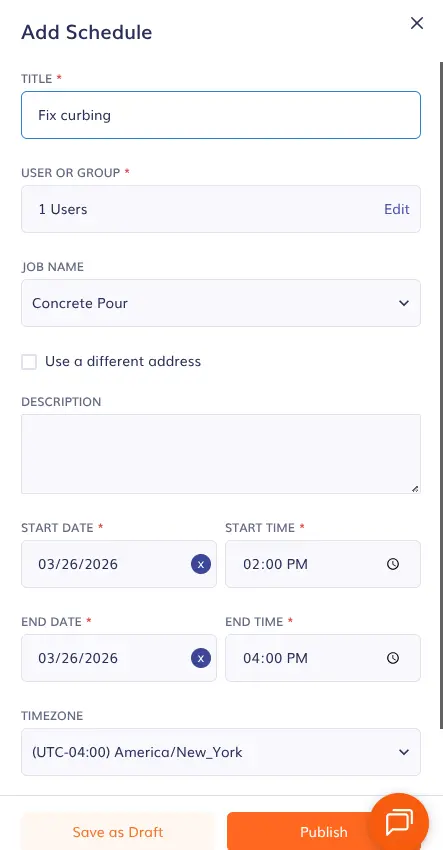
I would say that Timeero’s scheduling feature is pretty simple to navigate. Administrators can create and assign shifts from their mobile device or through the web dashboard.
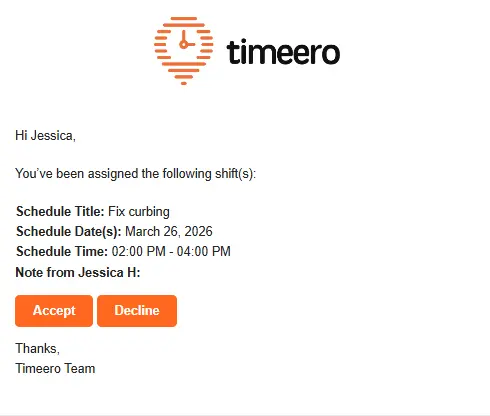
I was immediately notified via an email that a shift had been assigned to me. I was given the options to approve the shift and add it to my schedule, or deny it.
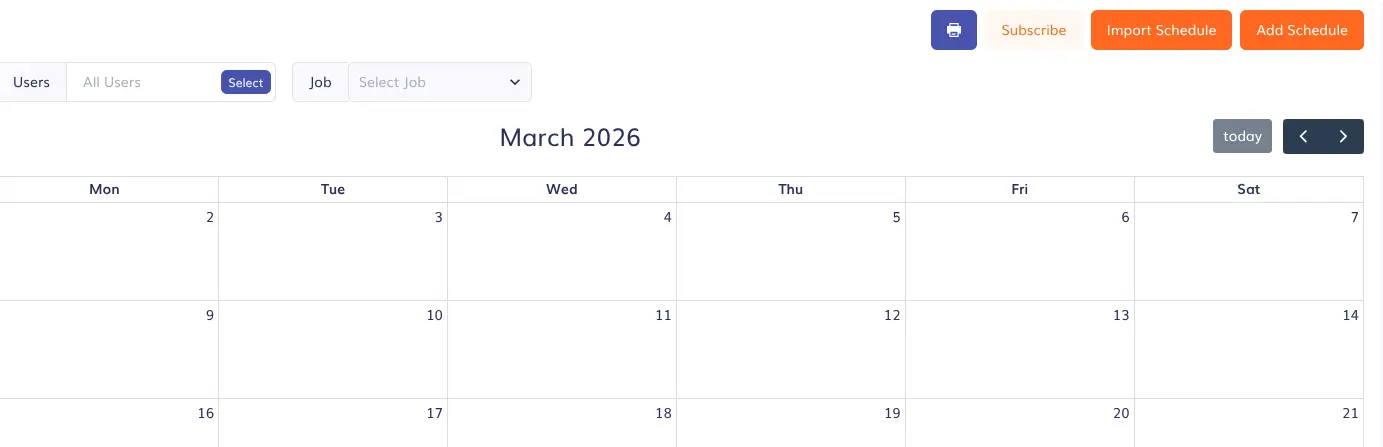
Compared to Connecteam, Timeero’s schedule view is simplified with a full calendar, filtering options, and the ability to import schedules from external files.
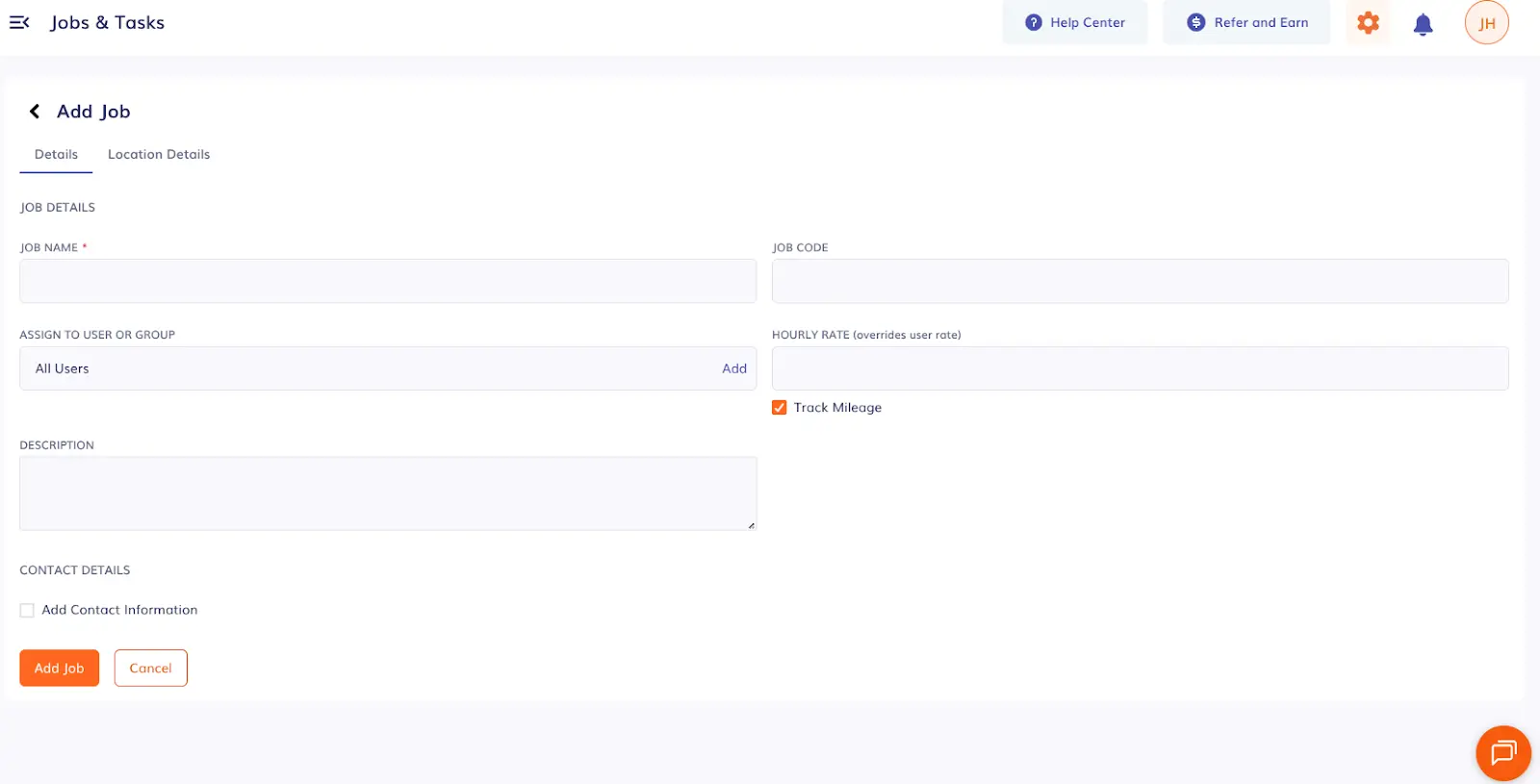
Before you can assign a shift, you will need to make sure the correct client or job is created first. You can assign a specific job or client to individual users, set their hourly rate, and check whether or not mileage should be tracked.
Add a job or client to the system if you want employees to be able to clock into that job.
Messaging
Connecteam
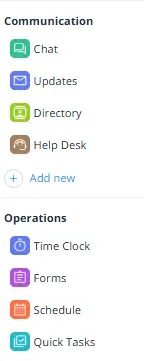
Connecteam’s Chat feature is offered to customers in the Communications hub. For field teams that use the Operations hub, they will also need to subscribe to the Communications hub to access in-app chat.
Features offered within the Communication and Operations hubs
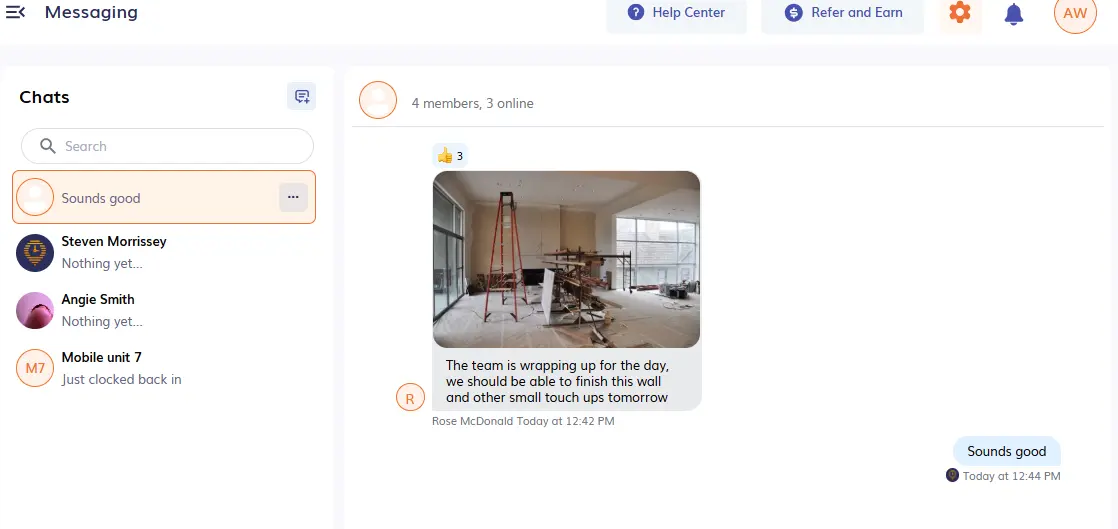
While testing Connecteam’s chat feature, I was clocked in as an admin. I sent a chat to my employee Clint Stover. There was a notification at the bottom of the chat window that informed me that Clint was not clocked in.
Users can also attach emojis, links, and photos within a chat message.
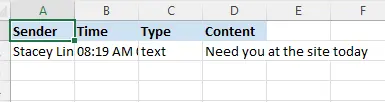
Chats can also be exported into Excel if conversations ever need to be printed off to add to employee files.
Easily export chat details to Excel for documentation purposes.
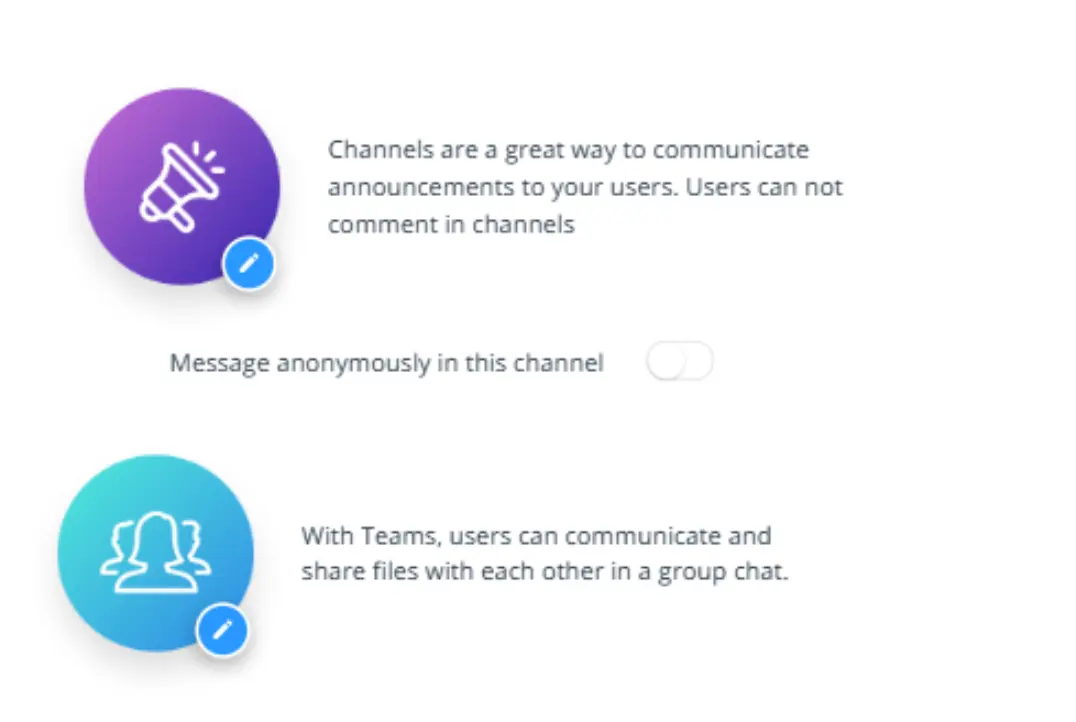
Depending on how you want to chat with your employees, Connecteam allows admins to create teams and channels for messaging.
Timeero
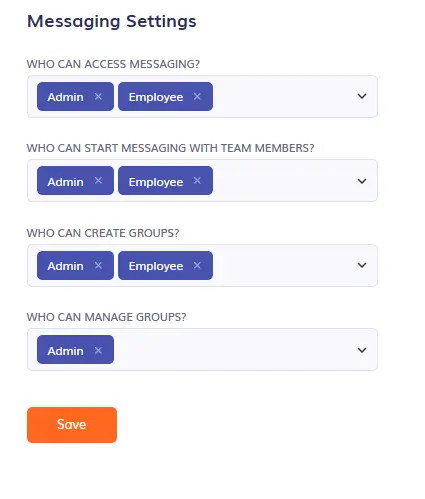
Timeero’s 2-way messaging can be set up by following a few steps. You will first need to navigate to your company settings via the dashboard and enable messaging. Then you will need to select “Messaging Settings” and choose which roles will be able to communicate through in-app messaging.
Timeero’s in-app messaging works similarly to Connecteam. You are allowed to create groups or direct message a single employee. Employees can attach pictures and files in both Timeero’s mobile app and desktop application.
Custom Fields
Connecteam
I will say that I think Connecteam’s Custom Forms is probably it’s stand out feature in terms of ease of use and functionality.
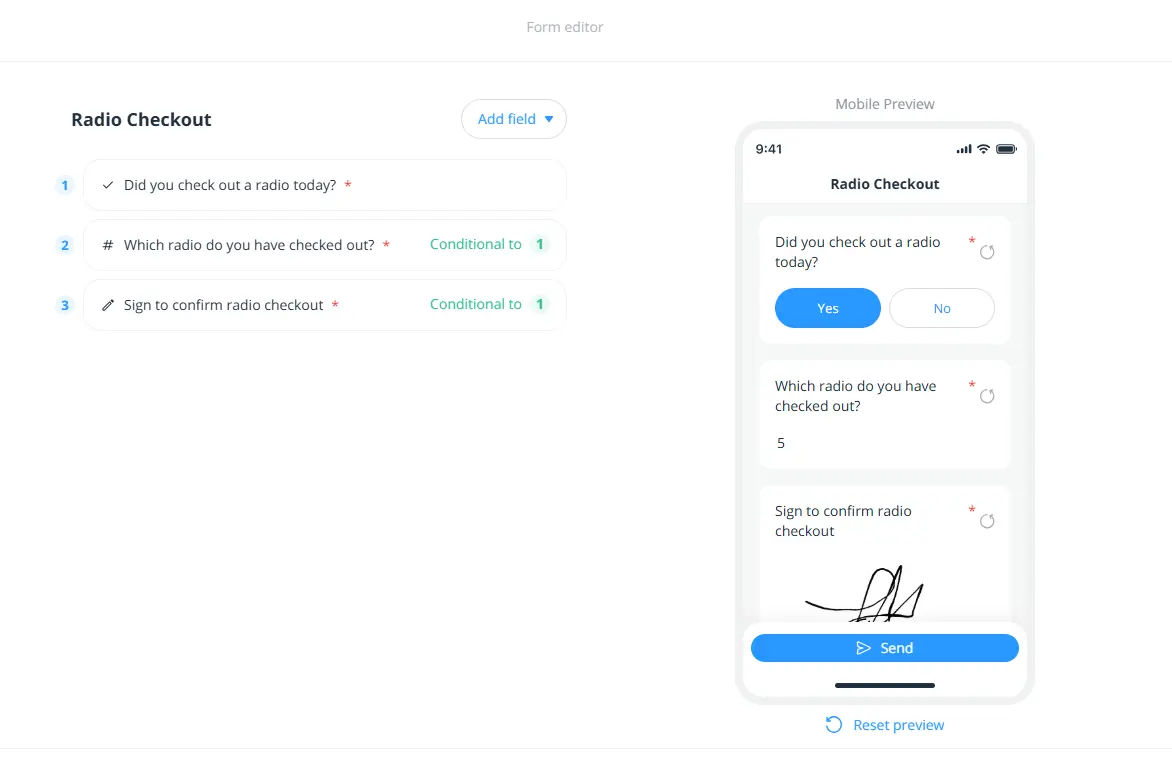
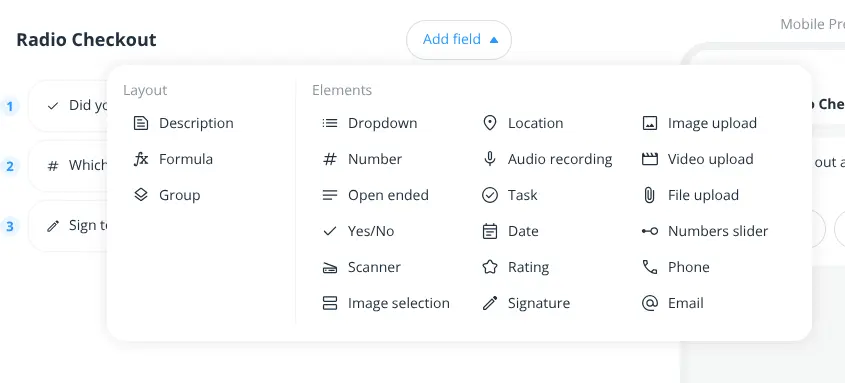
I really liked how easy it was to create a form, and the mobile preview was definitely a plus. Users can choose from a variety of tools to create the exact form they need.
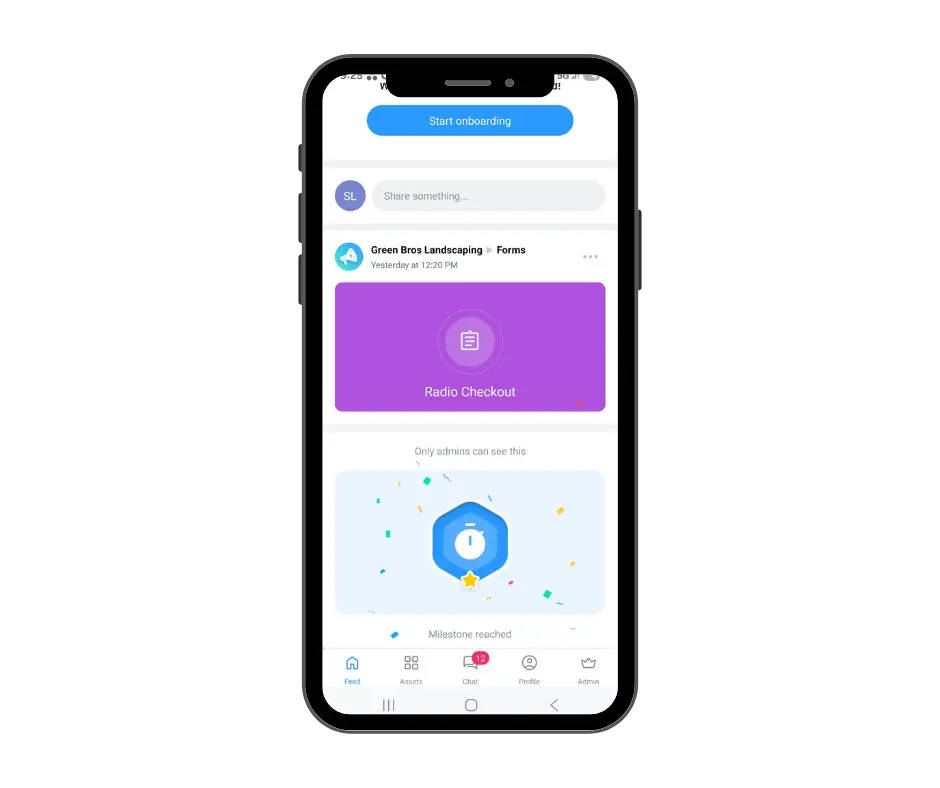
The only thing I wasn’t clear on is when employees are prompted to fill out the form. Instead of the form being presented at clock-in/out, the form is shown as a widget on the mobile dashboard.
The “Radio Checkout” form is shown as a widget on the mobile dashboard.
Timeero
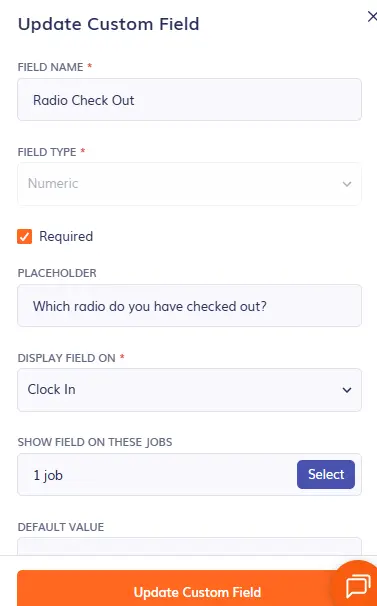
Timeero has named their Custom Forms feature “Custom Fields”. The sentiment is the same. I decided to create a custom field for Radio Checkout in Timeero.
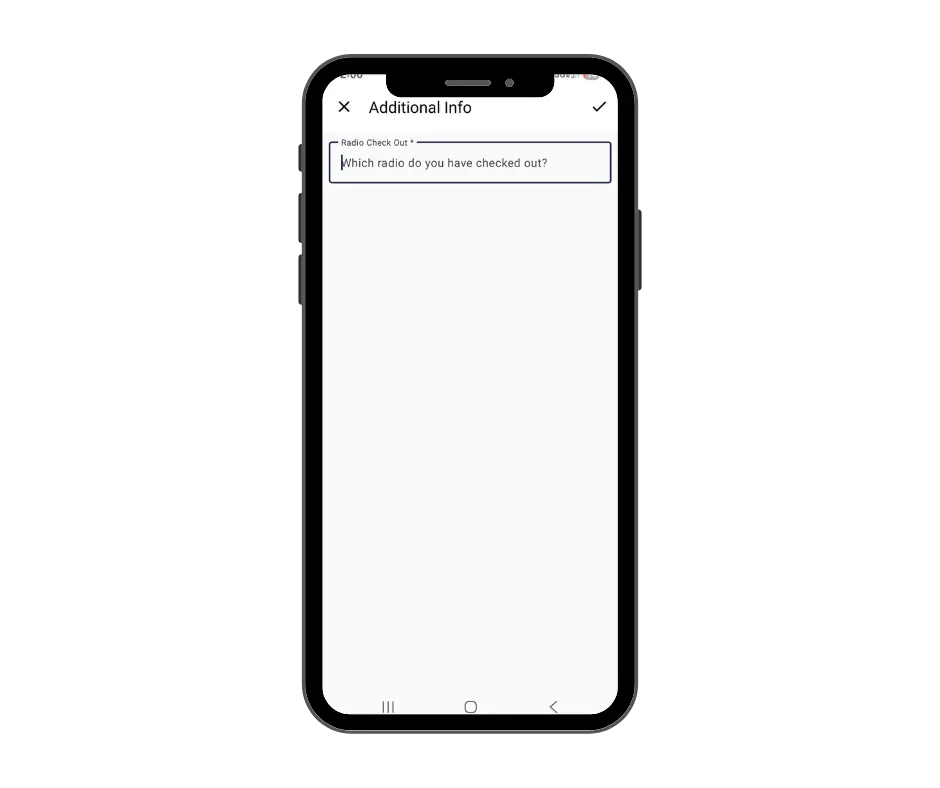
One thing that I like about Timeero’s Custom Fields is that you can select whether you want the employee to fill out the form at clock in or clock out. I want my employees to fill out the radio checkout form as soon as they clock in.
I was asked to fill out the Radio Checkout form before I was able to clock in.
Compared to Connecteam’s Custom Forms, I admit that I do favor Connecteam’s approach more. Simply because a mobile preview is given while you are creating the form. There are multiple ways to construct the form, and the options are presented in a graphically appealing way.
Timeero’s Custom Field gets the job done, but the interface is pretty basic. I do prefer the form being presented at clock in/out instead of shown as a widget on the mobile dashboard.
Break Tracking
Connecteam
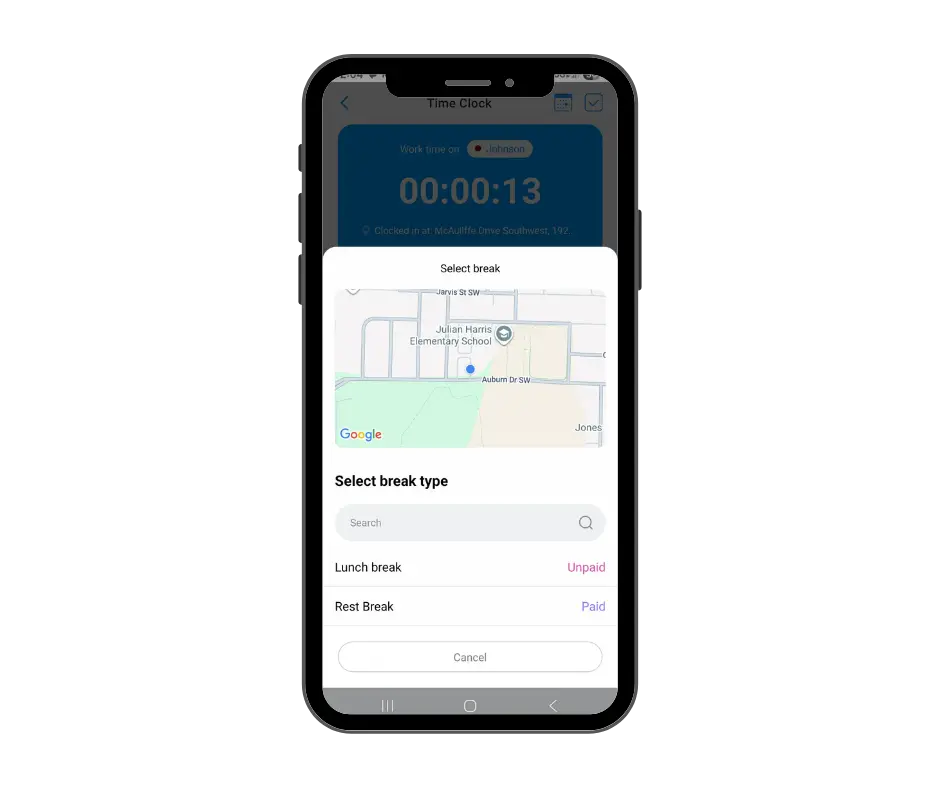
To start a break in Connecteam from the mobile app, I clicked on “start break” on the timeclock. I was prompted to choose my break type – lunch or rest. I was also shown my current GPS location.
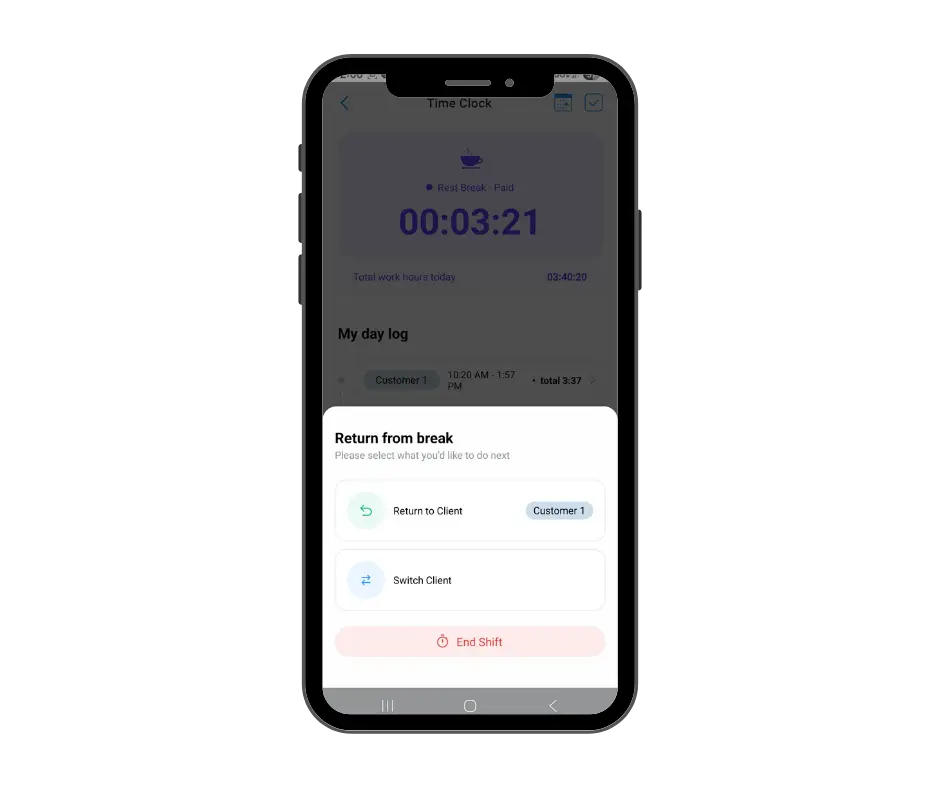
When I ended my break, I was asked if I wanted to clock back into the same job, a different job, or end my shift.
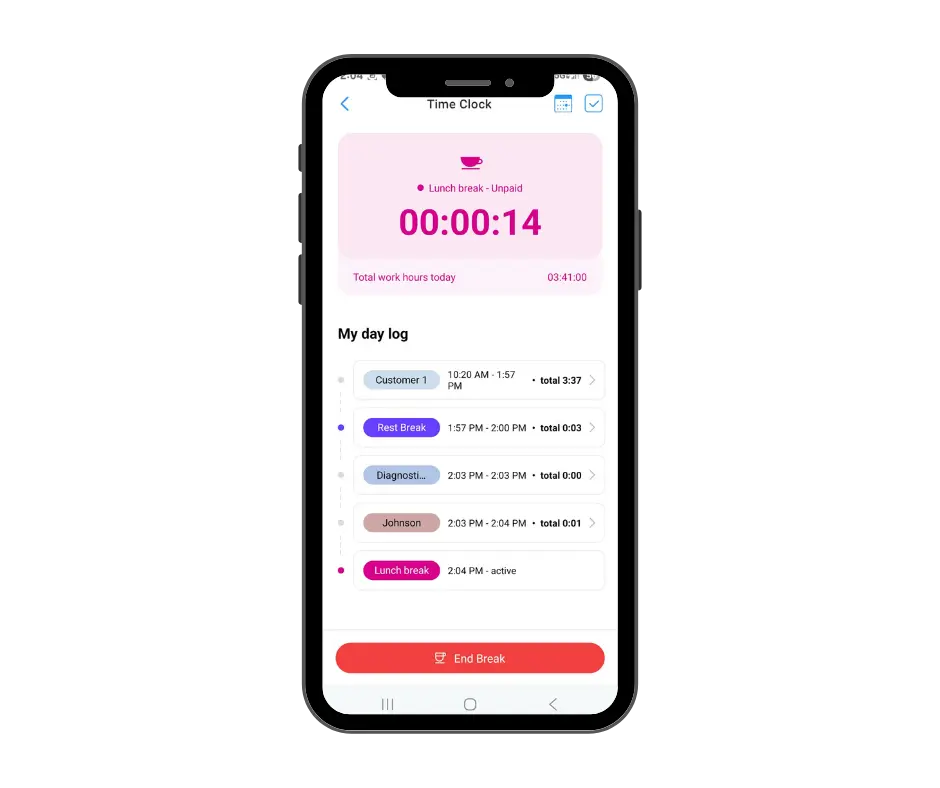
When I clicked on the time clock while I was on my break, it showed me all of my day’s activities.
I didn’t have any hiccups while starting and ending my breaks. What I did notice, was that the system notified me to take a 30 minute lunch break and 10 minute rest break, but there were no alerts on my timecard that showed me a break was missed. This is a huge deal breaker for companies that need to keep a close eye on missed breaks.
Timeero
From the employee mobile view, starting and stopping breaks was straight forward.
Admins have a few ways to view whether employees have taken their breaks or not.
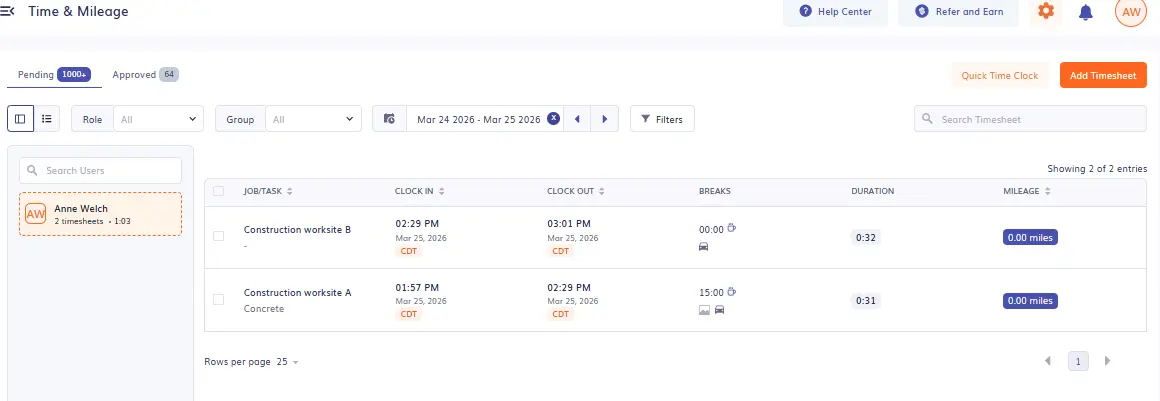
The first way is to view an employee’s time card.
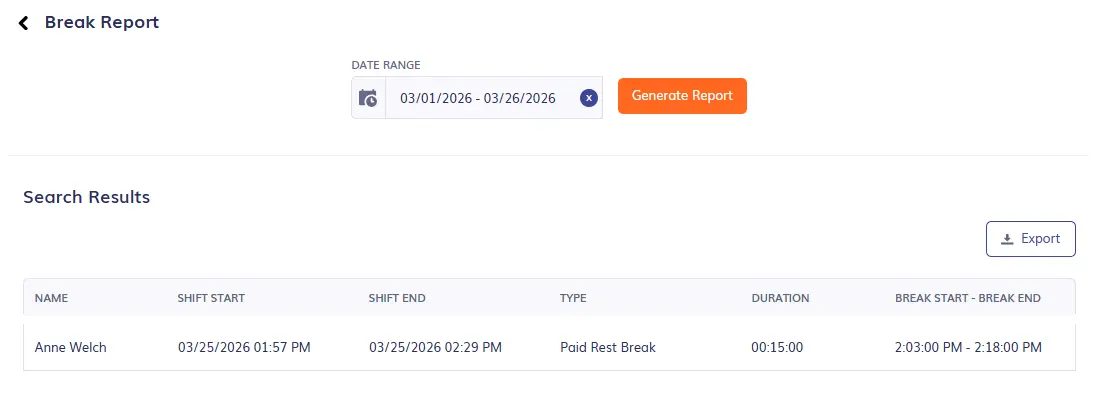
The second way is to run a break report to see which employees took a break that day.
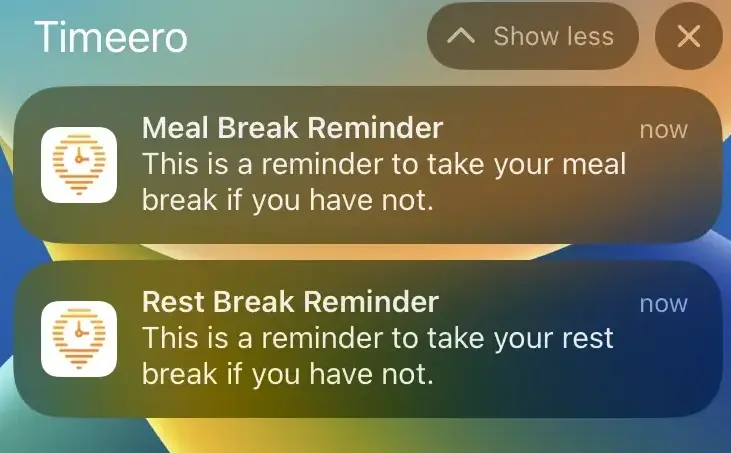
Admins can also enable break reminders, and the employee will receive a push notification on their device reminding them their break is coming up.
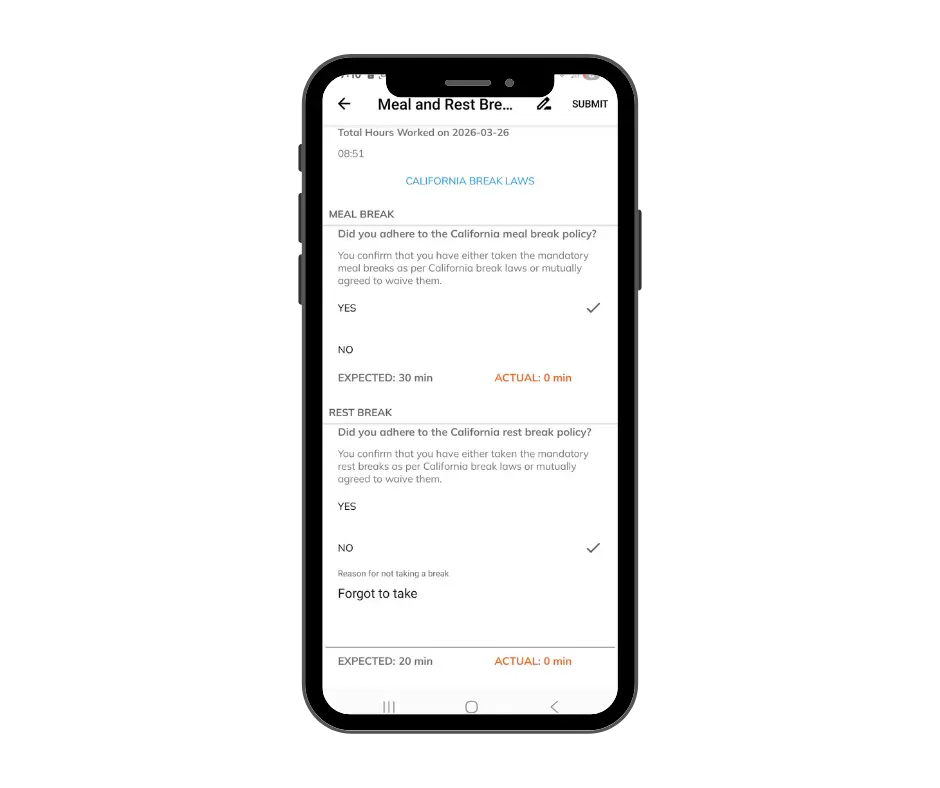
Timeero specializes in California break tracking. With this unique feature, California businesses can keep track of employee breaks and avoid noncompliance through break reminders, missed break notifications, and daily attestation forms.
Admins can assign specific employees to the California meal break rule and those employees will be presented with a daily attestation form at clock out. By adding their electronic signature to the form, this stands as a form of documentation during a lawsuit or dispute.
Employee mobile view of Daily Attestation form
Daily Sign-Off reports show whether or not an employee has taken their required breaks.
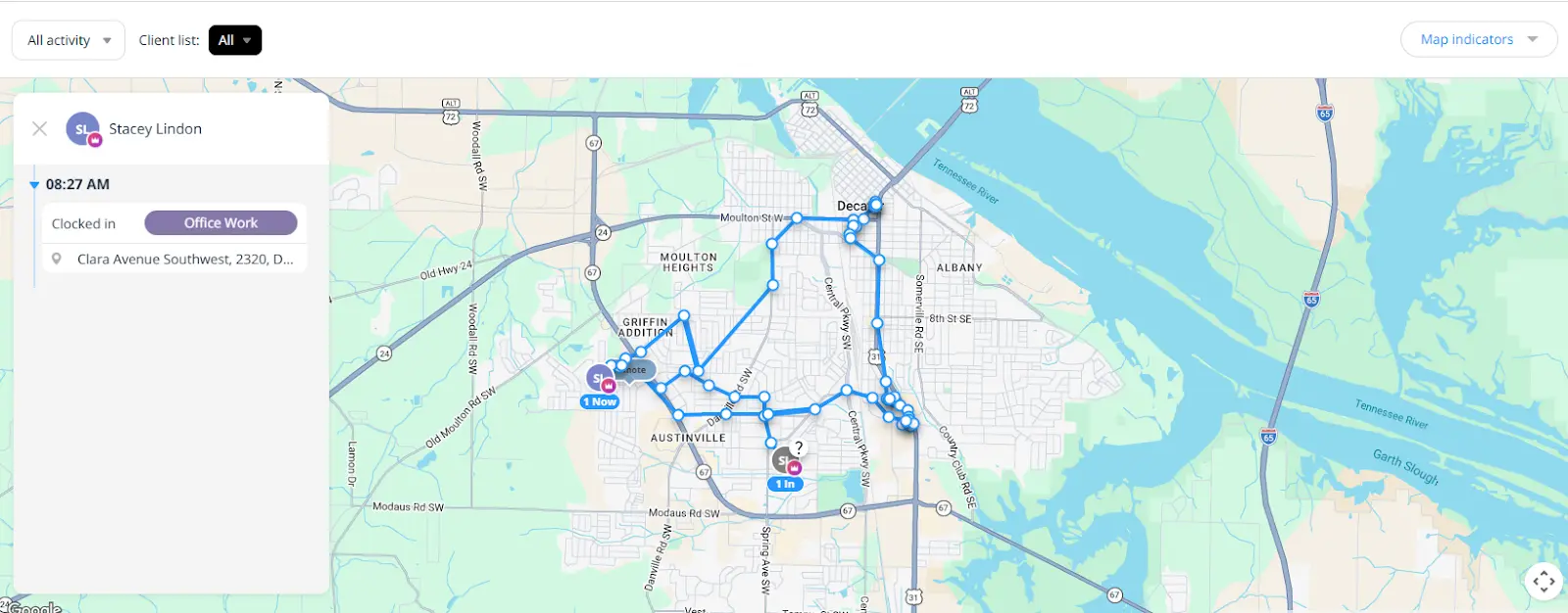
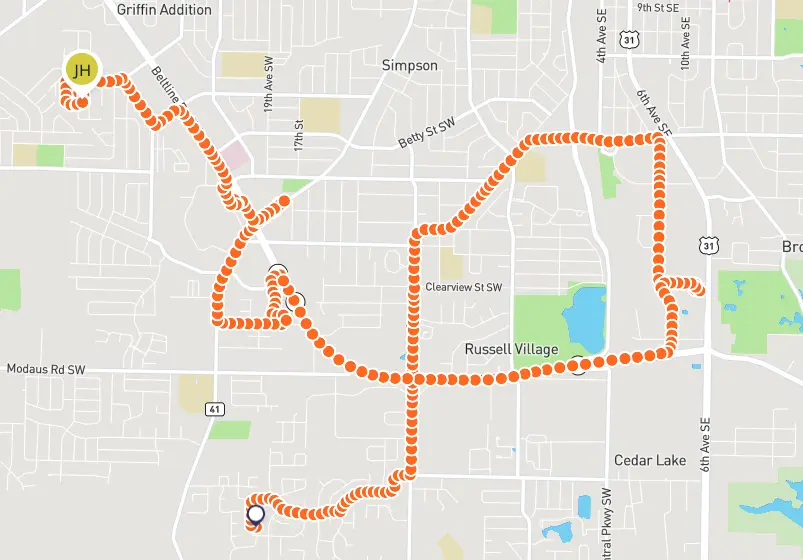
Connecteam is capable of tracking employees’ locations in real time. Every stop that I made during a 3-hour shift was shown as a pin on the route map.
Once I clocked out, the timeline on the left only showed my clock-in/out locations and not the addresses of every stop I made during the workday.
I didn’t find Connecteam’s multi-stop tracking to be super helpful in terms of visibility. If a manager wants to see exactly how long an employee spent at each location, or the exact order of each stop made, this timeline does not show that information.
The map also has an interactive route replay, but the arrows were moving all across the trail, so it was hard to follow the exact driving route.
Timeero
Similar to Connecteam, Timeero’s GPS tracking captured my starting and ending points, and also dropped breadcrumbs along my driving route. When you view employees’ timecards, if they have any recorded mileage, you will be able to see their breadcrumb trail, as well as Segmented Tracking if it is enabled on your company account.
Driving route with breadcrumbs
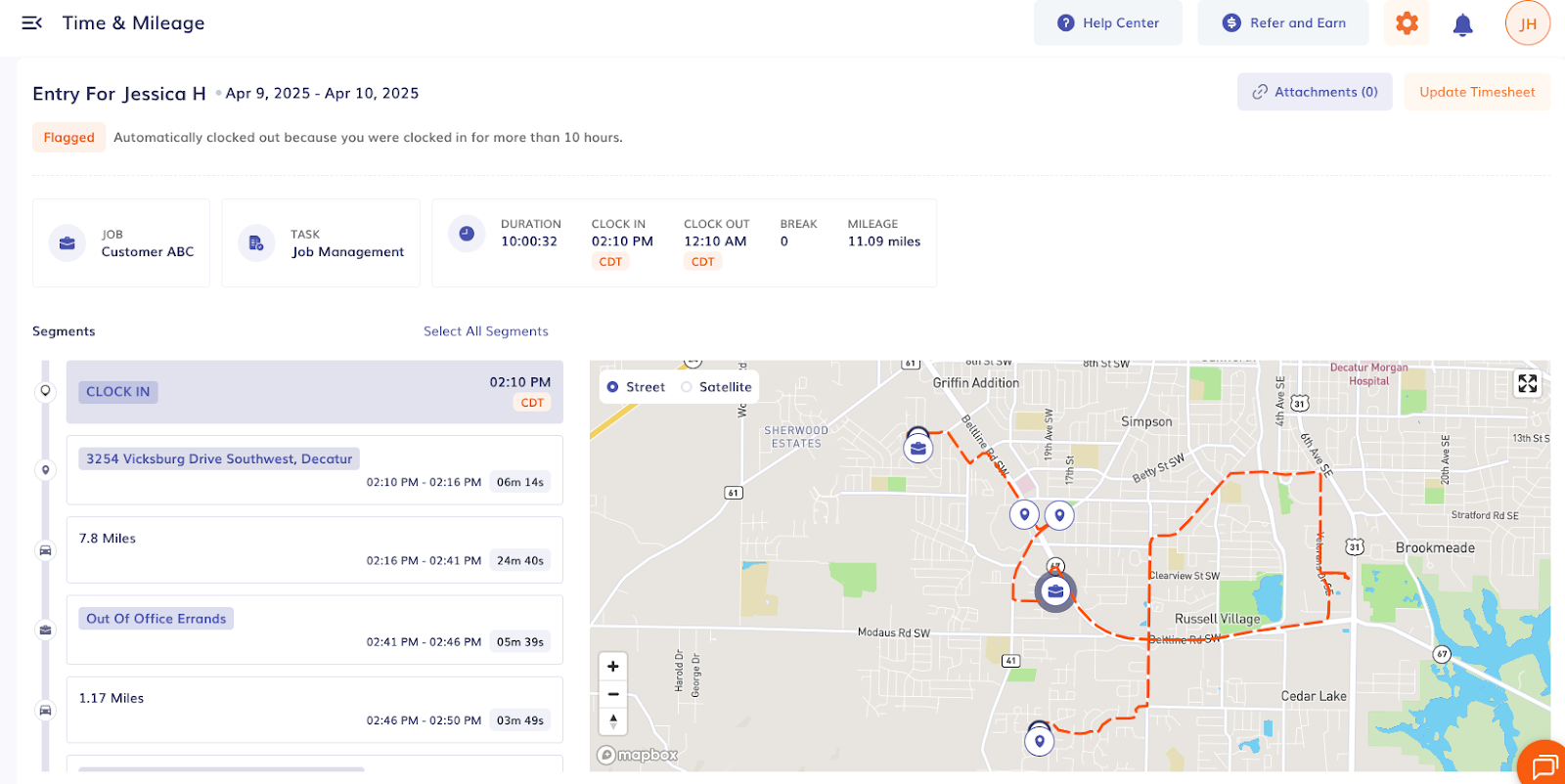
Compared to Connecteam, Timeero’s Segmented Tracking provides the address, mileage, and time that the driver was at every stop. For example, when I traveled from Vicksburg Drive and switched my job to “Out of Office Errands”, Timeero showed that I traveled 7.8 miles between each stop, and also documented how long I was at each location.
This information is great for field teams that need to know how long their crews were at each job site. Managers can use Timeero’s Segmented Tracking to spot when employees make unauthorized trips that contribute to time theft and excessive mileage claims.
Timeero’s Segmented Tracking shows the Segmented Timeline and virtual driving route.
Geofencing
Connecteam
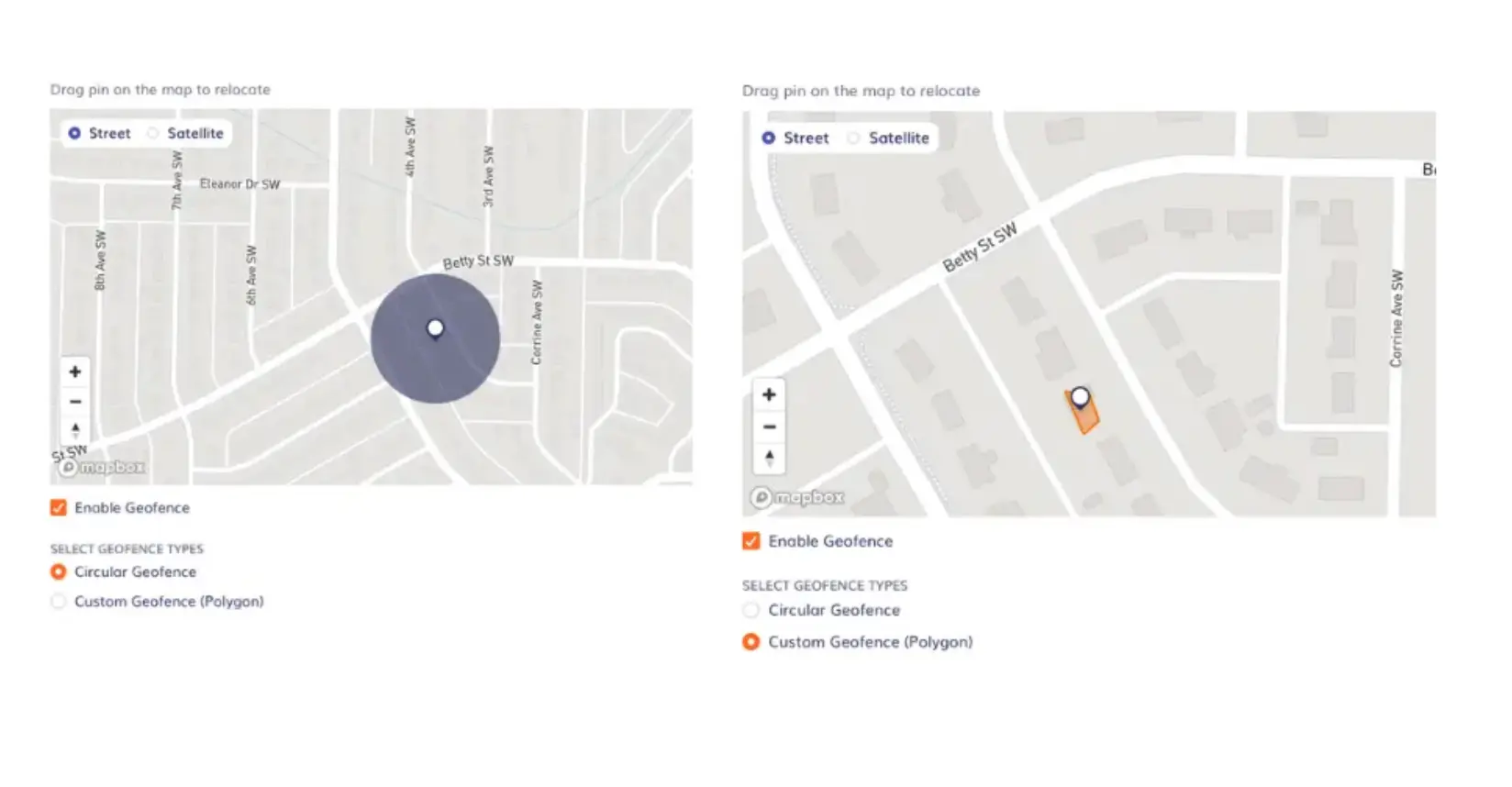
Setting up a geofence in Connecteam was simple. After entering the location address, a circular geofence was created around my location. The circle can be expanded if you need to enlarge the geofence borders.
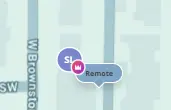
Once I clocked in at the geofenced location, my pin updated to the job site name, “Remote”.
It was easy to set up a geofence in Connecteam, but to find out where I needed to go to set up a geofence wasn’t super clear. I wouldn’t think to look in the time clock settings to find the geofencing feature.
Timeero
In Timeero, geofences are created and managed under the “Jobs and Tasks” dashboard. When you add a job, you have the ability to create a geofence around the work location.
Users can create circular geofences or draw custom geofences around properties. Circular geofences are great if your worksite covers a large amount of land. Custom geofences are perfect jobs located at specific buildings or houses.
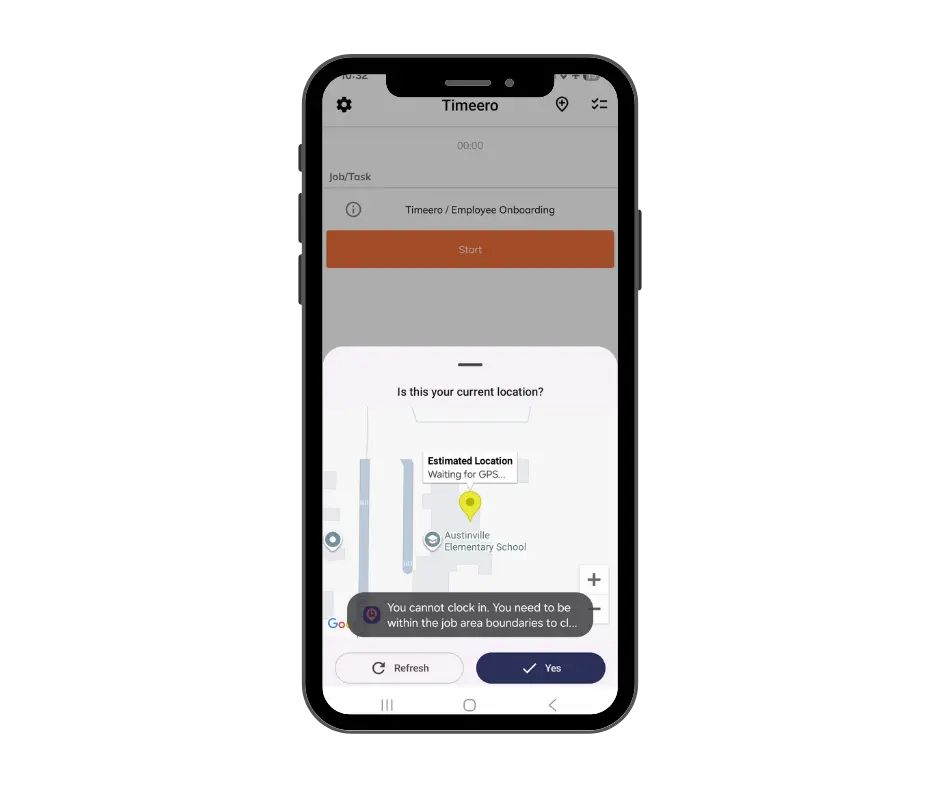
When I tried to clock in to a job that was located in Arizona, I was prompted with a push notification that said, “You can not clock in. You need to be within the job area boundaries to clock in.” The app was great at noting that my current location was not the job location, and sending me an error message.
Timesheets are flagged when an employee attempts to clock in/out outside of the geofence.
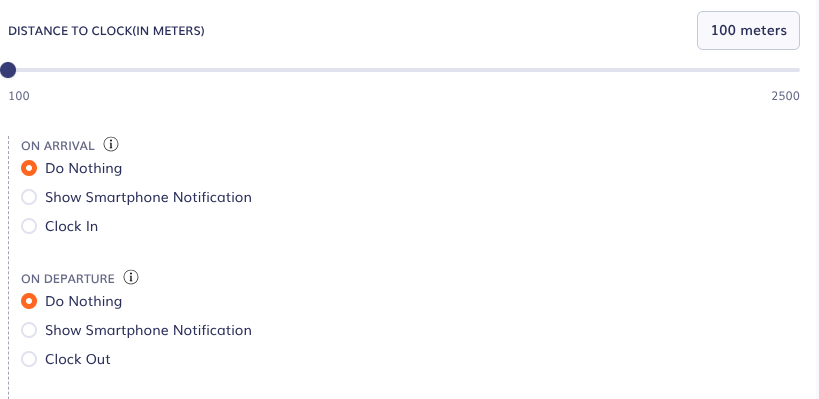
Users can also customize what happens once an employee enters or leaves the geofence. They will either receive a notification or be automatically clocked in or out upon arrival and departure.
Customize what happens when users enter and leave geofences.
Connecteam's geofence can flag where an employee clocks in, but it doesn't start the clock for them when they arrive. There's no setting that begins an employee's timer the moment they enter a job site, so employees still have to open the app and clock in manually at the start of every shift, which is the most common point where field crews lose time on a timesheet. Connecteam does have a time-based safety net that clocks a forgotten shift out automatically (noted in the scheduling test above), but that's a backstop for missed punches, not arrival-based tracking.
Timeero
Timeero's Auto Clock-In/Out starts and stops the clock based on a job's geofence, so employees don't have to remember to punch in when they arrive or out when they leave. Building on the geofence setup above, you turn on Auto Clock-In/Out in Company Settings and configure the Geofence Actions for the job. When an employee crosses into the geofence, the app records the start time after a short confirmation step; when they leave, it records the end time.
Watch the clock start and stop on its own as an employee enters and leaves a job site in the interactive demo below.
Auto Clock-In/Out depends on each employee having a Work Schedule configured. Without defined hours in Work Schedule Settings, no auto clock-ins happen. For field teams, that combination of a geofence plus a schedule is what closes the gap Connecteam leaves open: the timesheet starts when the workday starts, not when someone remembers the app exists.
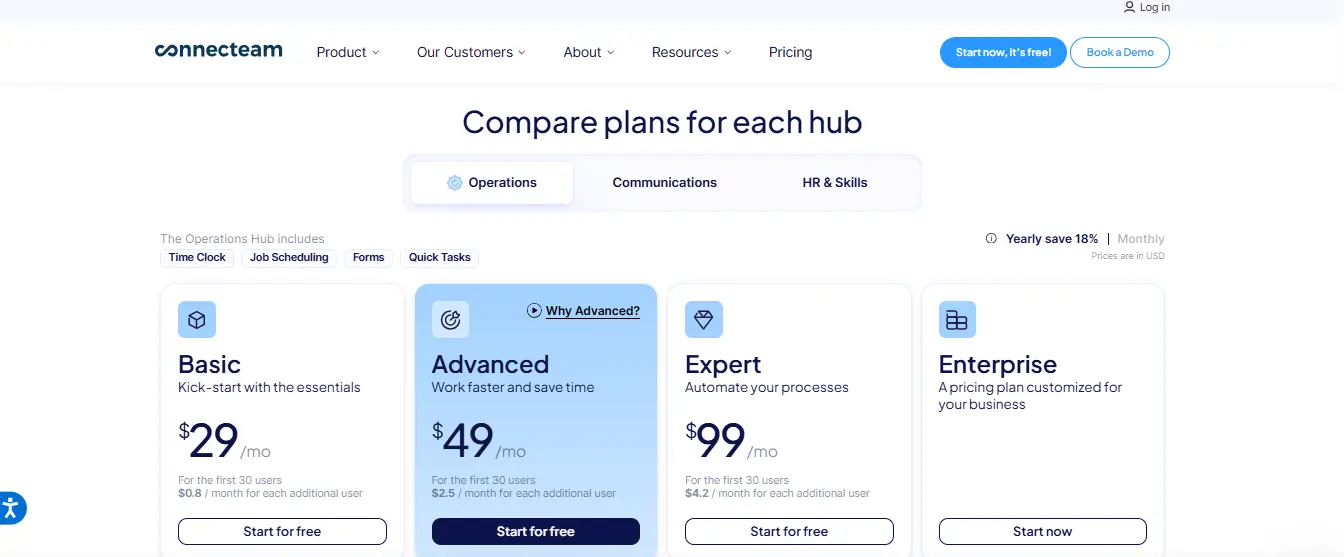
Connecteam offers customers its features within three hubs: Communications, Operations, and HR & Skills. Each of those hubs have four pricing plans – Basic, Advanced, Expert, and Enterprise.
For a field team that needs time tracking and in-app chat, the company will need to subscribe to plans within two different hubs. This means they may also be paying for features that they never use. Connecteam does say that customers can mix and match plans across different hubs, so it could be possible for businesses to have the features they need without excess costs.
Timeero
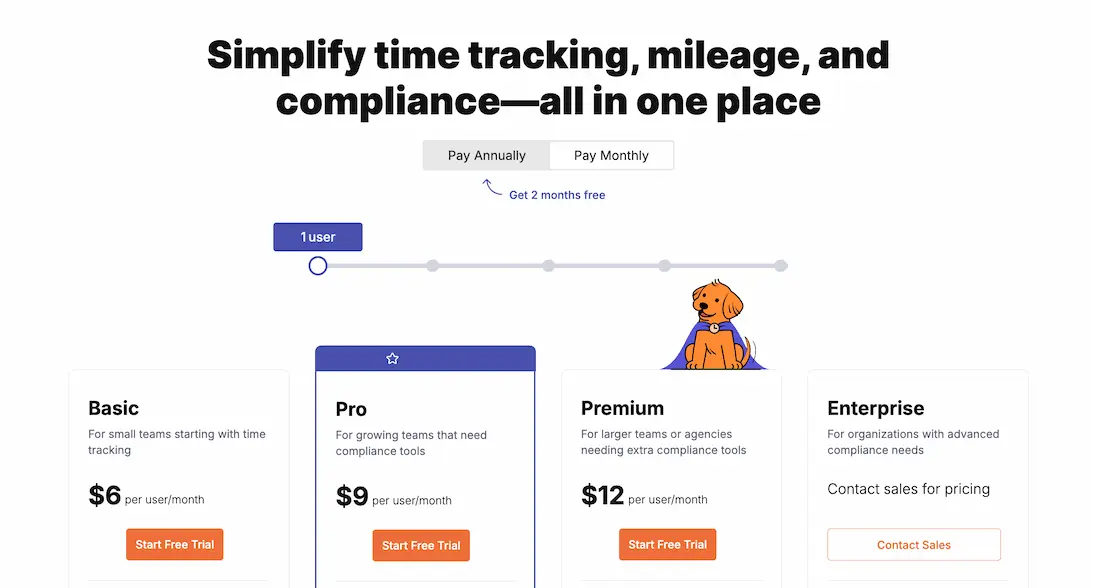
Timeero’s pricing plans are straightforward. Instead of purchasing plans under different hubs, customers choose the plan that contains the features their business needs.
What this looks like in practice
For a 10–20 person field team, it’s common to spend a few hours each week reviewing timesheets, checking mileage entries, and fixing incomplete records before payroll. Manual mileage entry can also lead to small inconsistencies that increase total reimbursement over time.
These differences don’t just affect features — they affect how much time your team spends reviewing records and how accurately mileage is reimbursed. Use the estimator below to model the impact.
Pricing comparison · interactive
What does manual mileage tracking actually cost your team?
Click to expand or collapse
20 mi
Connecteam
Timeero
Plan
Operations Advanced
≤10 geofence sites · no route tracking
Flat rate for up to 30 users · no automatic mileage tracking
Employees self-report — no GPS verification at any plan level
Automatic GPS mileage
Logged continuously — no manual input required
Mileage reimbursement / year
—
—
—
GPS-verified — accurate to the decimal
Est. reporting error / year
—
Avg 15% inaccuracy on manual mileage logs
~$0
GPS auto-tracking eliminates manual entry errors
True annual cost (software + reporting error)
—
—
—
Software cost only
Potential saving with Timeero
—
—
—
Connecteam Operations Advanced: $49/month flat for up to 30 users (annual billing) — geofencing limited to 10 sites, no route tracking, no automatic mileage tracking at any plan level. Connecteam Operations Expert: $99/month flat for up to 30 users (annual billing) — unlimited geofences and GPS route tracking included, still no automatic mileage tracking. Timeero Pro: $9/user/month monthly billing ($7.50 annual). Mileage reimbursement at the 2026 IRS standard rate of $0.725/mile over 250 working days. Reporting error estimate of 15% reflects industry research on manual mileage log inaccuracy. Actual results will vary.
Which is better for field teams: Connecteam or Timeero?
Connecteam
Timeero
Pros
Custom forms mobile preview
Intuitive in-app chat
Easy to use scheduler
Simple time clock
Free Small Business Plan (up to 10 users)
Cons
Crowded mobile dashboard and desktop
Multiple pop-ups and tutorials on the desktop
No offline tracking
Lacking automatic mileage tracking
Mix and match pricing hubs are costly
Multi-stop route tracking only captures clock in/out locations
GPS locations were not always exact
Pros
Auto Clock-In/Out prevents missed punches
Segmented Tracking
Offline tracking
Automatic mileage tracking
Clear pricing structure
Easy to navigate mobile and desktop interface
Custom geofences
GPS accuracy
Cons
In-app messaging settings must be configured before use
Custom fields interface is basic
No dedicated free plan
Segmented Tracking and Messaging are available as add-ons
Connecteam — Verdict
I was automatically signed up on the Small Business Plan where I could explore features within all of the hubs. For this scenario, I was acting as a field team administrator. I didn't find myself using the HR & Skills hub, but every day I used the Time Clock, Schedules, Chat, and Forms features.
After testing Connecteam, I would recommend choosing Connecteam if you're a company that wants a simple way to track employee hours and manage schedules. The chat feature is also a plus for teams on the go. I would not recommend it for most mobile field teams due to its lack of offline tracking and automatic mileage tracking.
Timeero — Verdict
Although Timeero's mobile interface might seem simplistic to some, I preferred the set up more than a crowded dashboard with widgets and pop ups. I would definitely recommend Timeero for field teams that are on the move. The app's offline tracking capabilities and automatic mileage tracking set it apart from Connecteam.
The app is user friendly overall, and can be understood by those that aren't tech savvy. The desktop site is also intuitive with a straightforward menu that is easy to navigate. If anything, figuring out how to enable features in the company settings might be the most difficult part.
If you're still narrowing down your shortlist, our roundup of the best clock-in clock-out apps covers how Timeero stacks up against the broader field, including tools built for desk teams, not just mobile workforces.
Your field team deserves better. Experience the Timeero difference. Try Timeero free today, no credit card required.
FAQs
Does Connecteam track mileage automatically?
No. Connecteam does not offer users automatic mileage tracking. Admins will need to create shift entries and ask employees to manually input their mileage at clock out.
Can Connecteam work offline?
No. Connecteam does not work offline. The app only works with a stable internet connection.
Is Timeero only a GPS and mileage tracker?
No. Timeero does more than track location and mileage. It is a field workforce visibility app that offers scheduling, break tracking, custom fields, and compliance tools.
What is Segmented Tracking?
Segmented Tracking is unique to Timeero. When Segmented Tracking is enabled, employees only need to clock in once at the start of their shift and once at the end of the shift and the app captures every stop made in between. The driving route is divided into segments that show the time the employee was at each stop, the mileage traveled between each stop, and the address of each stop.
Which is better for field teams: Connecteam or Timeero?
Timeero is the preferred choice for field teams looking to increase visibility, transparency, and accuracy across their workforce. Timeero’s offline tracking and automatic mileage tracking make it the top choice for field teams working in remote locations.
Your field team deserves accurate mileage and offline tracking.
Jessica is a skilled writer and proofreader with a unique flair for crafting engaging and impactful content. Her work reflects her ability to connect with clients on a personal level while successfully addressing their most pressing concerns. Jessica's professional background includes: teaching, social media marketing, and e-commerce. She resides in Alabama and loves the Golden Girls sitcom.





.webp)

%20(1).webp)


%202.svg)


.png)
.png)

.png)


